How to Block Ads on All Devices with NextDNS
In this guide, I show you how to blocks ads, trackers and scam websites at the DNS level across all of your devices for free using NextDNS.
The service I recommend using is called NextDNS, which is a simple DNS management service which has community built block-lists which you can switch on to block ads, trackers, popups, phishing websites and more at the DNS level.
On any device such as a phone or computer or Android TV, you simply set the DNS to the NextDNS server with the block-list, and all of those will be blocked automatically.
NextDNS is free up to 300,000 DNS queries, which in the 5+ years of using it, I have not once gone over that for all of my device or come even close.
An alternative to NextDNS would be hosting a Pi-Hole, which is basically a self-hosted version of NextDNS on your own WiFi network with an always on computer like a Raspberry Pi, then connecting to your WiFi always via TailScale or a similar solution to use that network. In my opinion, I like the ease of NextDNS especially since you can pair it with a regular VPN to change your country or location and still have NextDNS do all of the blocking you customized. With Pi-Hole, you can really only choose one and have a lot less mobility in freedom in that regards, so I lean towards the simplicity of NextDNS.
To get setup on NextDNS, you basically just go to their website, create a free account, then start adding your block-lists. I recommend using a privacy email address rather than your real one, such as a SimpleLogin generated one that comes with Proton, or with Apple Relay if you're on iPhone. That way you don't really have to tie your personal identifiable data with the NextDNS account as an extra layer of protection.
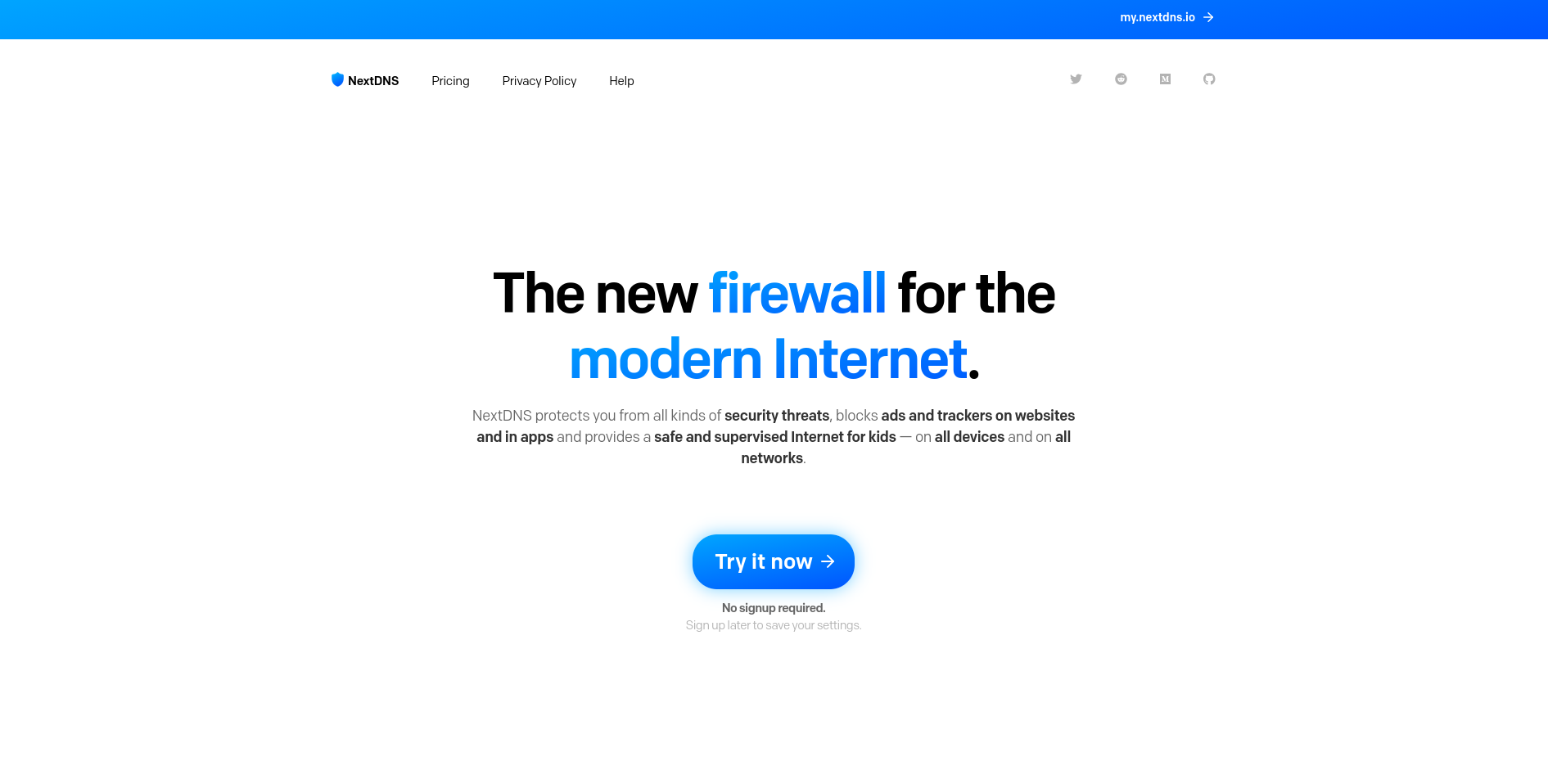
So just got to the NextDNS Homepage, click on Try It Now. This will create a temporary 7-day account you can tinker around with and try out before actually creating an account with an email. If you decide to create an account with an email after trying it out, it will save all the settings you setup.
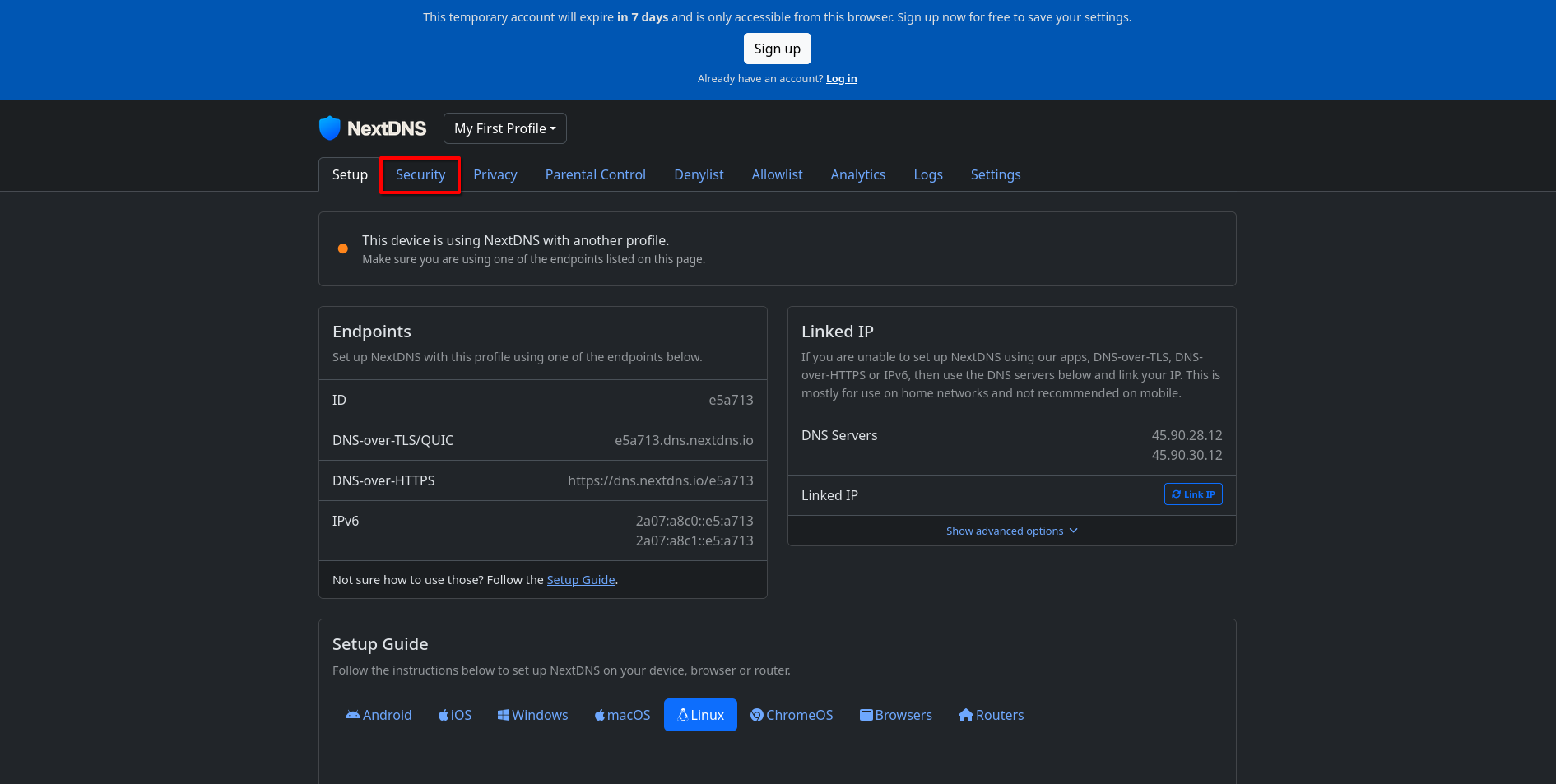
Once you have a temporary account or sign-up to have your account always be there, you will be met with a screen with all of the DNS data you need. Before we connect NextDNS to all of your devices, I recommend setting all of the block-lists you prefer first. So let's click on Security from the top menu to set some of these.
Once there, they will have a default list of block-lists checked which I recommend leaving on. Addition once you can turn on are:
- AI-Driven Threat Detection
- Newly Registered Domains
- Newly Active Domains
- Free Hosting Domains
- Dynamic DNS Hostnames
- Tunneling Endpoints
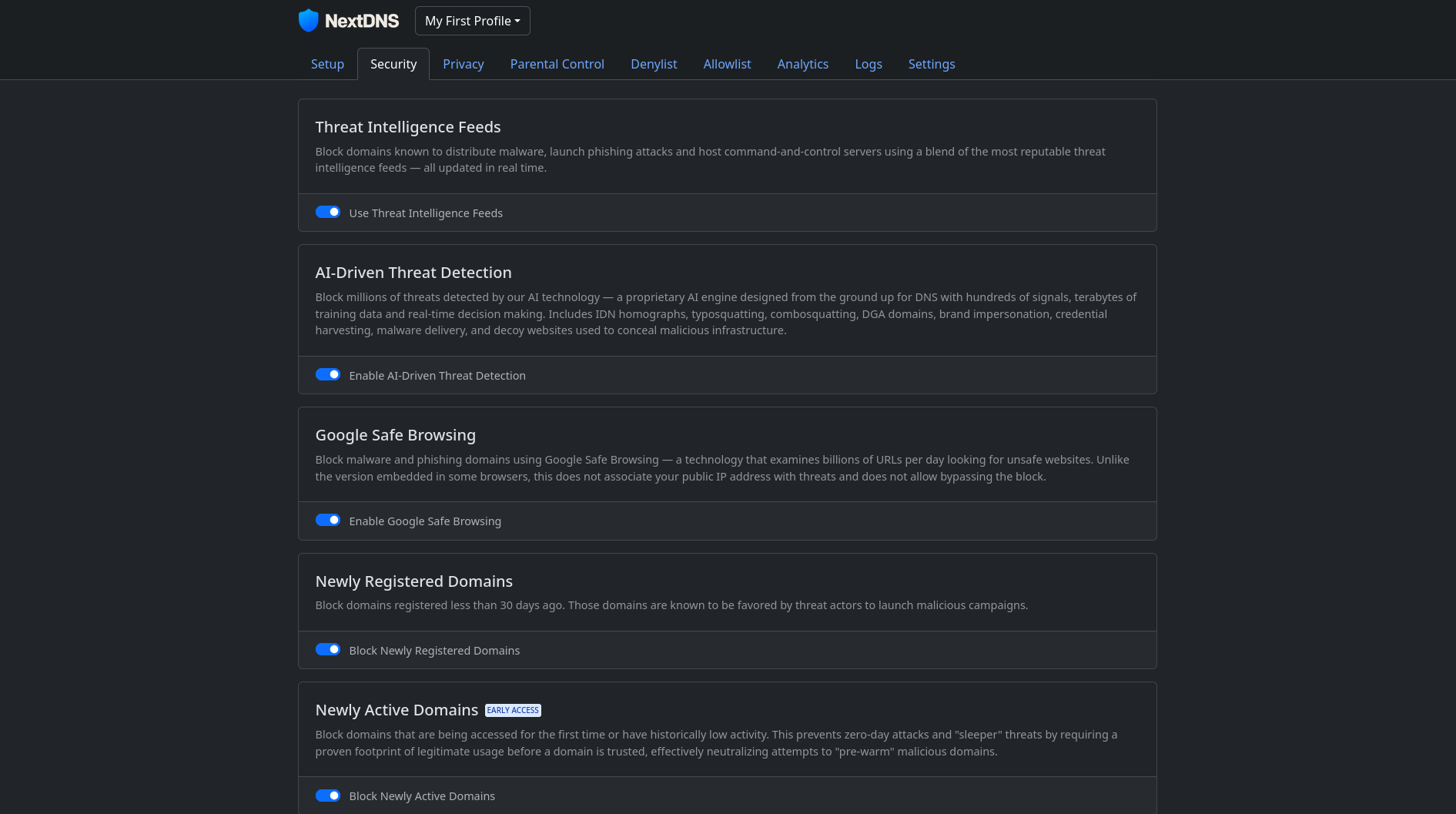
Checking all of these off will protect you substantially from phishing websites, scam websites, malware distributing websites and more.
Next, let's go ahead and click on Privacy to select tons of block-lists of trackers and ads which we will block at the DNS level before it they even have a chance to load on your devices. This will save a lot of data and battery life for devices once we set this as they will not be phoning to all these different tracker websites or loading tons of ads which takes a lot of data and download power which drains the battery on your devices quickly and slows them down.
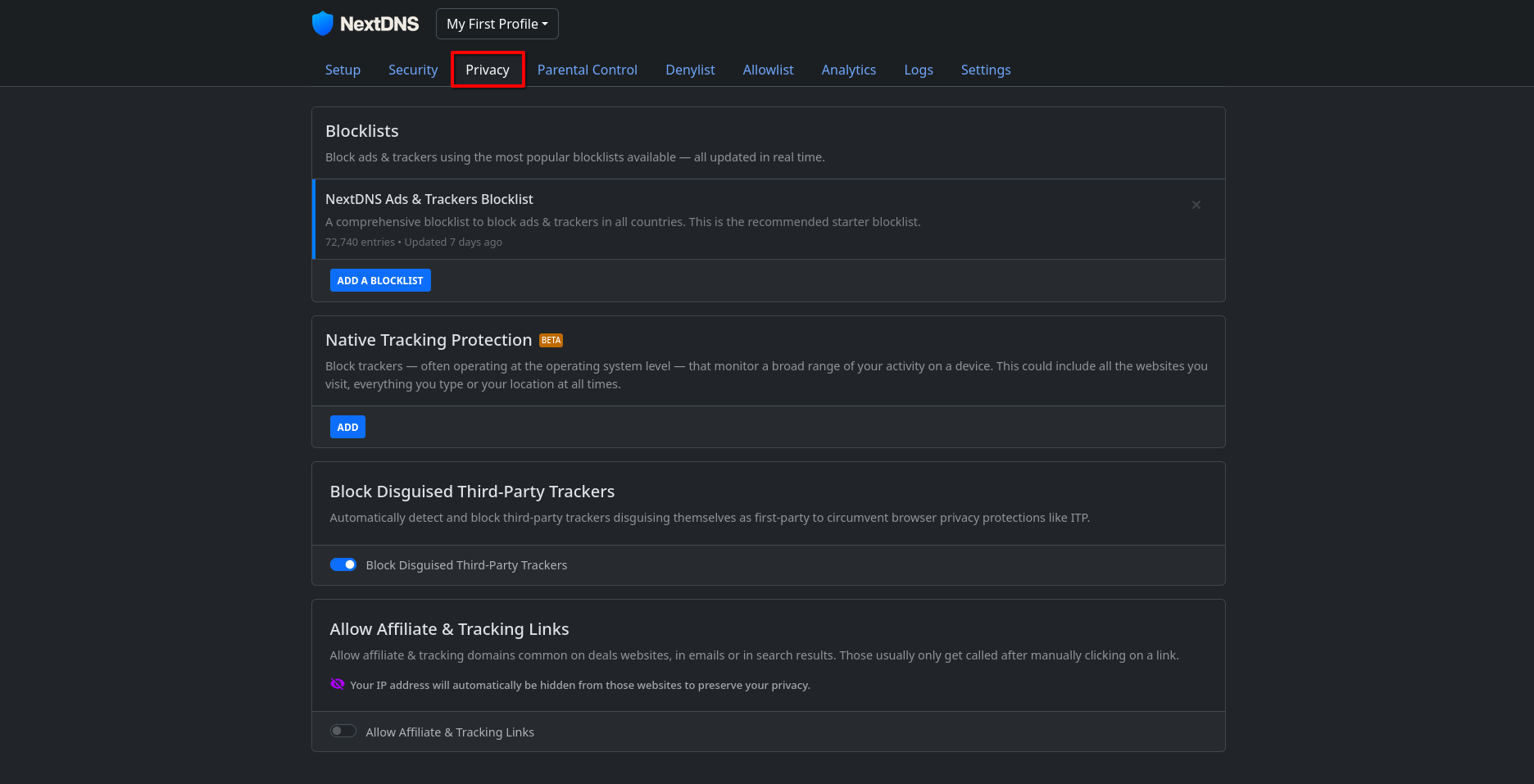
So this Privacy section of NextDNS is where we are going to select blocking a whole sleuth of ads and trackers at the DNS level. Go ahead and click on ADD BLOCKLIST to start selecting the best block-lists.
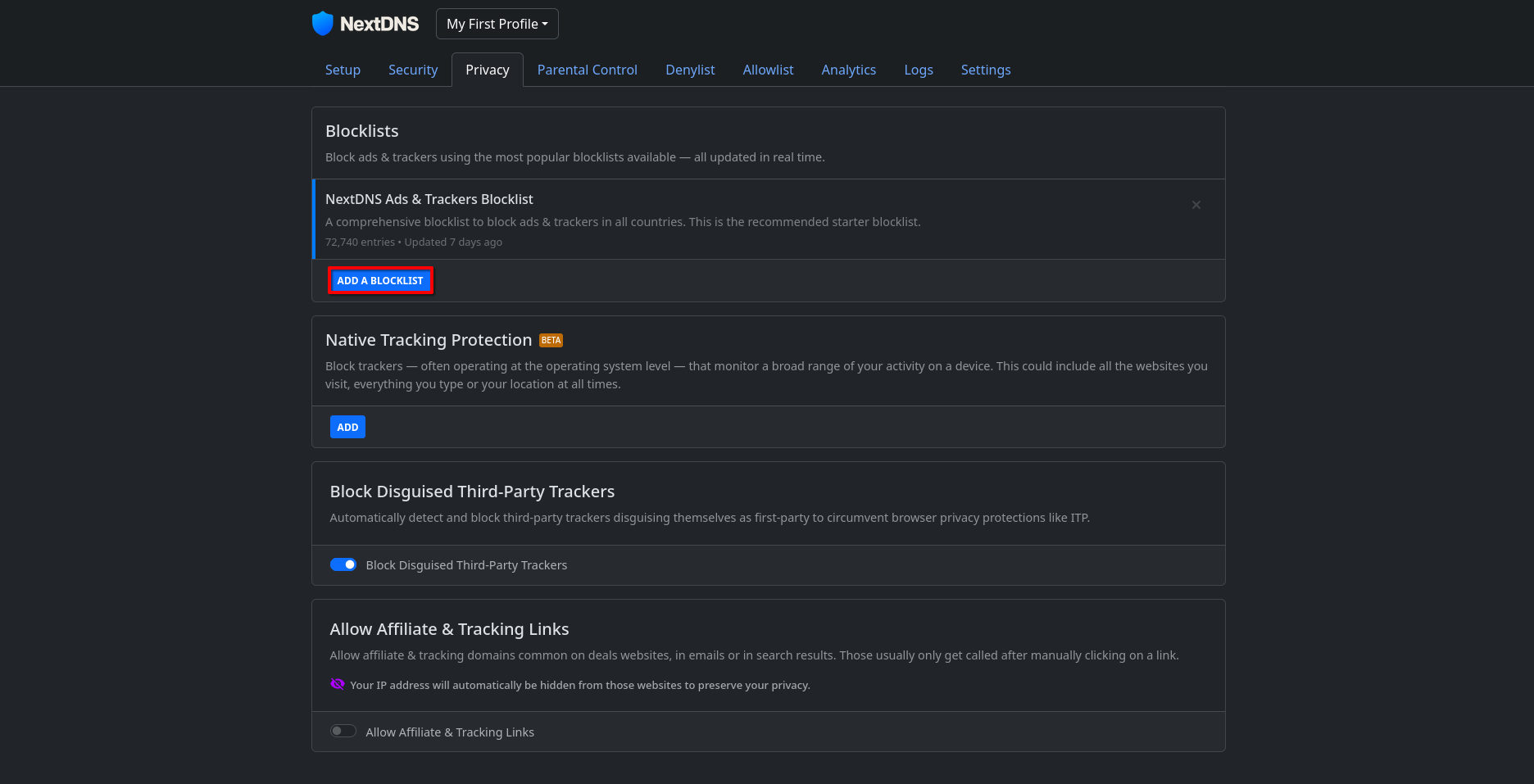
I recommend clicking on ADD to all of these block-lists below to get the most out of NextDNS. A lot of these community lists are updated often and keep blocking new ads and trackers that major companies use to track you across the web. This blocks the trackers at the DNS level meaning your device never has to load or ping these random data-harvesting tracker sites - so you use a substantially less amount of data and battery daily.
Make sure the add the following block-lists:
- NextDNS Ads & Trackers Blocklist
- AdGuard DNS filter
- OISD
- AdGuard Mobile Ads Filter
- EasyList
- AdGuard Tracking Protection Filter
- Goodbye Ads
- Steven Black
- AdGuard Bsae Filter
- HaGeZi - Multi PRO++
- HaGeZi - Multi PRO
- notracking
- Fanboy's Annoyance List
- NSABlocklist
- AdAway
- Disconnect (Ads)
- HaGeZi - Multi NORMAL
- AdGuard Social Media Filter
- someonewhocares.org (Dan Pollock)
- HaGeZi - Multi ULTIMATE
- Lightswitch05 - Ads & Tracking
- NoTrack Tracker Blocklist
- Peter Lowe
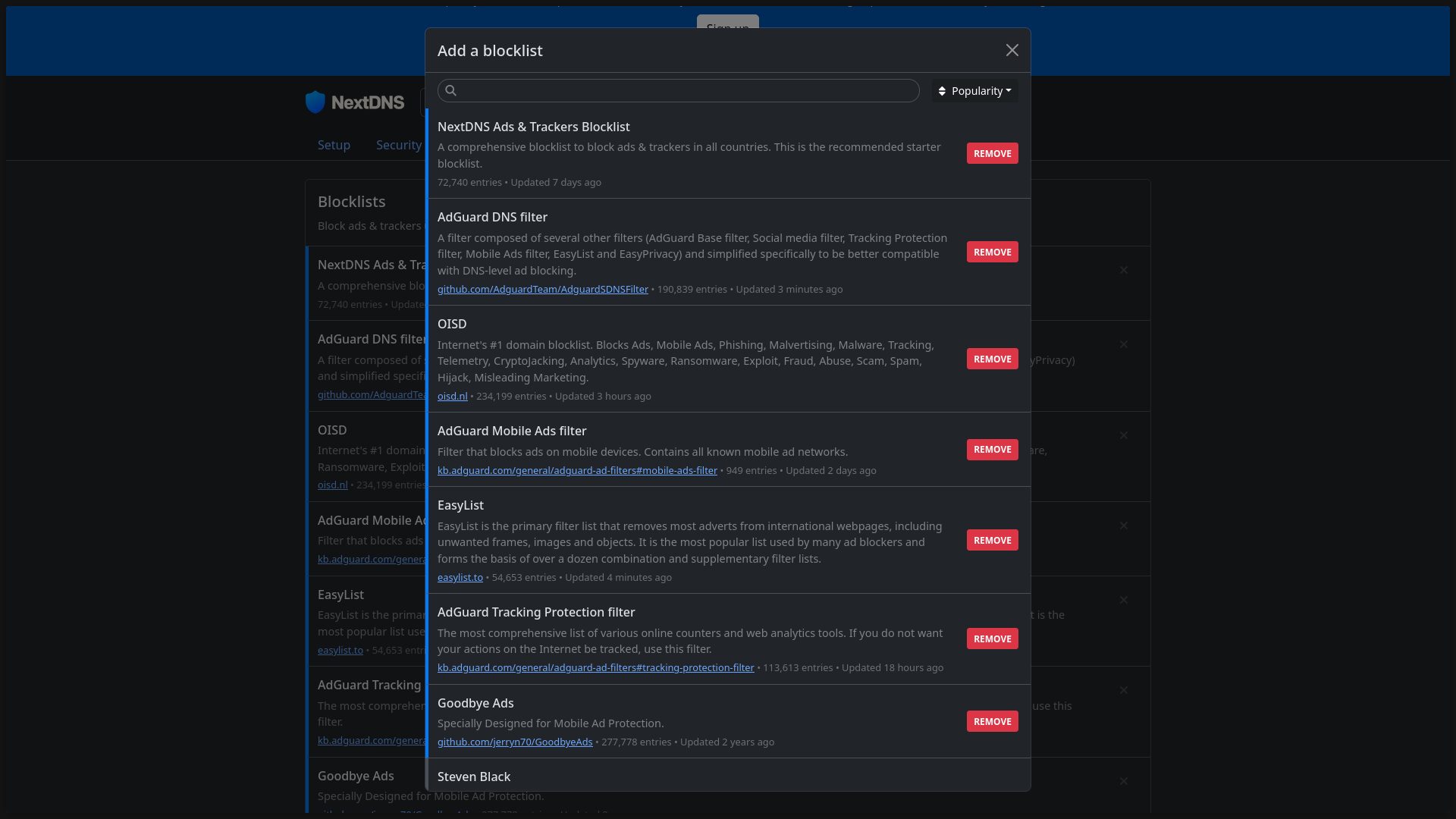
This should give you an amazing base for blocking an insane amount of ads and trackers across the internet on all of your devices connected to NextDNS.
Next let's go over to the Parental Control section in NextDNS.
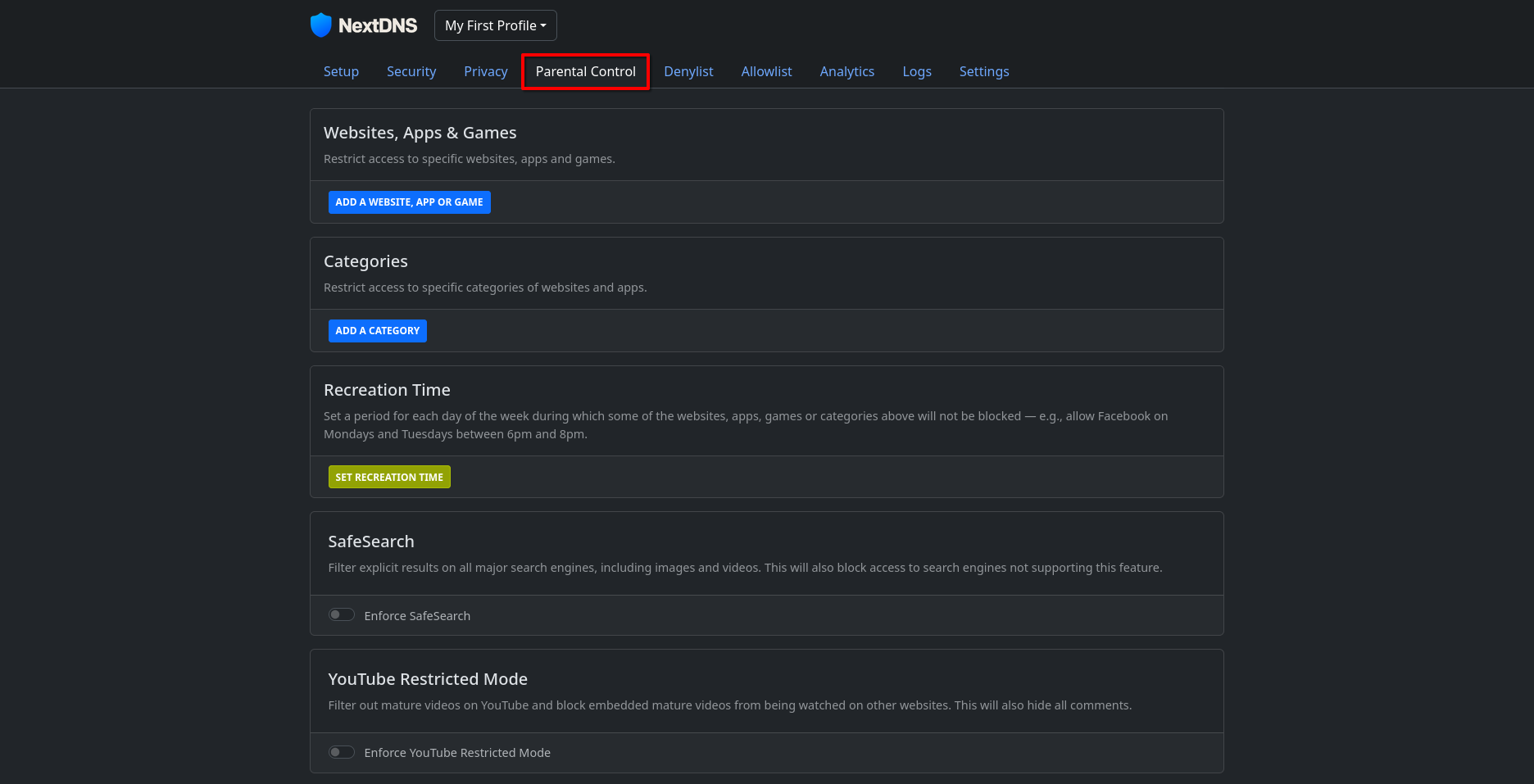
This section is great for parental control or if you just want to block yourself from addicting apps or websties.
Anything selected in this section will make sure the device connected to NextDNS cannot access the chosen websites, apps or games. You can additionally block entire categories of websites or apps as well to have an all encompasing list that automatically blocks all sites in that category without you having to manually enter a long list of sites.
You can also setup recreational time in this section, so for example, you could block all social media apps Monday - Friday, then allow access during the weekends, or even a specific time-frame. This is great for managing your own online addiction or using this as a parent.
There is also a SafeSearch option to block any mature content from search, and also YouTube Restricted Mode to block mature content from YouTube along with YouTube Comments at the DNS level that never loads within the app or website on the devices connected to NextDNS.
Next, you can go to the section called Denylist to add in additional websites or domains you want to block access to at the DNS level.
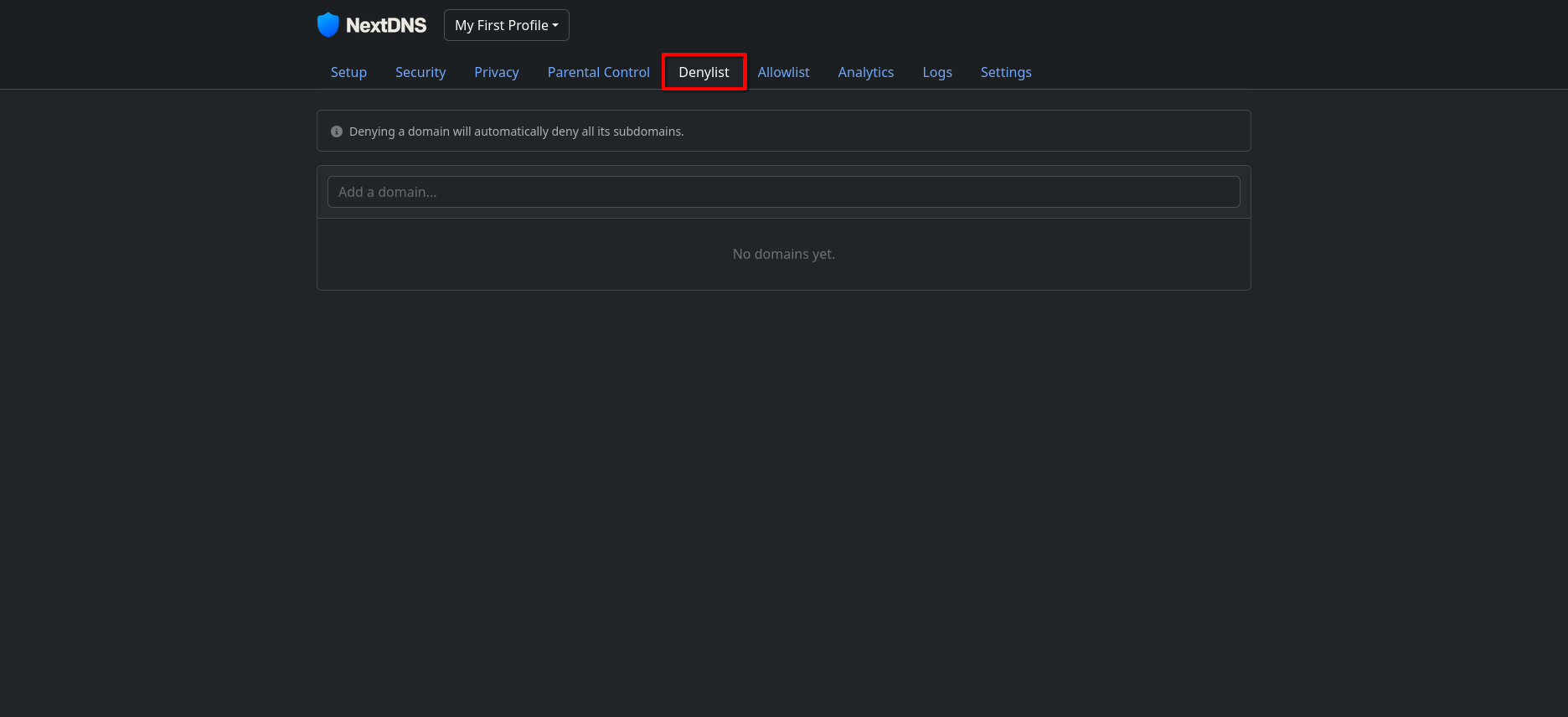
Here just type in any URL of any website you wish to block, or allow access to.
Additionally, there is a section also called Allowlist, so if a site is blocked by NextDNS you need access to, you can simply just add it to the Allowlist so that you can access the website from the device connected to NextDNS.
Also, there is an Analytics tab in NextDNS to see the numbers of all the ads or trackers you managed to block.
There is also a Logs section, where you can either turn on or off logging of sites visited and blocked, the storage location of that data, or, just turn it off entirely. The Logs can be useful if a site is not loading and you want to see which domain block is not allowing access to that website, then adding that blocked URL to the Allowlist with one-click. But if you just want to turn it off entirely you can just turn off logs entirely with one-click.
Ok so now, we have setup all of our block-lists properly, we can now go ahead and connect your devices to NextDNS.
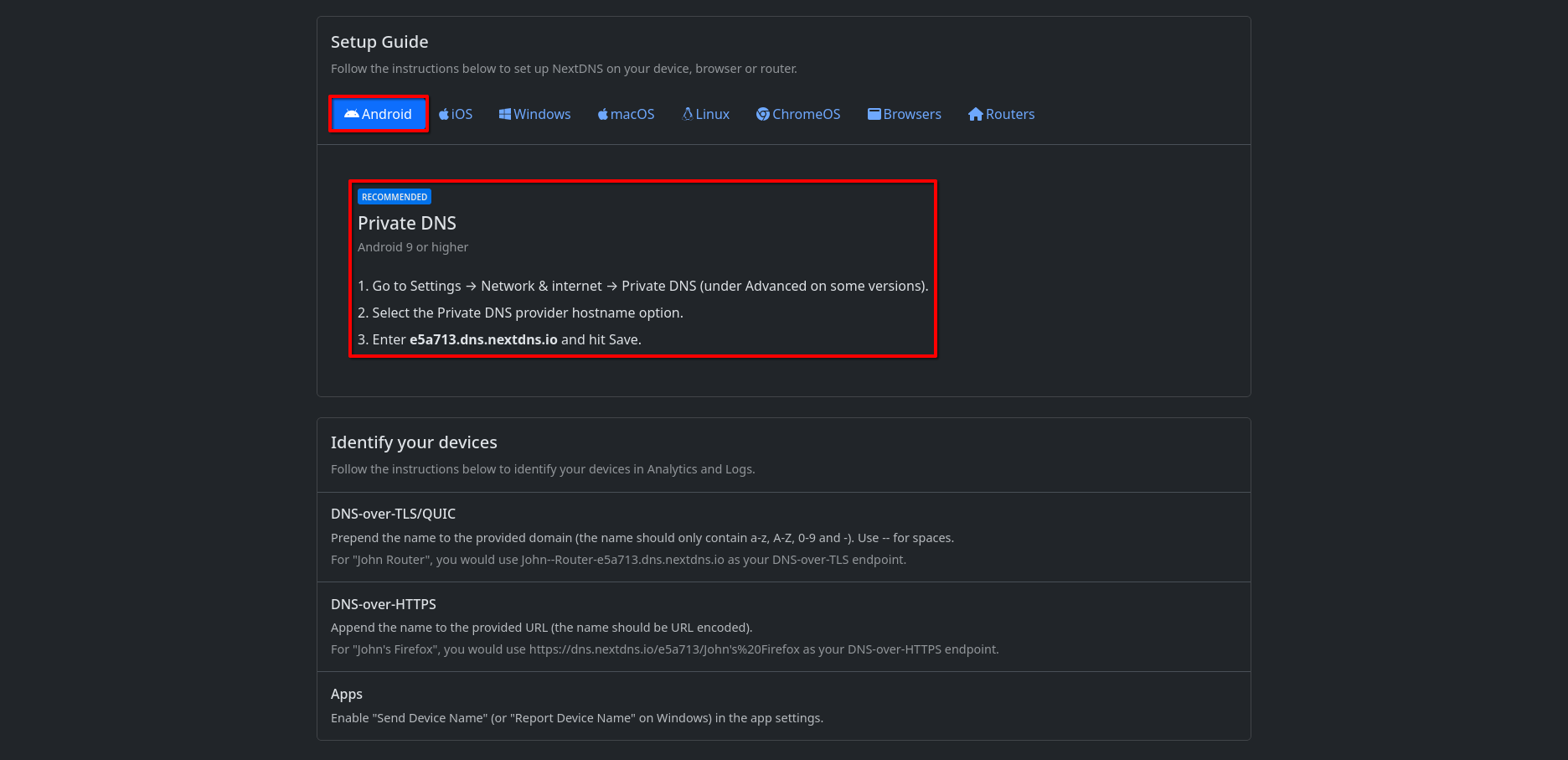
NextDNS makes it super easy and clear how to connect it to each of your devices. From the homescreen of NextDNS, click on the Setup tab. Once there you will see an option below to select the device you want to setup. When you click on the device, it will provide you the recommended option and how to set it up step-by-step.
Here is the setup example for Android if you wanted to connect NextDNS to your Android phone:
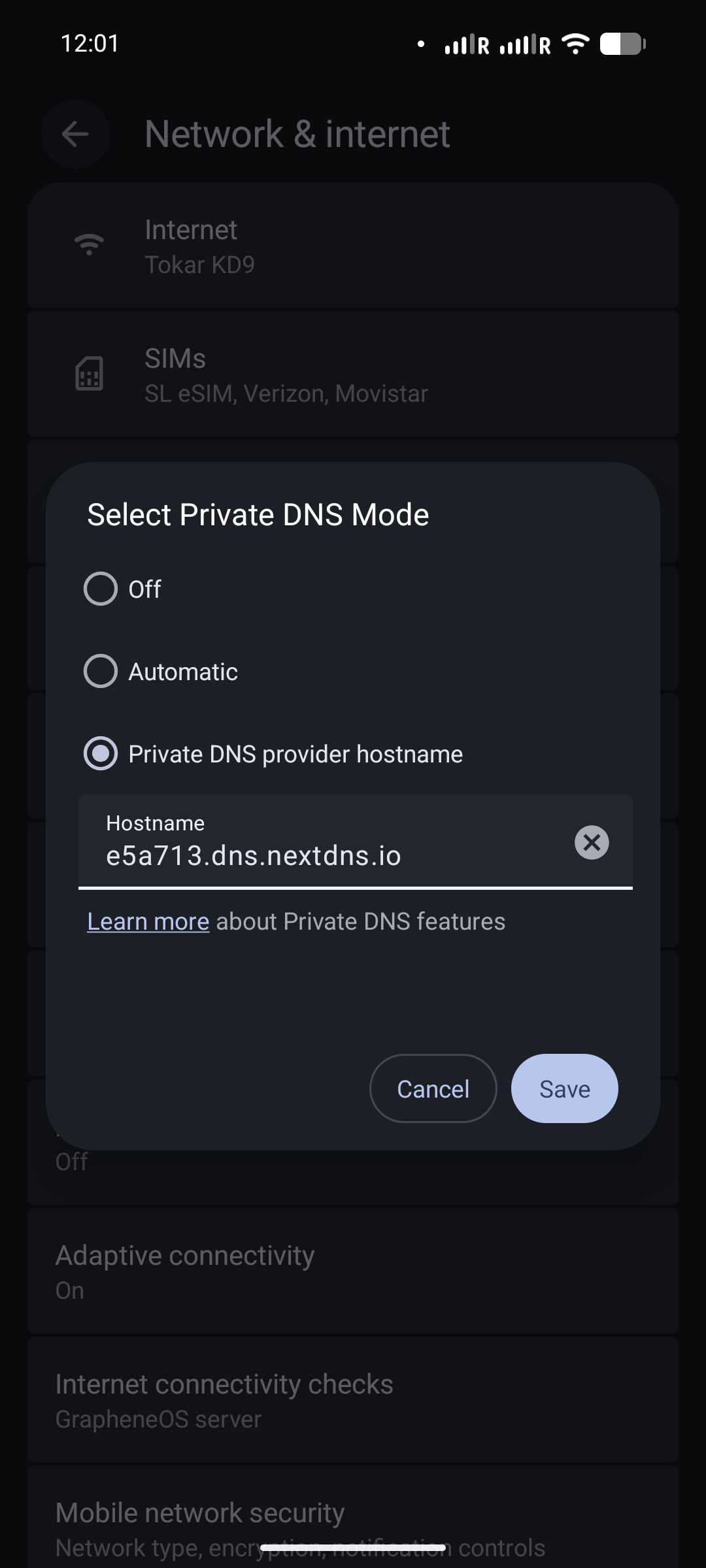
And that's it! Just follow the Setup Guide for each device you want to connect to your NextDNS block-list, and you will be blocking ads and trackers and phishing sites like there's no tomorrow!