How to Self-Host Jellyfin on a VPS
In this guide, I'm going to show you the simplest way to self-host your own Jellyfin instance on a cheap VPS (virtual private server).
If you want to self-host locally on your own hardware, I would recommend using this Beelink MINI S12 Pro Mini PC with an Intel N100 Processor and 16GB of RAM for self-hosting Jellyfin. This guide will be the same instructions if you follow along on your own hardware running Debian 12 Linux Operating System.
Jellyfin is a free and open-source media management software that helps you stream or download your own personal media library of movies, tv shows and music from anywhere in the world. It basiclly becomes your own personal Netflix and Spotify in a single well-designed open-source app, you just have to load in your own media files that you own for movies, tv shows and music.
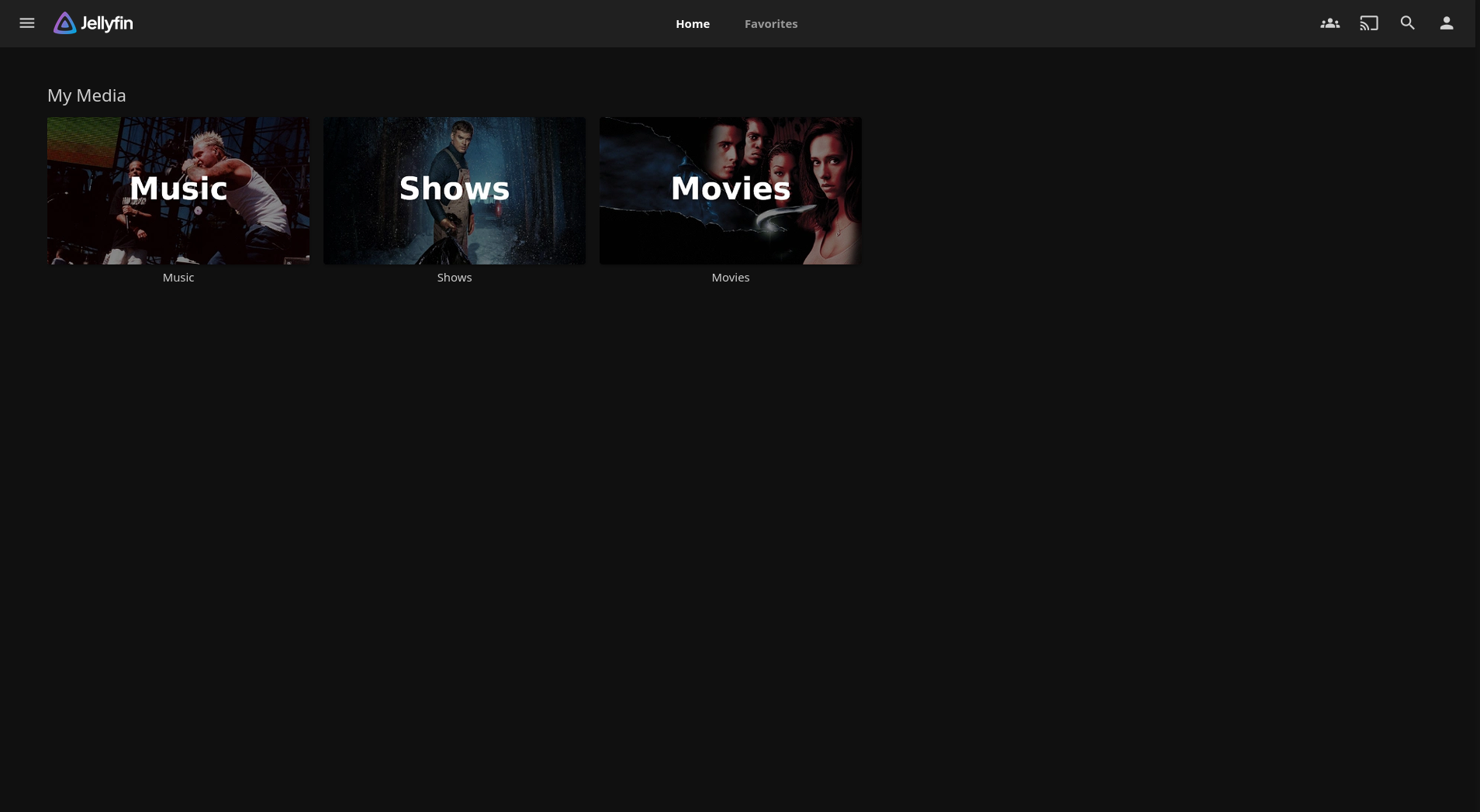 Jellyfin with Media Libraries Setup
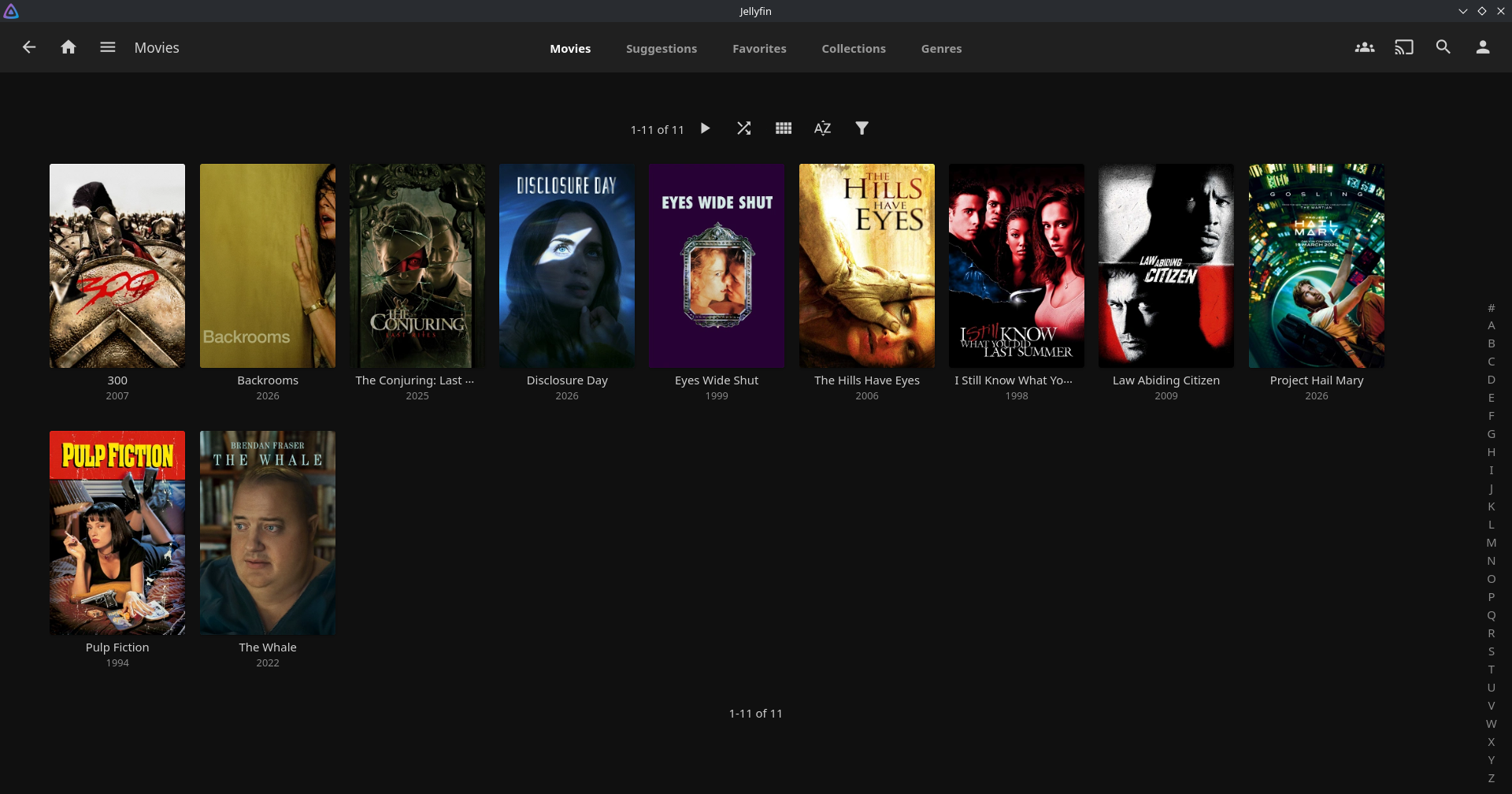 Jellyfin Movies Library Sample
A VPS is a virtual private server, or in other words, a computer that is always-on and connected to high-speed internet. We can install an open-source operating system, such as Debian, onto the VPS remotely. Once we have the VPS setup with Debian we can then install our Jellyfin instance onto it easily.
Additionally, you can connect your Jellyfin VPS to a personal domain name to make accessing it from anywhere easier. For example, you can purchase a cheap domain such as johnsmith.cloud, and when you go to the website URL johnsmith.cloud/jellyfin, it will load your Jellyfin instance where you can securely login to stream all of your movies, tv shows and music.
You can simply connect your Jellyfin instance to all of your devices such as your phone, tablet or computer. Jellyfin works with any phone OS such as iOS or Android - so you can simply install the Jellyfin app to easily stream or download any of your media.
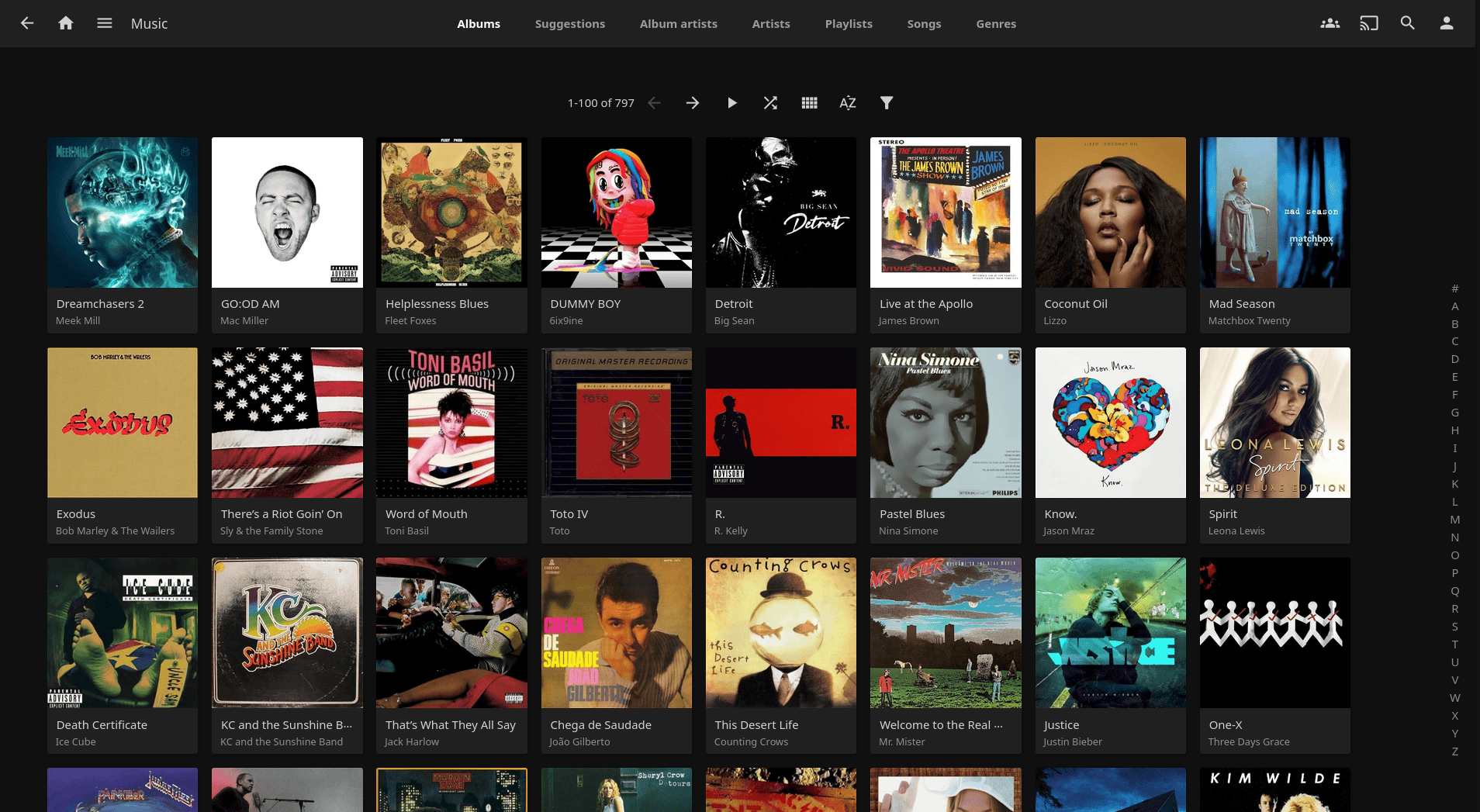 Jellyfin Music Library Sample
To make loading your personal movies, tv shows and music into Jellyfin much easier, in this guide, I will show you how to first install Nextcloud on your VPS so you can simply drag and drop movies, tv shows and music files directly into Nextcloud folders on your VPS which Jellyfin will read. This way, we can simply add files to Jellyfin from any device by dropping it into a Nextcloud folder labeled for MOVIES, TV SHOWS or MUSIC.
Once we have both Nextcloud and Jellyfin setup and tied to your domain name, you can simply connect to for example johnsmith.cloud/nextcloud to drop in your media files into the folders whenever you want to add something new to Jellyfin, then on any device just connect to your Jellyfin server for example at johnsmith.cloud/jellyfin through the Jellyfin app on any device to stream your personal media.
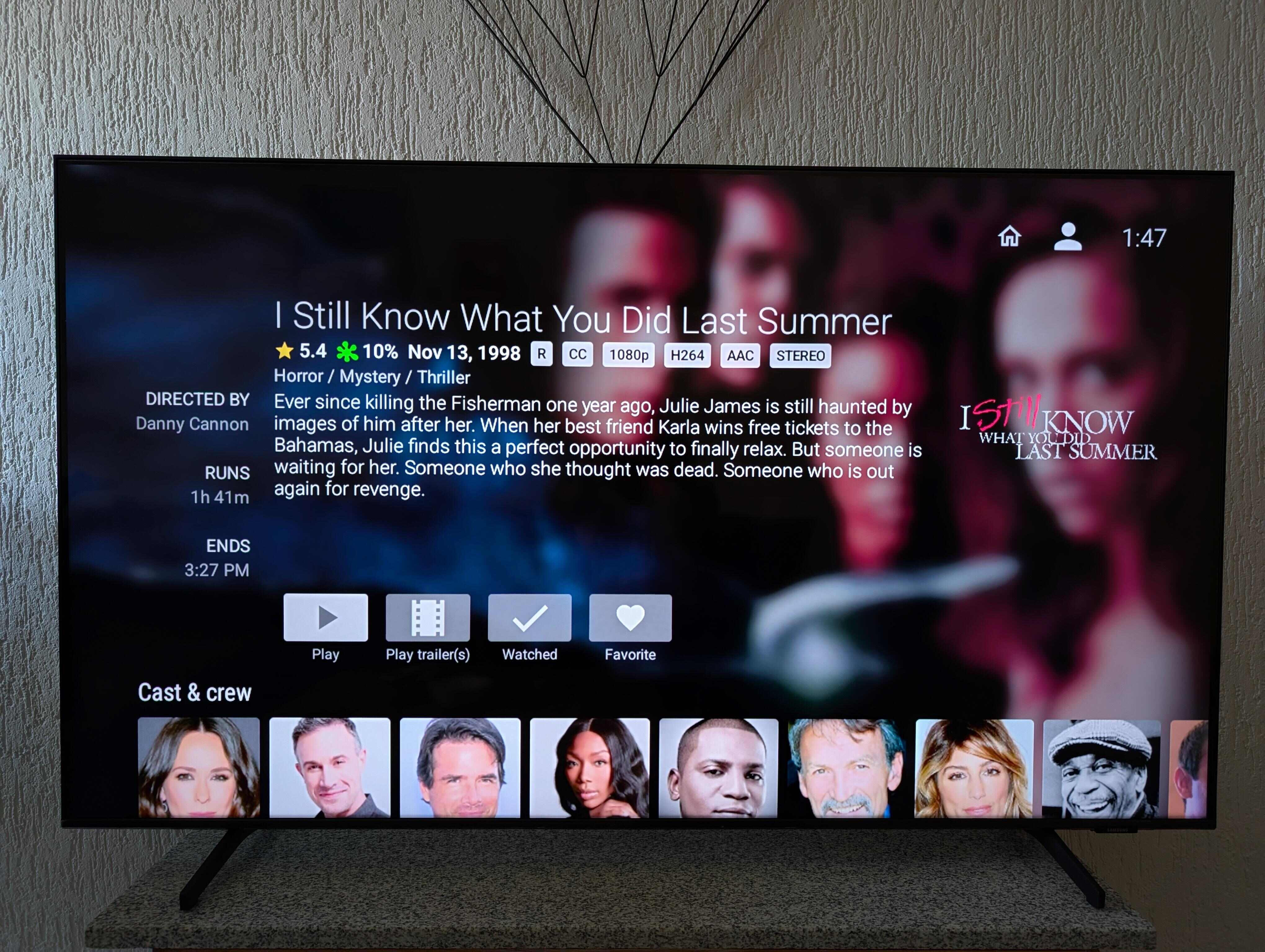 Jellyfin Movie Streaming on TV Sample
In the end, I will show you how to make 2 backups of your Nextcloud & Jellyfin instance so you never lose any of your movies, tv shows or music that you own. One will be a backup copy on your VPS, the second will be to a physical hard drive that you own. I will show you how we can sync your data automatically to both backups so you never have to worry about losing your data.
So, let's get started. The things you will need to follow along this tutorial will be:
- A computer
- A VPS (virtual private server)
- A domain name (a website URL that you own) such as
johnsmith.cloud - A physical hard drive (optional for backing up your Nextcloud & Jellyfin data)
I will show you step-by-step on how to get your VPS and your domain name, so you really just need to bring your computer and we can get started.
Let's get into it... Don't worry, I will keep things very simple with limited to zero-coding knowledge needed to get this all setup properly and working for good.
Table of Contents
- Step 1: Setup Your VPS (Virtual Private Server) with Linux
- Step 2: Login to Contabo to Find the IP Address of Your VPS
- Step 3: Open Terminal to Connect to Your VPS via SSH
- Step 4: Install YunoHost on Your VPS
- Step 5: Get Your Personal Domain Name
- Step 6: Point Your Domain's A Records to the IP Address of Your VPS
- Step 7: Setup YunoHost on the Root Domain
- Step 8: Setup SSL for Your Domain in YunoHost
- Step 9: Login to YunoHost Using Your Domain Name
- Step 10: Install Nextcloud Using YunoHost
- Step 11: Install Jellyfin Using YunoHost
- Step 12: Login to Nextcloud & Create Media Folders
- Step 13: Login to Jellyfin & Connect Nextcloud Folders
- Step 14: Upload Media Files into Nextcloud Folders
- Step 15: Backing Up Nextcloud Data
Step 1: Setup Your VPS (Virtual Private Server) with Linux
So the first thing you need is a VPS (virtual private server) which is an always-on computer with high-speed internet. This will be where we install a Linux operating system so we can get started.
You can use any VPS of your choice, but I will be showing how to use Contabo VPS in this guide, as I've been using them for 4 years. They have really low prices, have perfect uptime and really fast speeds making them the perfect VPS provider to use for installing a Nextcloud server.
I recommend getting the Contabo Cloud VPS 4 which comes with 8GB of RAM, 4 vCPU Cores and 100GB of Storage by default. At checkout, you can add additional Object Storage (basically just additional storage space) up to 1TB. For most people, I recommend starting small storage on a monthly plan so see how you like it, and if you do you can simply tack on additional Object Storage to the amount that you need for storage space.
Here are the settings you should select:
Server Quantity: 1
Select Your Term Length: Monthly
Region: European Union (Free)
Storage: 100GB SSD
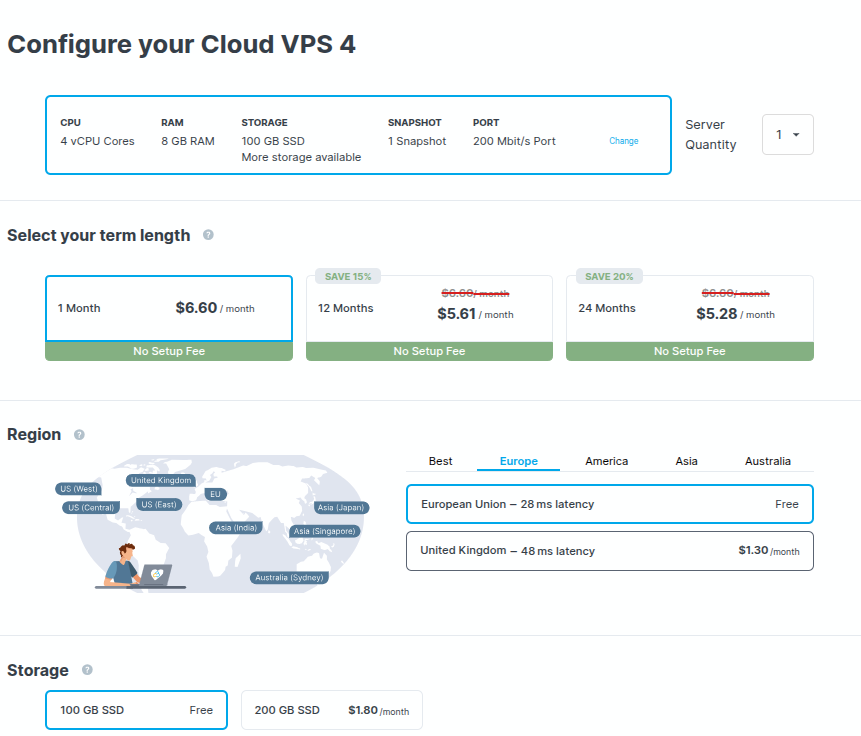
Image: Debian 12 (This is found under the OS section, then select Debian 12 from the dropdown menu)
Data Protection with Auto Backup: No Data Protection (Optional but recommended for data preservation. You can always add auto backups on through Contabo later if you want.)
Private Networking: No Private Networking
Bandwidth: Unlimited Traffic
IPv4: 1 IP Address
Object Storage: None (You can add on more if you need more than 100GB or storage, or add it on later if you like the setup)
Monitoring: None
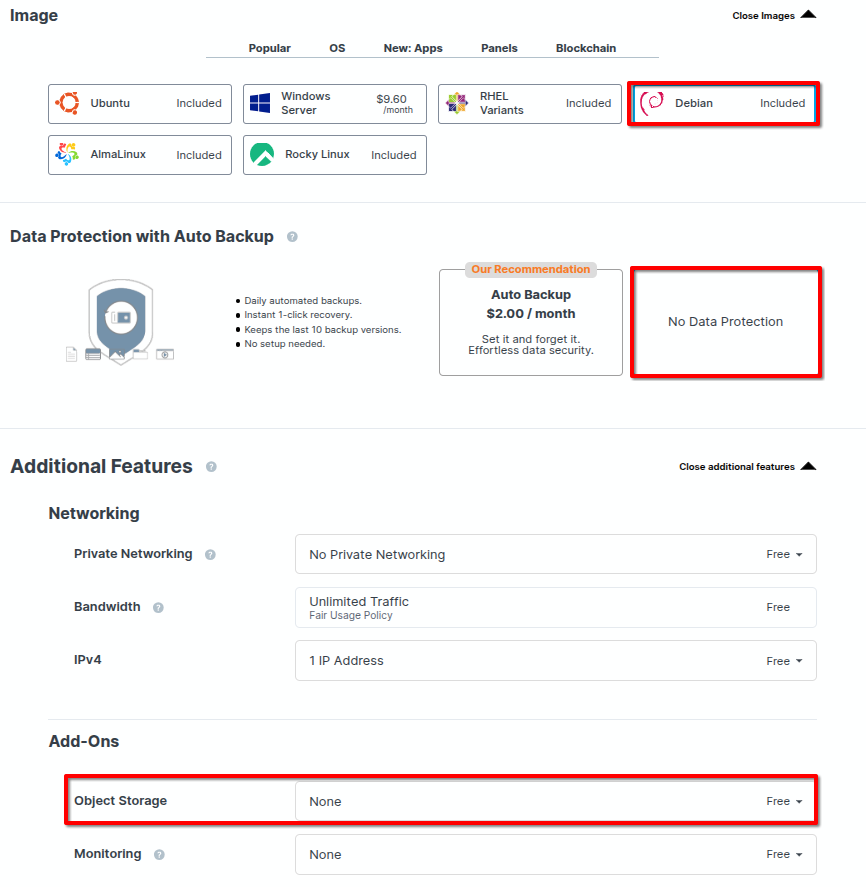
IMPORTANT: Under the section called Image, make sure you select first the top menu OS, then from there, select Debian. It will them prompt you on which version of Debian you want to install. MAKE SURE TO SELECT DEBIAN 12 FROM THE DROPDOWN.
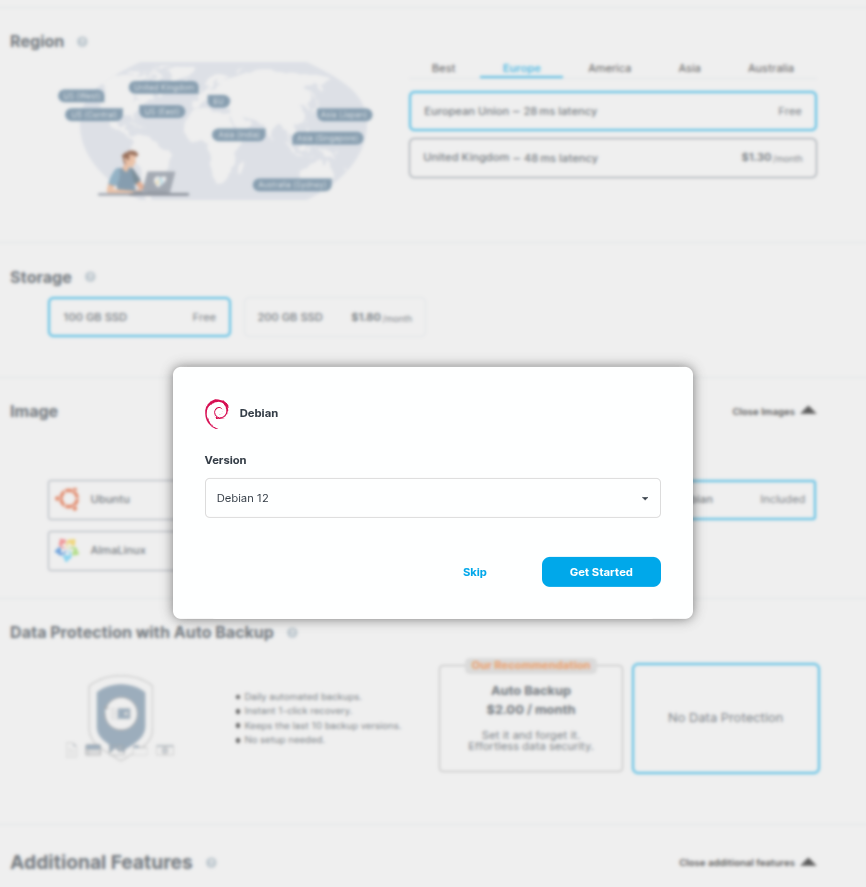
This is a very important step so make sure that it is done correctly as we need Debian 12 Installed on the VPS for this guide. If you select the wrong install Image at this this part, it is not the end of the world and Debian 12 can be reinstalled on the VPS for free no problem, but this saves the headache later on, so let's make sure to install the proper version of Debian by selecting Debian 12 from the dropdown.
Now, you must enter a strong password that you will remember for the VPS password. You must remember this password for the next steps, so make sure to choose a strong password you will remember, then select 'Next'.
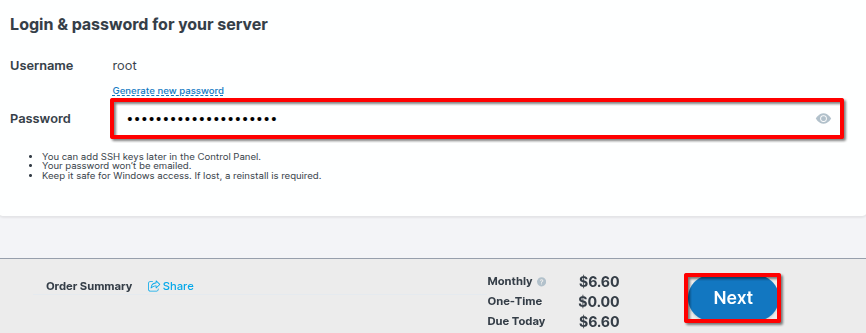
Now just fill in your information and proceed to checkout. You will then be met with a confirmation of your order, and your VPS will be now installing Debian. Typically it will be ready to access in less than 5 minutes.
Step 2: Login to Contabo to Find the IP Address of Your VPS
We now must login to Contabo with the credentials sent to your email so we can find the IP Address of your VPS for the next step.
You will receive 2 emails from Contabo after your purchase, one with the order confirmation, and the second titled Control Panel Login Details. Open the Control Panel Login Details email to see the email and password you need to use to login to Contabo.
Now, just go to https://my.contabo.com/ to enter your email and password to login to your Contabo account to see your new VPS.
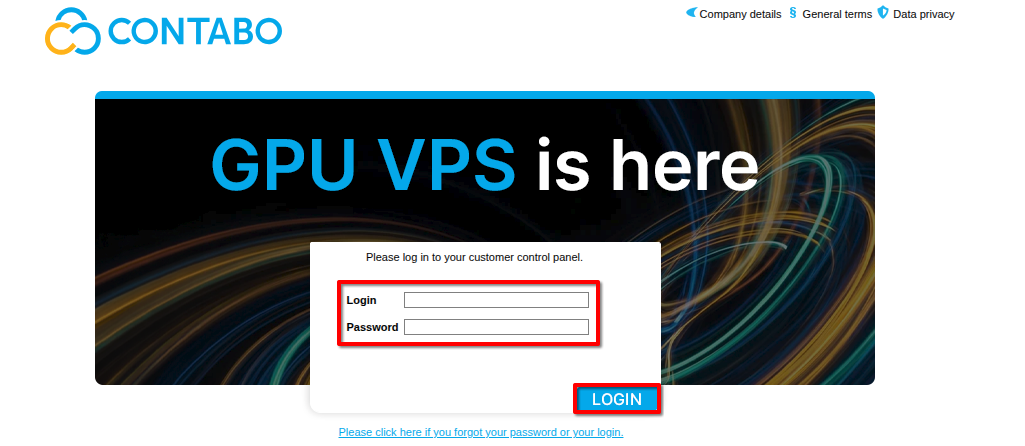
Now that you're logged into Contabo, we must now locate the IP Address of your VPS.
Once you're logged in at the Contabo dashboard, click VPS control from the side panel, which will then load the details of your VPS.
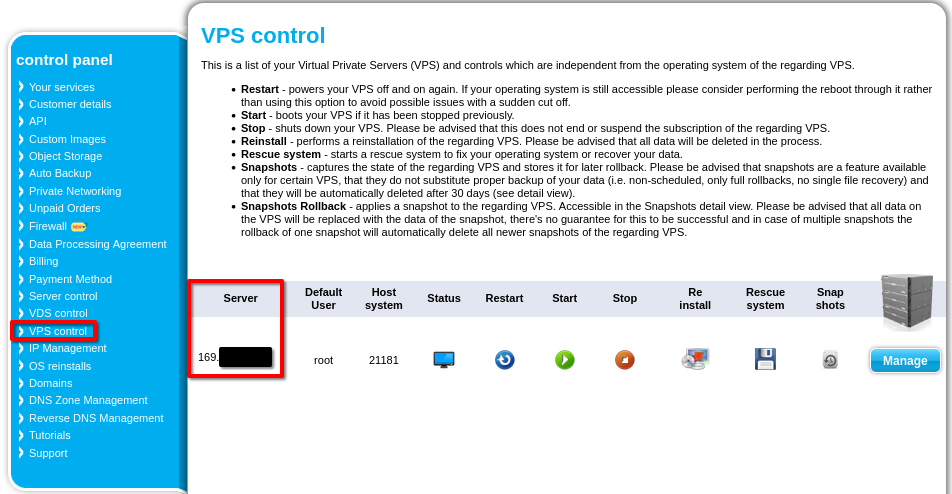
Now you should see your VPS instance and a section titled Server with the IP Address of your VPS below it.
Go ahead a copy the IP Address listed there so we can use it for the next steps.
Step 3: Open Terminal to Connect to Your VPS via SSH
Now that we have the IP Address of your VPS, we can now connect to it remotely via the Terminal app.
Every computer has a Terminal app built in, whether on MacOS, Window or Linux - so just search for Terminal on your computer and open it. It should look something like this once you open the Terminal app.
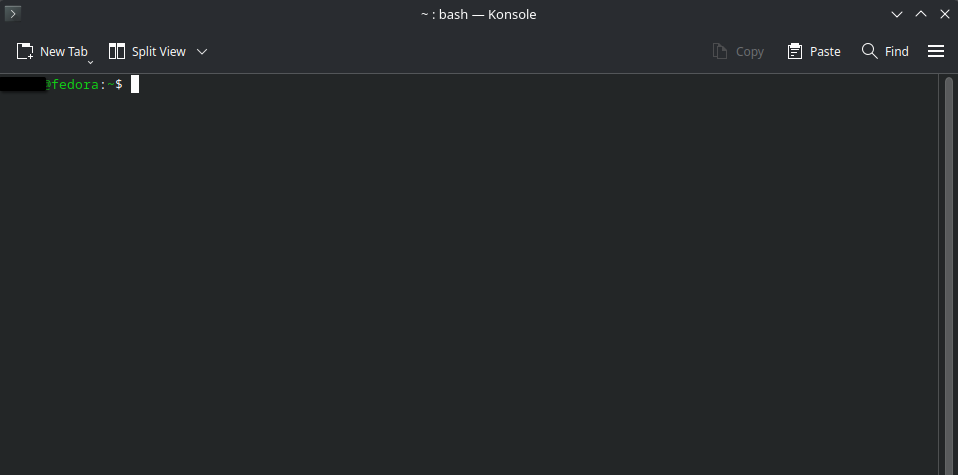
Great, now you need to run the following command to connect to your VPS through the Terminal app using a protocol called SSH.
In the code below, replace the YOURIPADDRESS part with the IP Address number we copied in the last step. Once you fill that part in with the IP Address of your VPS, go ahead and hit Enter.
ssh root@YOURIPADDRESSIf it asks Are you sure you want to continue connecting? just type in yes then hit Enter
Next you will be prompted to enter the password of your VPS. This will be the same password you used in Step 1 while setting up your VPS initially (This is NOT the automated password Contabo sent you). Go ahead and type in the password you used when setting up the Contabo VPS, then hit Enter.
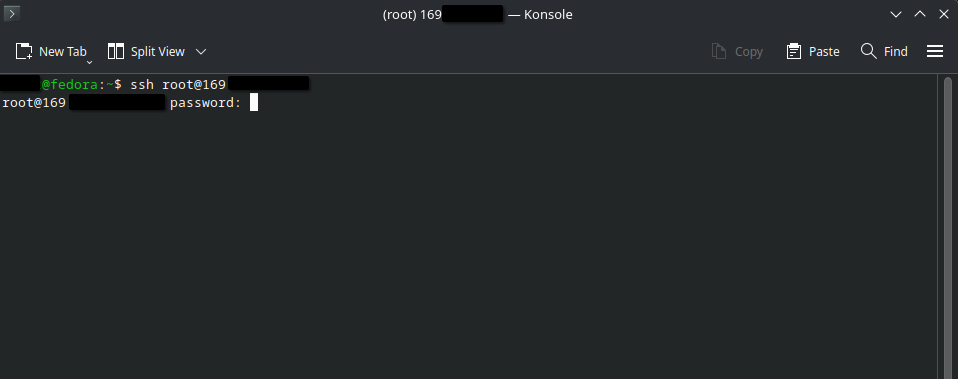
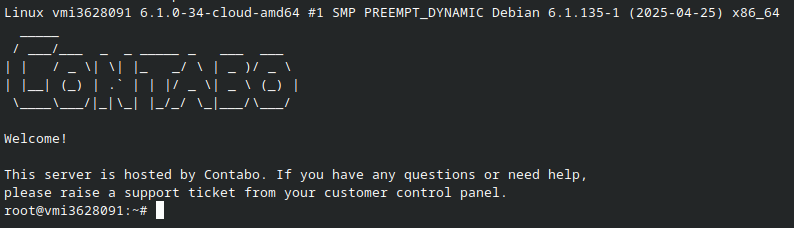
Once you're remotely connected to your VPS you should see a welcome message like this:
Step 4: Install YunoHost on Your VPS
Now that we are connected to your VPS via SSH, we can now run a simple one line script that will install YunoHost onto your VPS.
YunoHost is a free and open-source user interface system which allows you to one-click install and maintain (with very little technical knowledge) digital services and apps that you control.
YunoHost has an app store where you can one-click install hundreds of different free and open-source software applications, such as Nextcloud. The one-click install handles all of the complicated coding, security hardening, reverse proxies, subdomain assignment etc - so you just click the app you want to install and select the sub-domain you want to assign it.
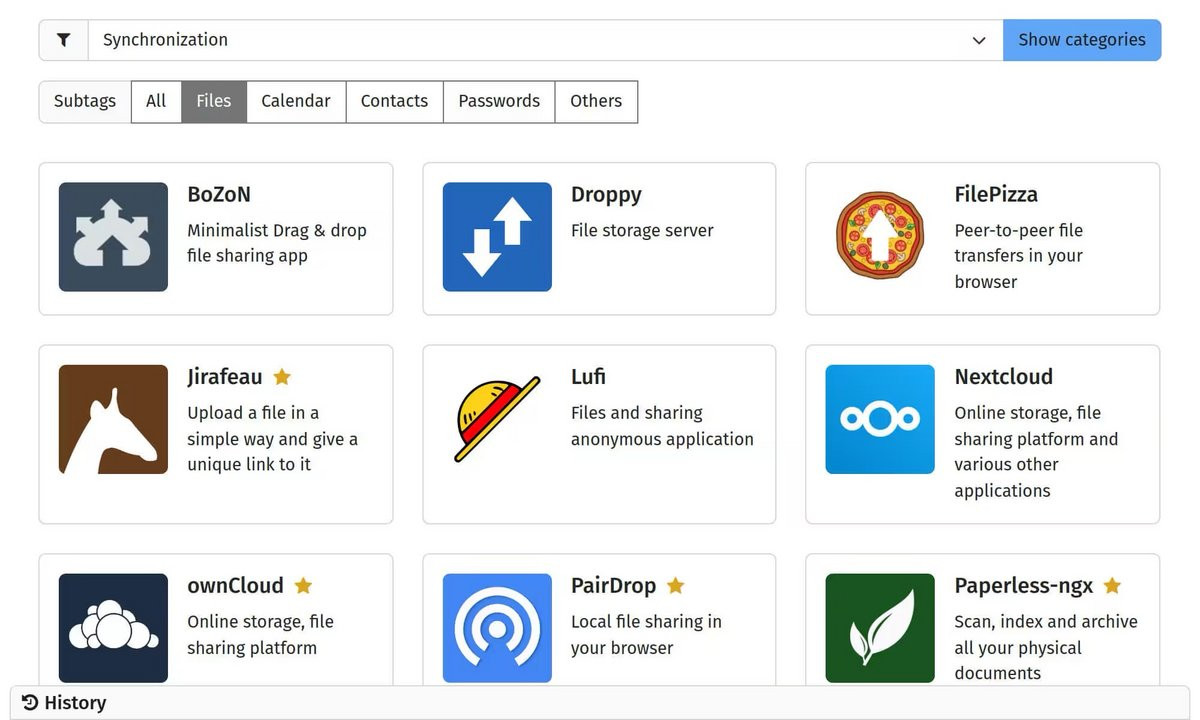 This is how the YunoHost will look once we have it setup on your VPS. We will use it to one-click install Nextcloud onto your VPS with secure settings automatically preset.
First update and uprade Debian 12 by typing in the following command into Terminal below then hitting Enter.
sudo apt update && sudo apt upgrade -yNow to install YunoHost on your VPS, in the Terminal window where you are logged into your VPS, type in this exact script below then hit Enter:
curl https://install.yunohost.org | bashOnce you run the script, you will be asked Are you sure you want to proceed (y/n)?. Type in y then hit Enter.
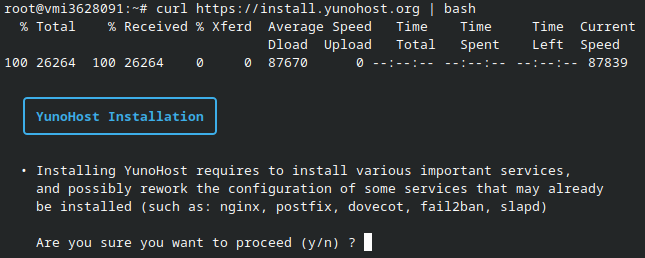
You will then be asked Should YunoHost override the SSH configuration (y/n). Type in y then hit Enter.
YunoHost will then automatically install onto your VPS.
Once it finished installing you should see this message in Terminal.
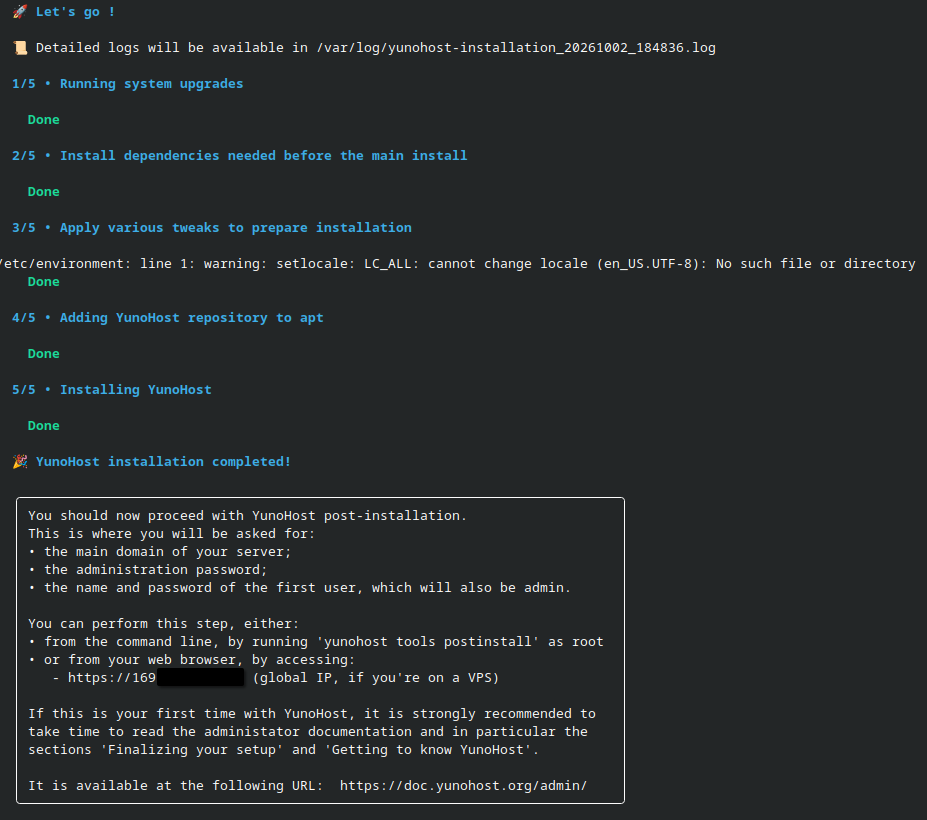
Now that YunoHost is installed on your VPS, go to any browser on your computer, and go to https://YOURVPSIPADDRESS but make sure to replace YOURIPADDRESS with your actual IP Address from your VPS.
⚠ Warning
When you go to `https://YOURVPSIPADDRESS`, you will be met with a warning message from your browser. Just click on *Advanced* then click *Proceed* to proceed to your YunoHost setup screen.
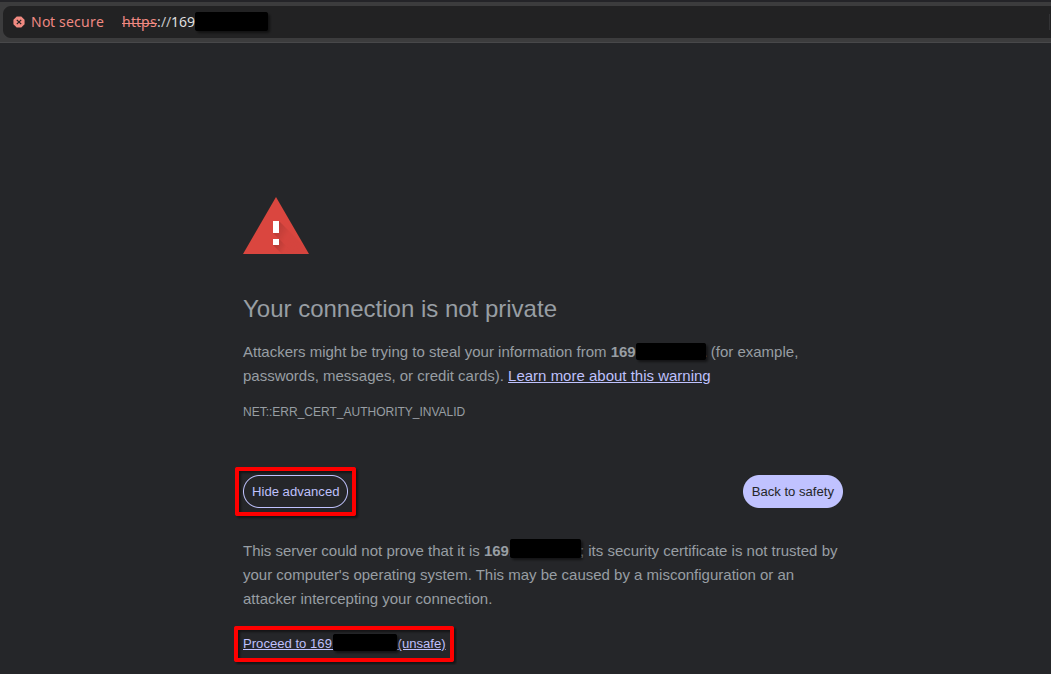
Once you go get through the security warning, you should then see this landing page for YunoHost:
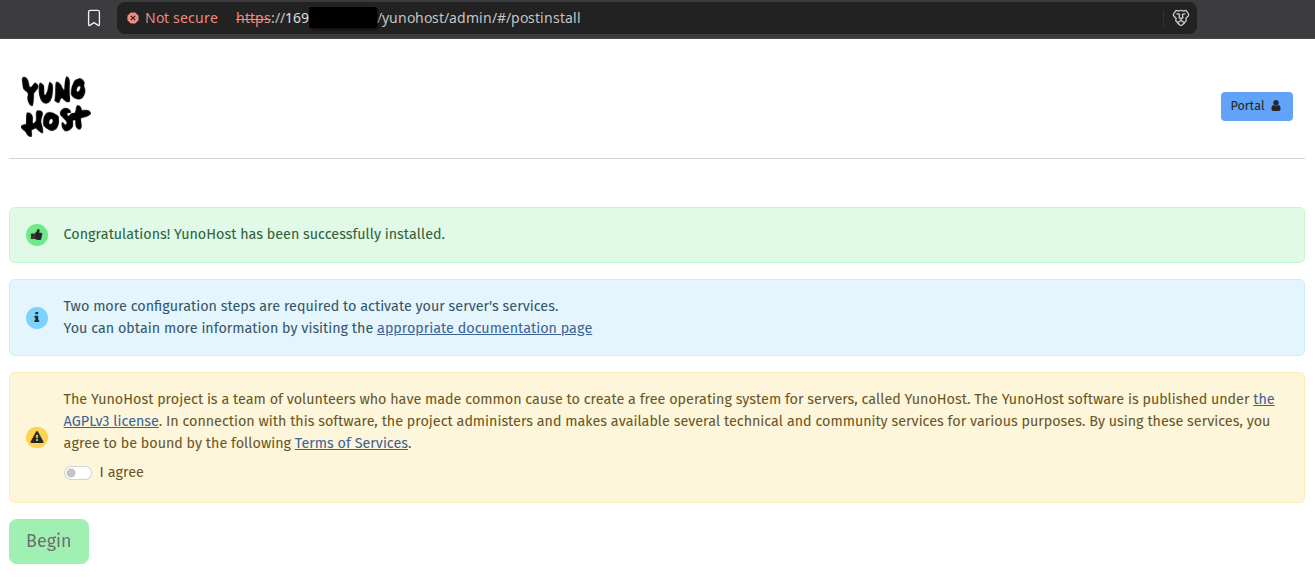
Perfect.
Before we click Begin and start setting up YunoHost, let's make sure we have your personal domain name setup properly so we can connect it to YunoHost during the initial setup.
So now, let's get you a personal domain name.
If you already have a personal domain name purchased with nothing else installed on it, you can skip Step 5 and head straight to Step 6.
Step 5: Get Your Personal Domain Name
For this step, you can use any domain purchasing website of your choice, but personally, I find PorkBun to be the easiest user-interface with better prices compared to other big names. So, throughout this step and Step 6, I will be using PorkBun for the tutorial - but the process will be similar for whichever domain purchasing website you go with.
I recommend purchasing a domain such as johnsmith.cloud which is where YunoHost will live whenever you go to johnsmith.cloud in a web browser. From there you can simply one-click install new apps and run updates easily from the YunoHost Dashboard. Later when we one-click install Nextcloud via the YunoHost app store, you will be able access Nextcloud at johnsmith.cloud/nextcloud. Any additional apps you decide to install later on, such as Jellyfin, can live at johnsmith.cloud/jellfin for example. This creates a clean and easy-to-remember self-hosted stack if you decide to expand it later on.
If you don't like the .cloud domain extension, you can use any domain extension that you like such as .com, .net, .me etc. However I find the .cloud domain extension to be the most aesthetic and self-explanatory when sharing links with others later on, so you could do something like YOURNAMEHERE.cloud for your domain.
So to get your domain of your choice, go to the main page of PorkBun, then search for the domain name and extension that you like such as johnsmith.cloud. Once you add it to cart just go to checkout and make the purchase. You can buy just one-year for now and see how you like the self-hosting setup, then just let it renew annually if you like the setup. No need to purchase any of the upsells at checkout.
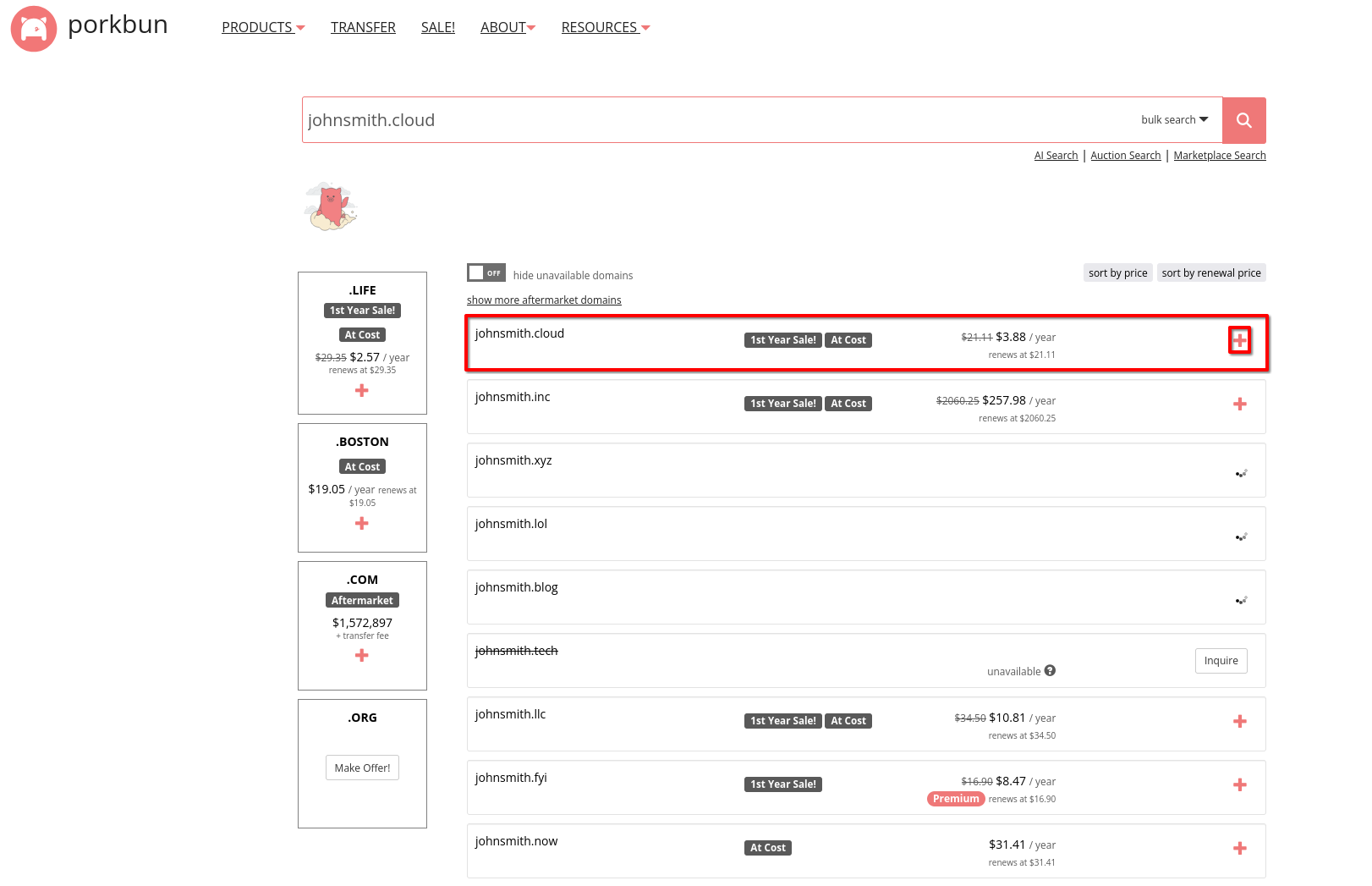 In this example, johnsmith.cloud is available for purchase
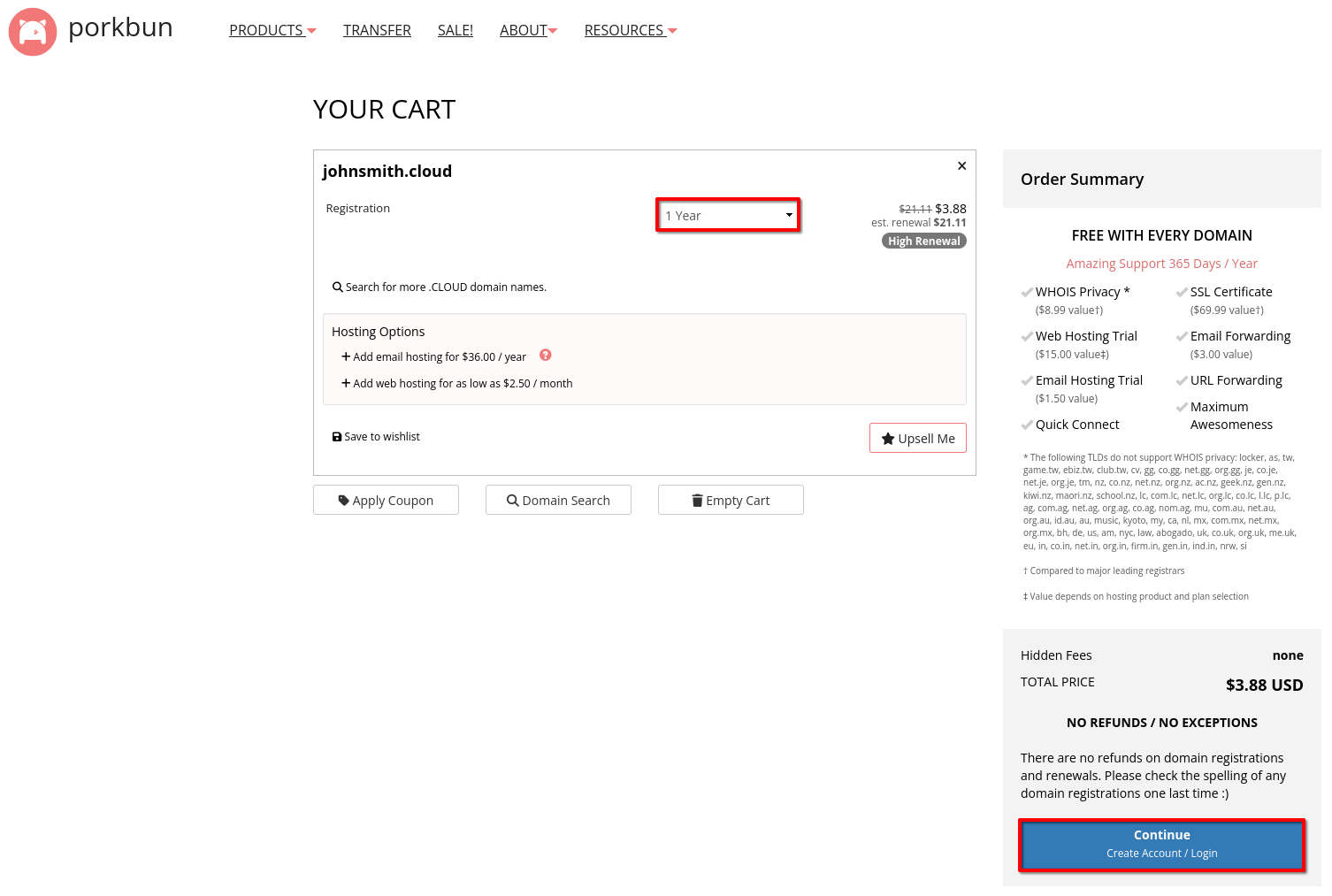 You can just select 1-Year then Continue to checkout to make the purchase
You will get an email confirmation once your purchase your domain name, so we are now ready for Step 6.
Step 6: Point Your Domain's A Records to the IP Address of Your VPS
Once your domain is purchased, you can log into your account and immediately start managing your domain at porkbun.com.
Now, we need to point the A Records of your domain over to the IP Address of your VPS. Once we do that, YunoHost will appear on your domain when you enter it into a browser.
To update the A Records of your domain to point to your VPS, while you're logged into PorkBun, click on Account, then Domain Management.
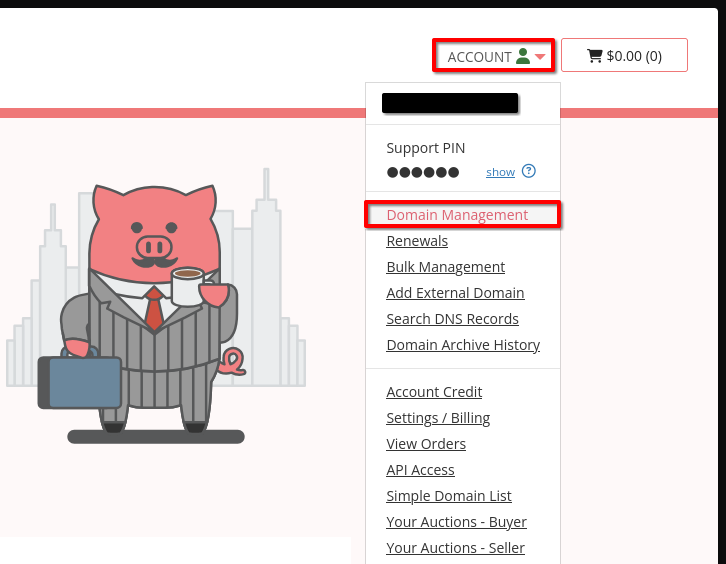
Once you are in Domain Management, find the domain name you just purchased, click on the DNS button below your domain name to edit the DNS Records (this is where we will update the A Records).

Once the side panel opens to edit the DNS Records, you can go ahead and delete the CNAME and ALIAS located there by default and pointing to pixie.porkbun.com.
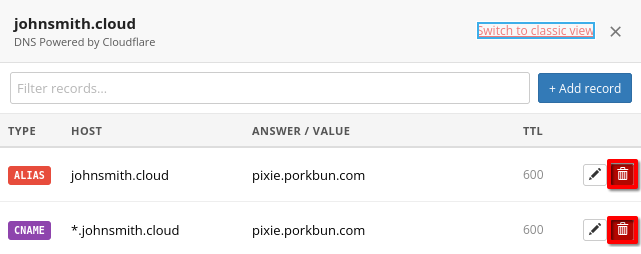
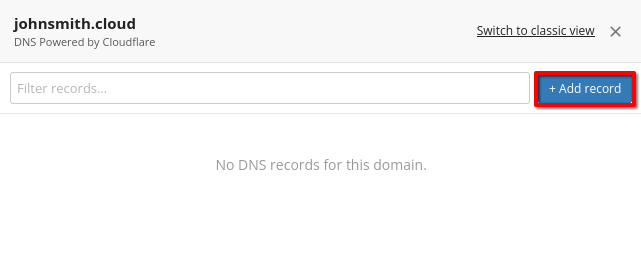
Once deleted, click on +Add Record so we can add new A Records to the domain.
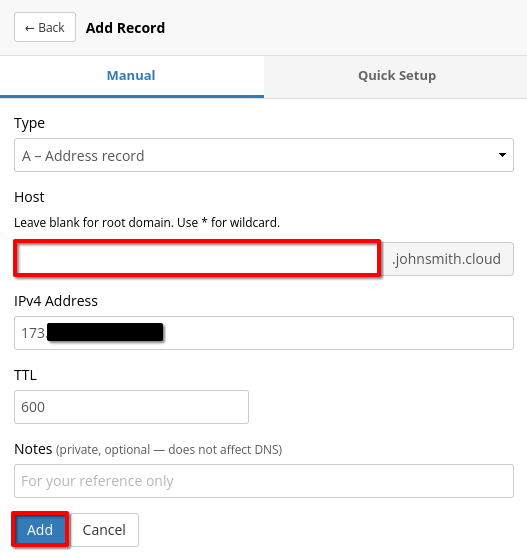
First, we will add an A Record for the root domain that points to the IP Address of your VPS. Leave the Host section blank for this first A Record, then paste in the IP Address of your VPS under the IPv4 Address section. Then click on Add to add the A Record.
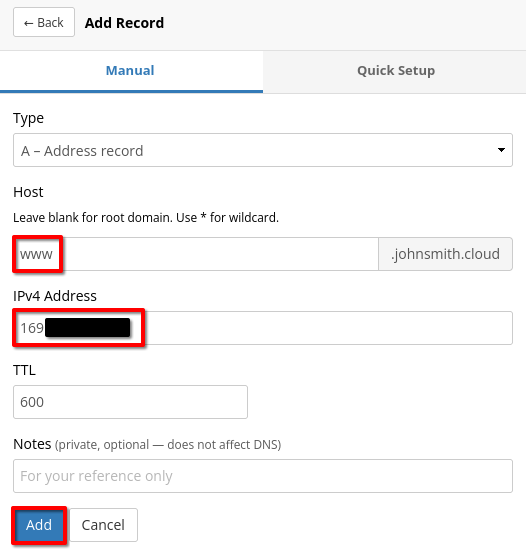
Now, we will add an A Record for the www. version of your root domain that points to the IP Address of your VPS. You must add www under the Host part section for this second A Record, then paste in the IP Address of your VPS under the IPv4 Address section. Then click on Add to add the A Record.
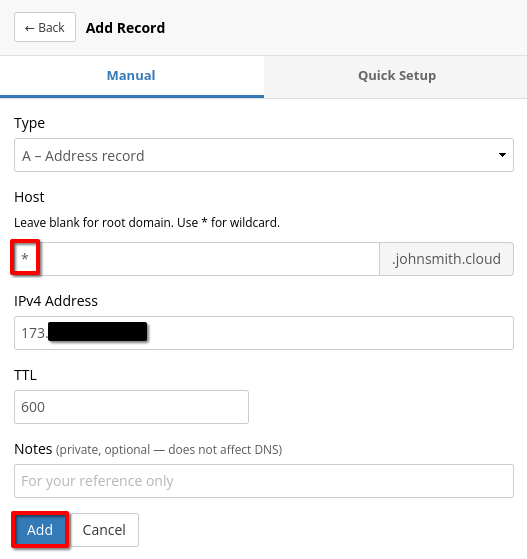
Now, we need to add an A Record any sub-domains so that they all point to the IP Address of your VPS as well. You must add a * under the Host section for this third A Record, then paste in the IP Address of your VPS under the IPv4 Address section. Then click on Add to add the A Record.
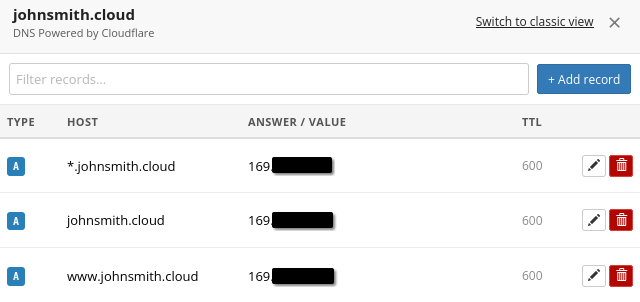
Once you do this, you will see all three A Records there and they should look like this below with the IP Address of your VPS.
Once you create the A Records they will take about 10 minutes to propagate before it's officially point to your VPS. So maybe take a 10 minute break and we can come back to doing the YunoHost initial setup with your domain.
Ok now that we let a few minutes pass, we can now go back to https://YOURIPADDRESSHERE where we had YunoHost with the welcome screen ready to be setup.
Step 7: Setup YunoHost on the Root Domain
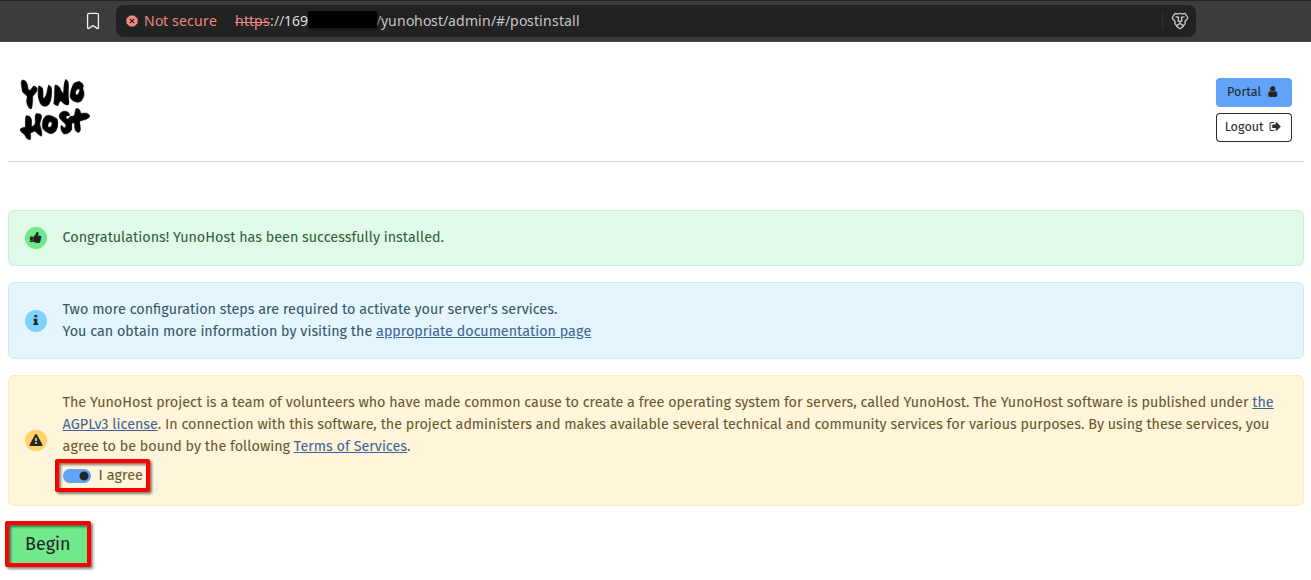
Once you are at your YunoHost welcome screen again after typing in https://YOURIPADDRESSHERE to your web browser, go ahead and check I Agree then click Begin.
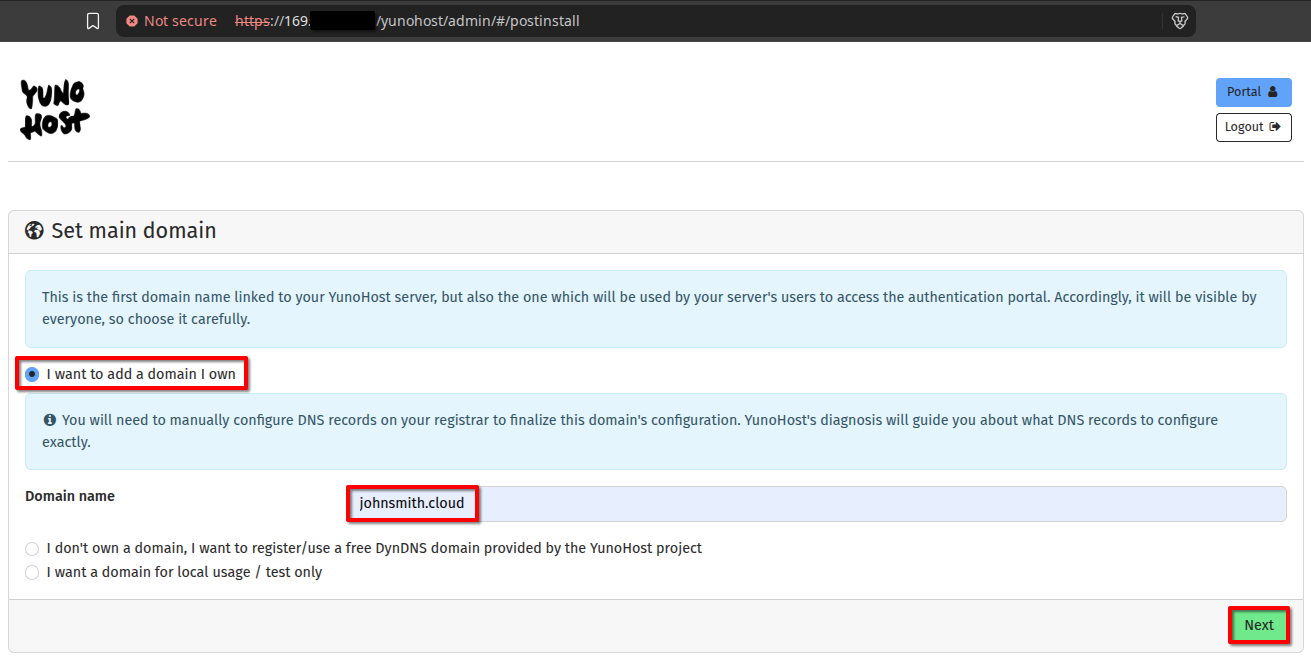
At the next screen, select I want to add a domain I own, then type in your domain name such as johnsmith.cloud then click Next.
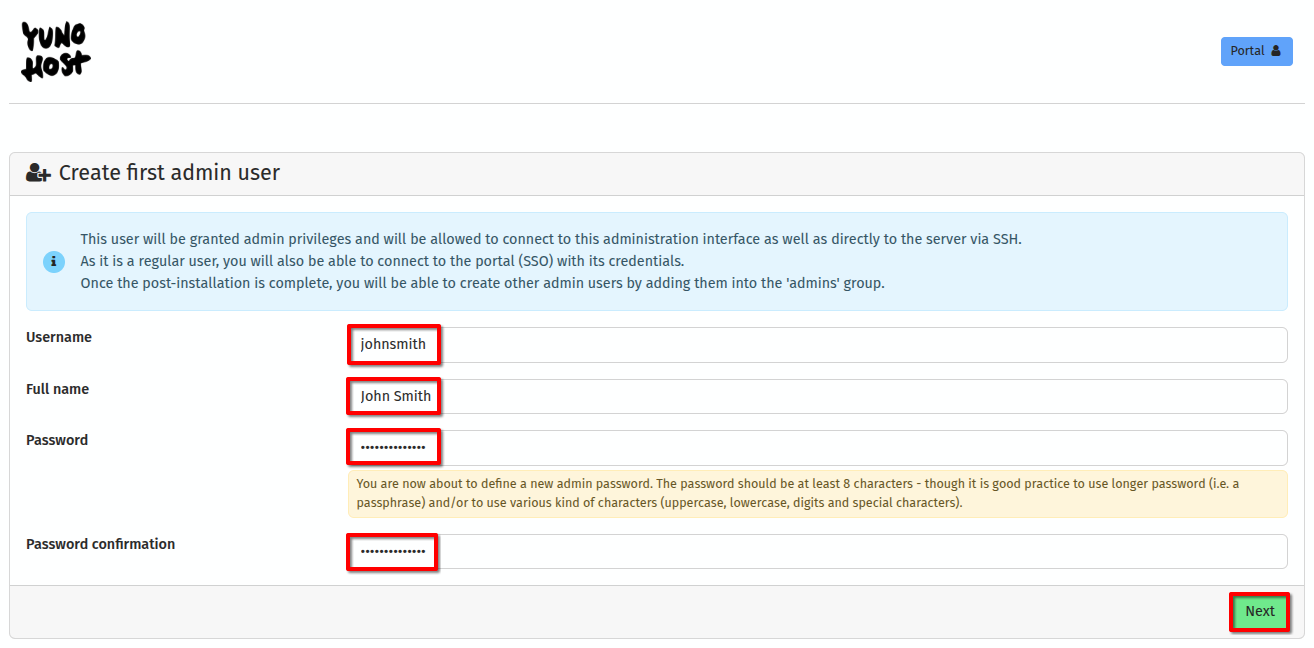
At the next screen, you will be asked to setup your Admin username and password. This is the default login you will be using going forward for SSH access to your VPS, along with the default login for any apps you install such as Nextcloud.
Make sure to create a username you will remember, and a strong passwordin step you will remember. Once you type all of that in, go ahead and click on Next then click OK when prompted.
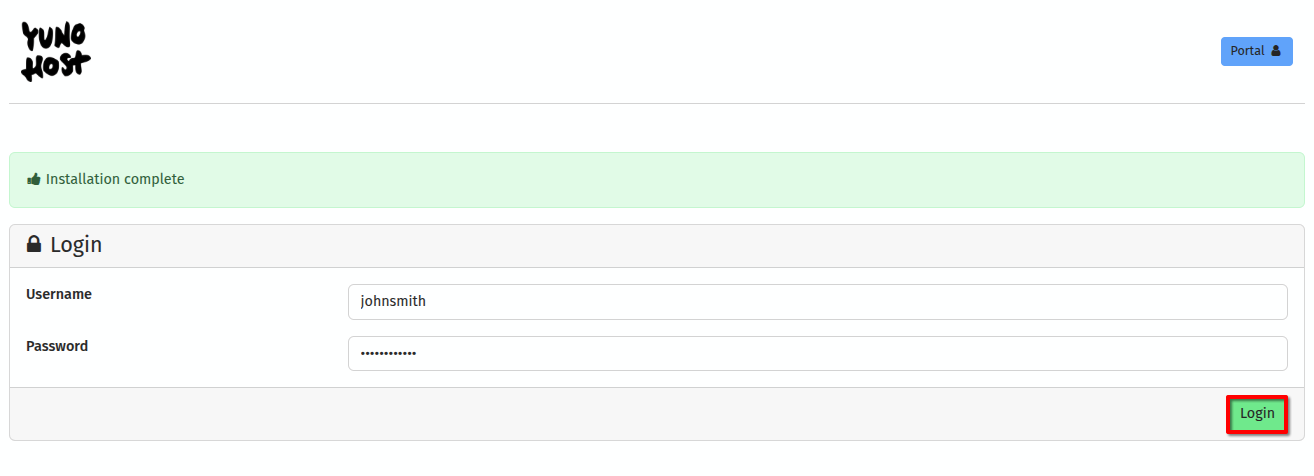
Once YunoHost finished installing, you will be met with the login screen. You can go ahead and enter your username and password, then click on
Step 8: Setup SSL for Your Domain in YunoHost
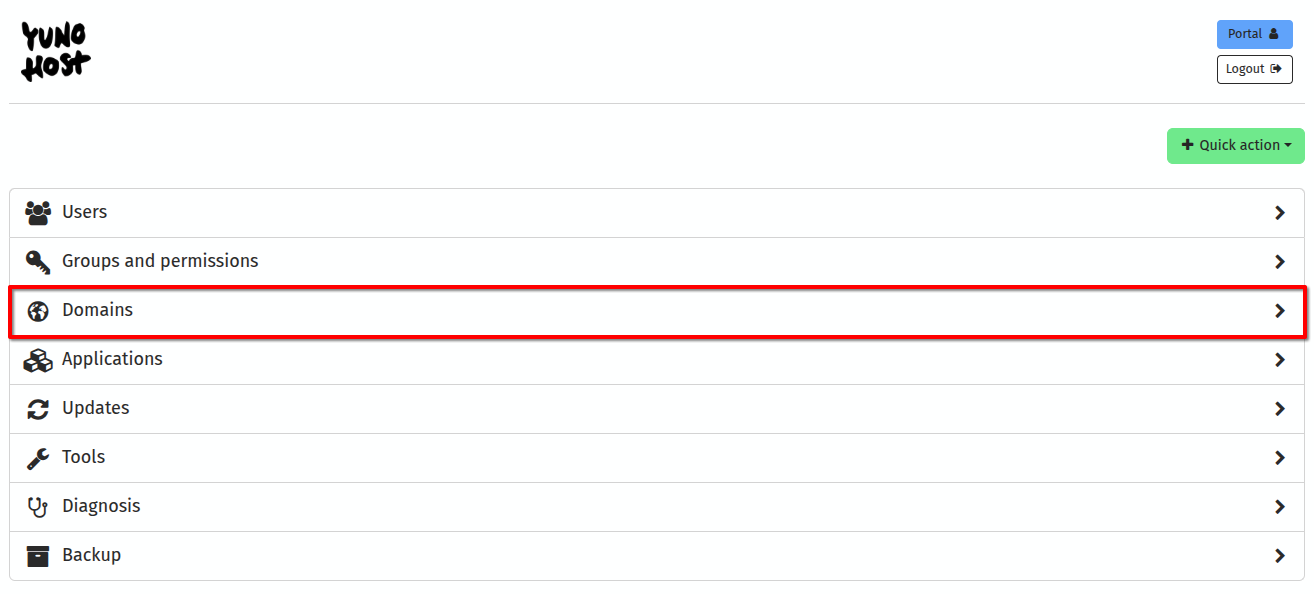
Once you are at the home screen of YunoHost, go ahead and select Domains from the list.
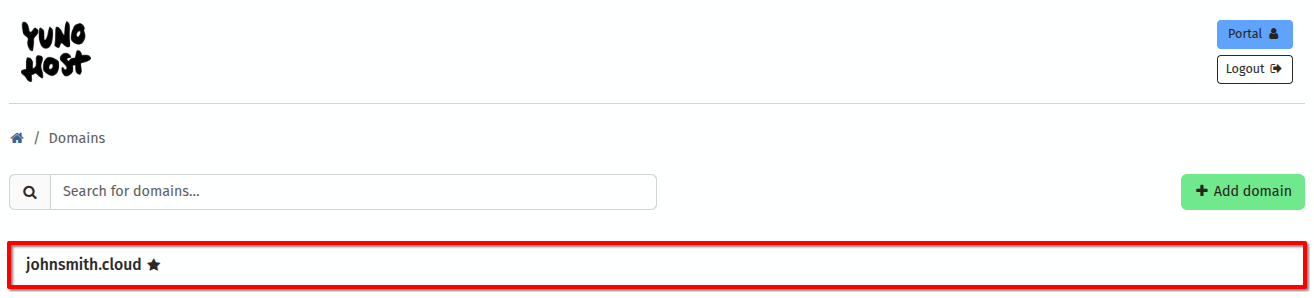
Now select your domain name from the list.
Now select Certificate from the top menu, then within there check Ignore Diagnosis Check to Yes then select Install Let's Encrypt Certificate
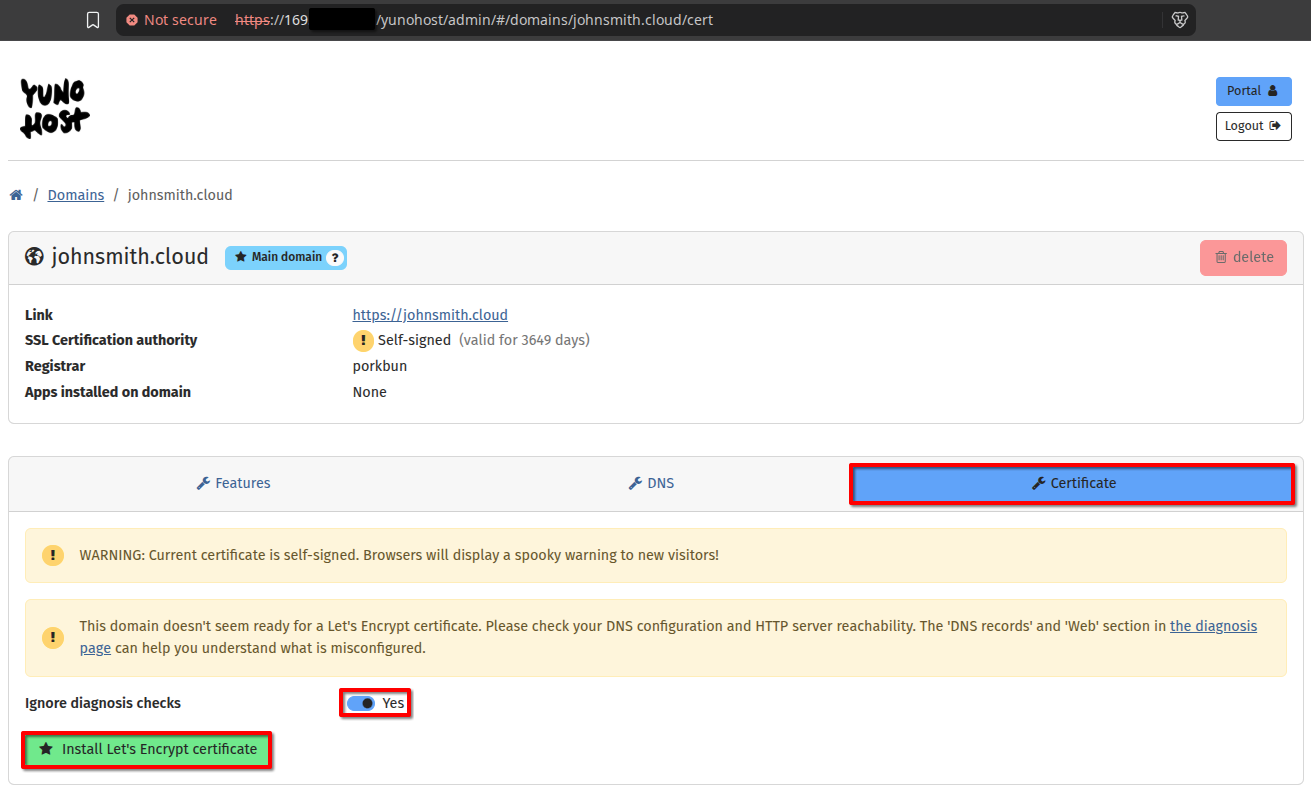
You domain will now be certified with Let's Encrypt meaning that warning message will no longer appear in your browser when you try to visit your domain.
Step 9: Login to YunoHost Using Your Domain Name
Now we can simply open a new browser tab, and go to https://johnsmith.cloud in this example - where we now have YunoHost fully living there with full SSL certification for seucrity.
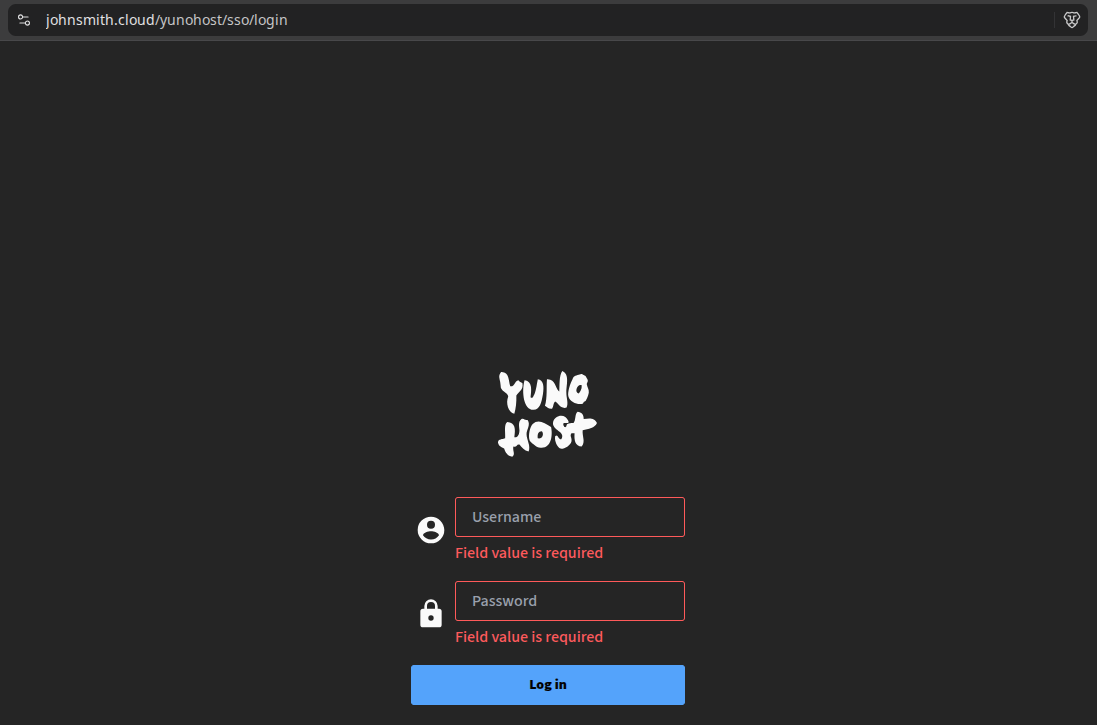
As you can see, the domain loads perfectly now with no security warnings and brings you to your YunoHost instance where you can login securely.
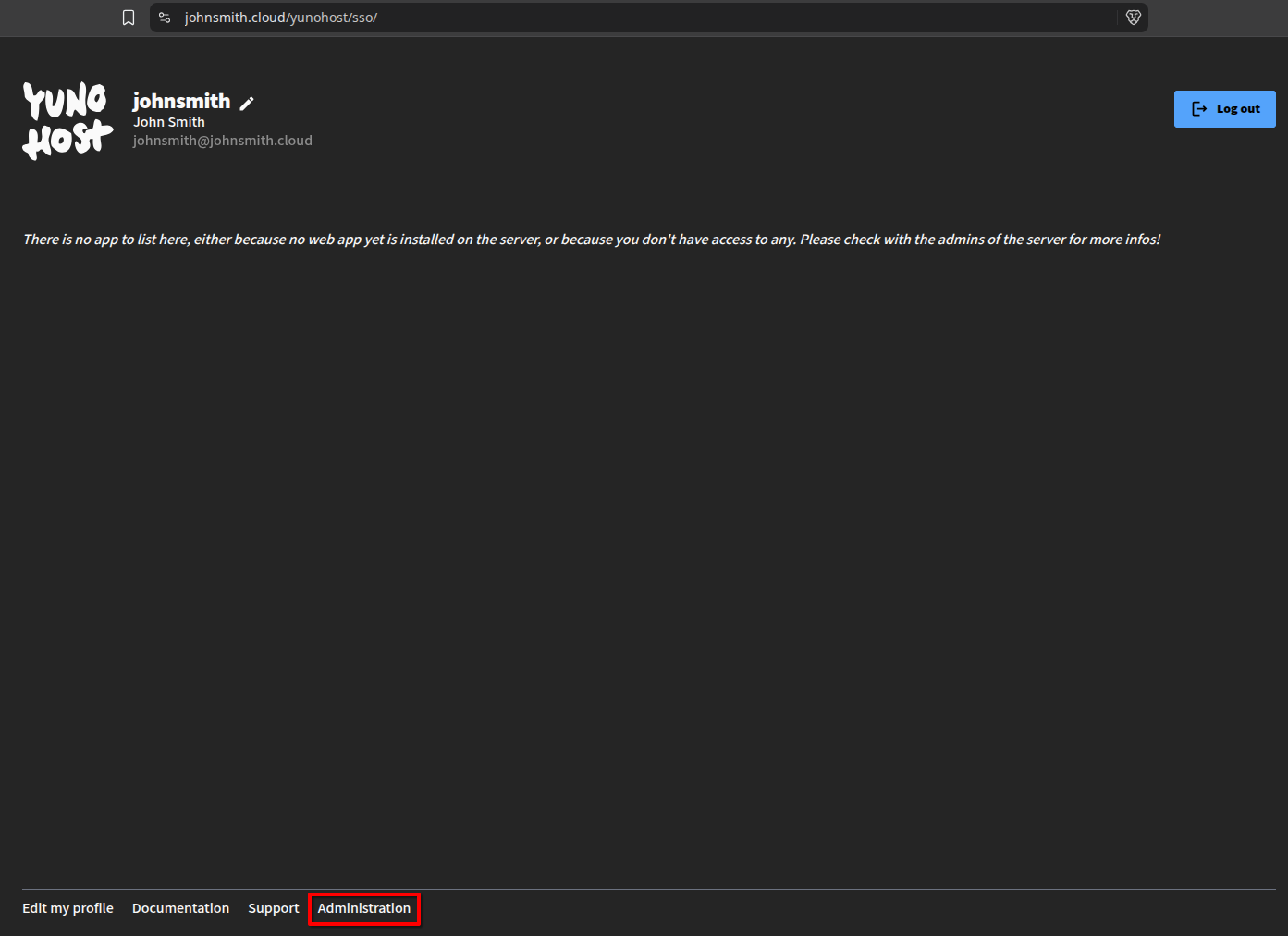
Once you login with your username and password you made in Step 7, you will see the YunoHost home page. You need to look at the bottom of the screen for the link Administration to get back to the Admin page of YunoHost so we can install Nextcloud now. You will be prompted to login again at the Admin screen, so just login again and we can now move on to the Nextcloud installation.
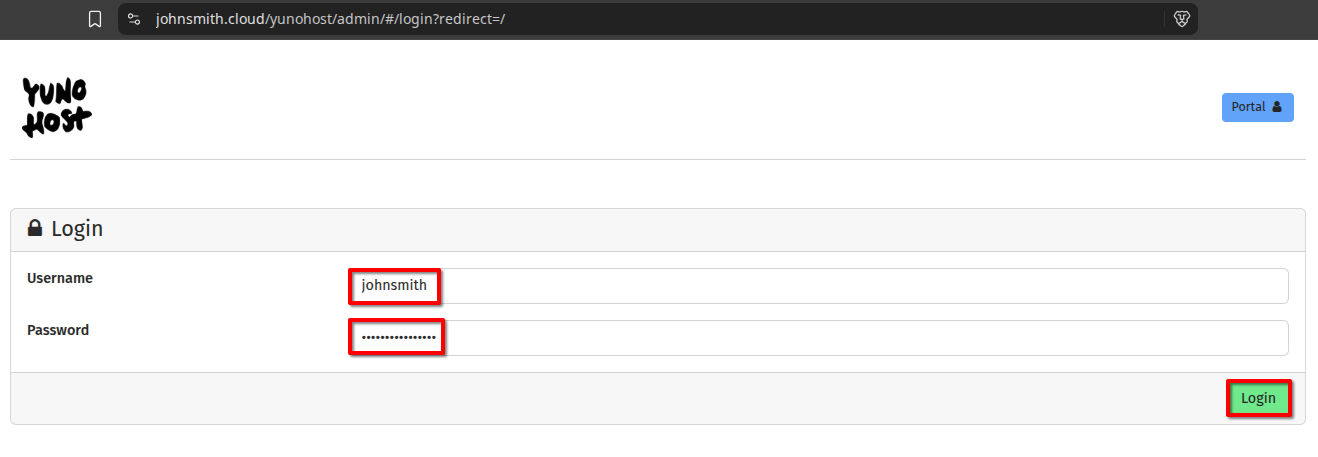
Step 10: Install Nextcloud Using YunoHost
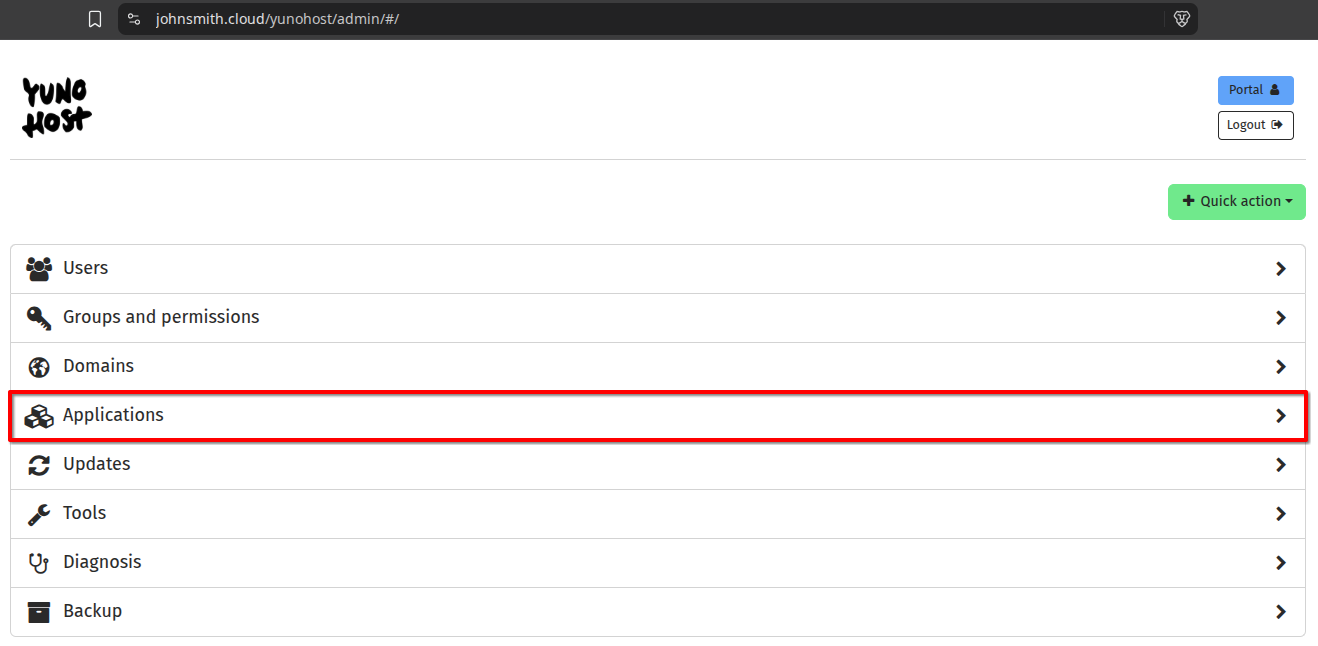
Now that you're logged into your YunoHost Admin dashboard again, go ahead an click on Applications from the list.
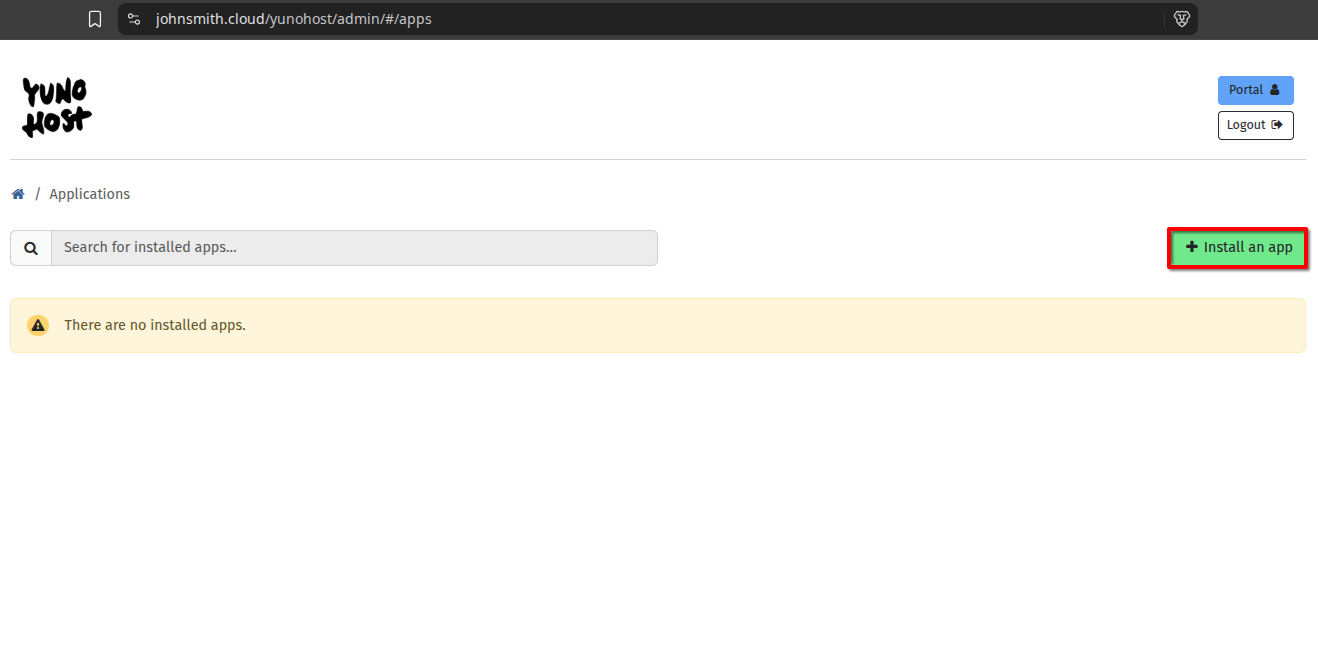
Now go ahead and click on Install an app in the right hand corner.
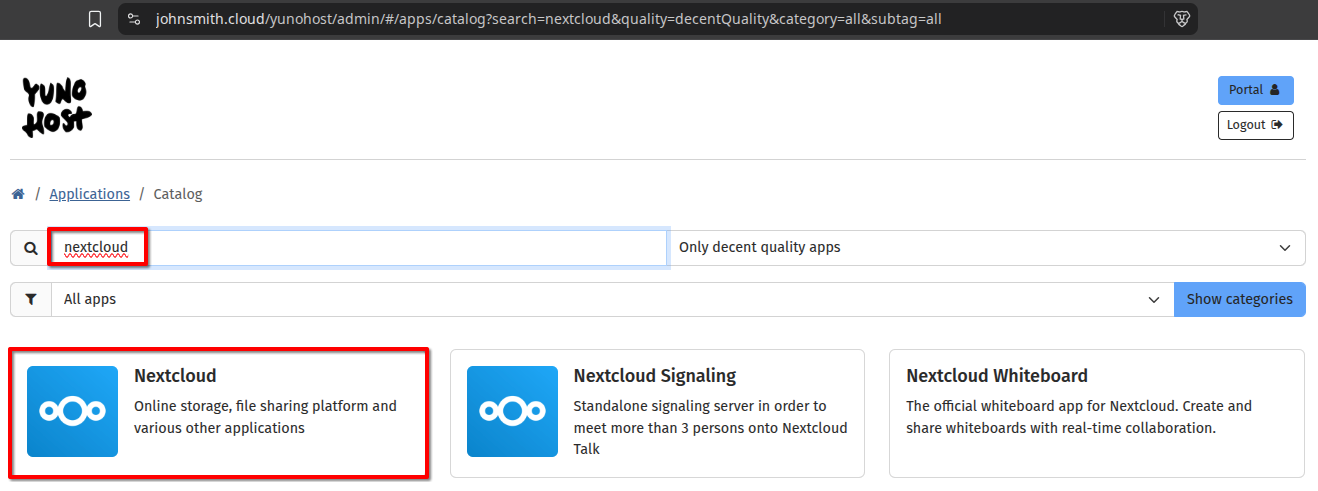
Now go to the search bar and type in nextcloud and you will then see the Nextcloud app appear in the results. Go ahead and click on Nextcloud
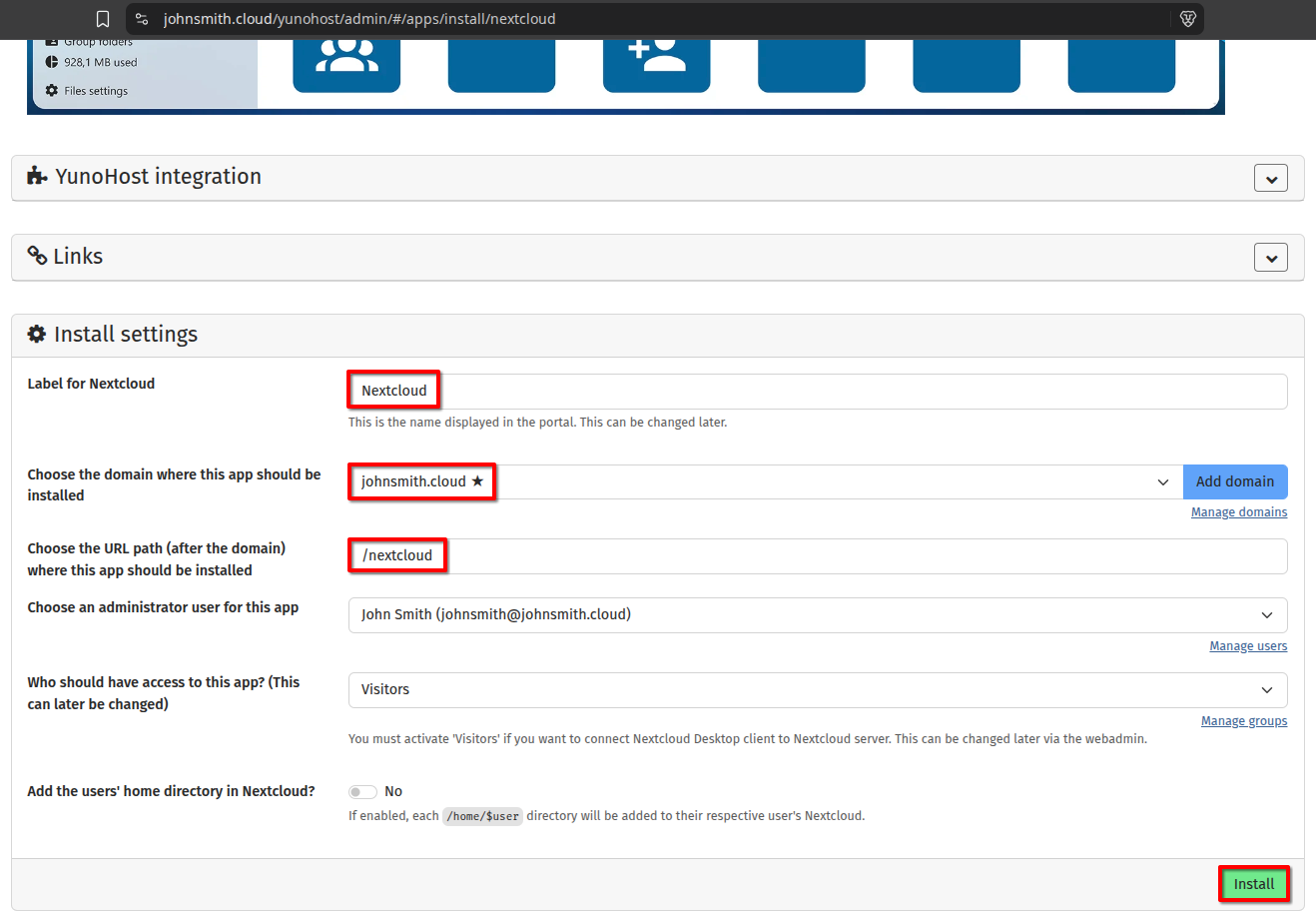
Now scroll down until you see the section for Install Settings. You can leave all of the settings on the default, here are the settings for reference. The URL path we will go with is /nextcloud, which means your Nextcloud instance will be live at https://johnsmith.cloud/nextcloud once it installs.
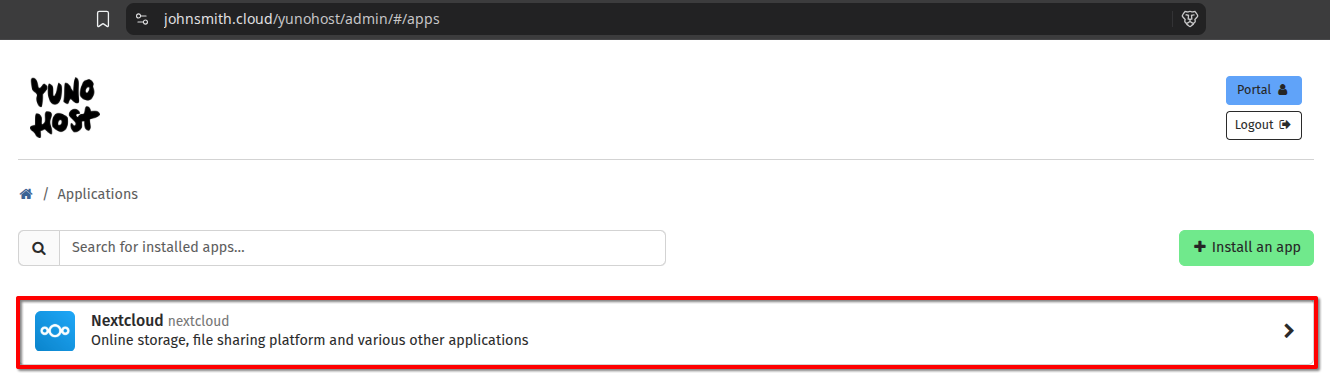
Once Nextcloud is done installing it will appear under your Applications in YunoHost.
Step 11: Install Jellyfin Using YunoHost
Once you're logged into your YunoHost Admin dashboard again, go ahead an click on Applications from the list.
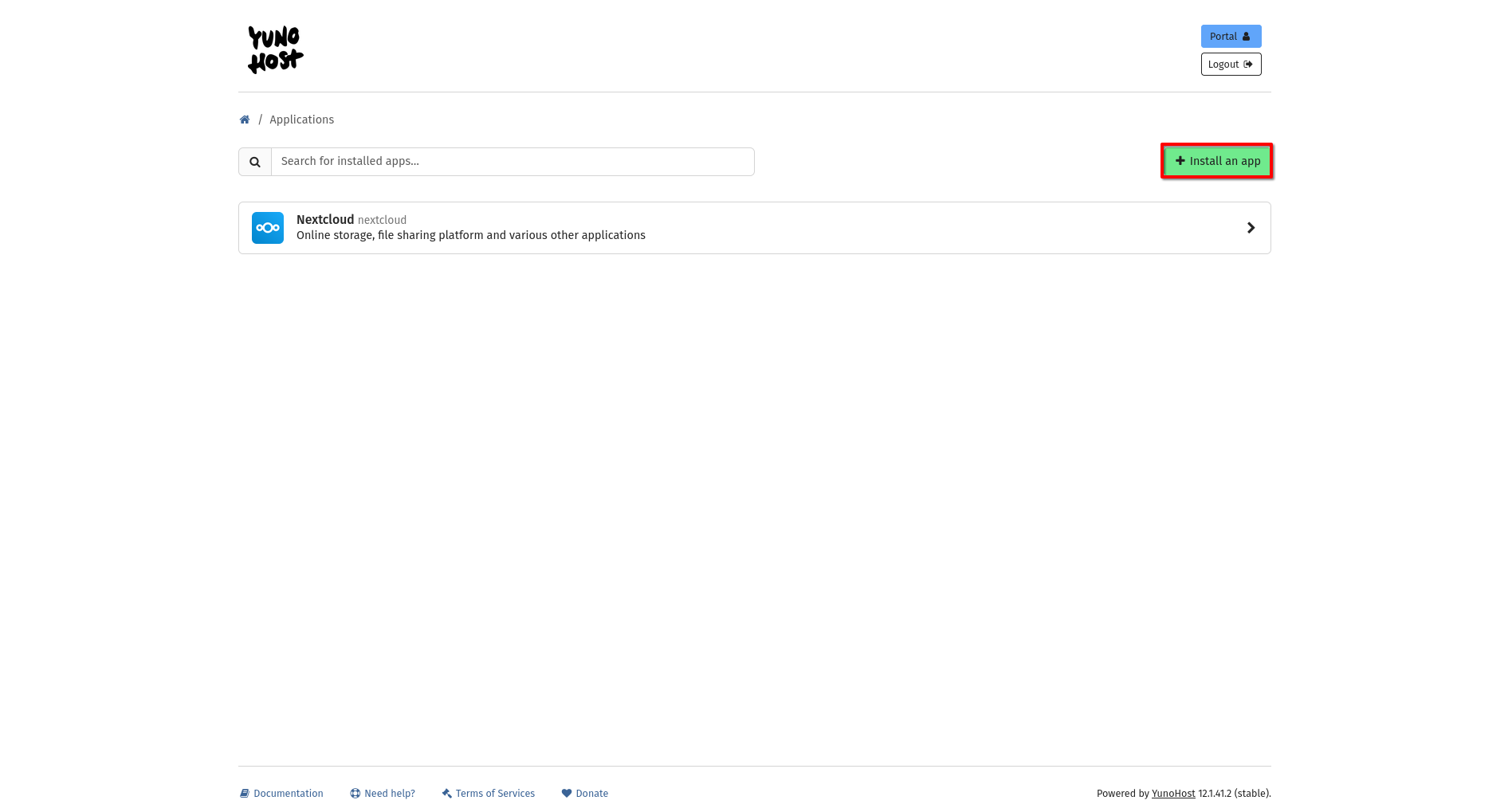
Now go ahead and click on Install an app in the right hand corner.
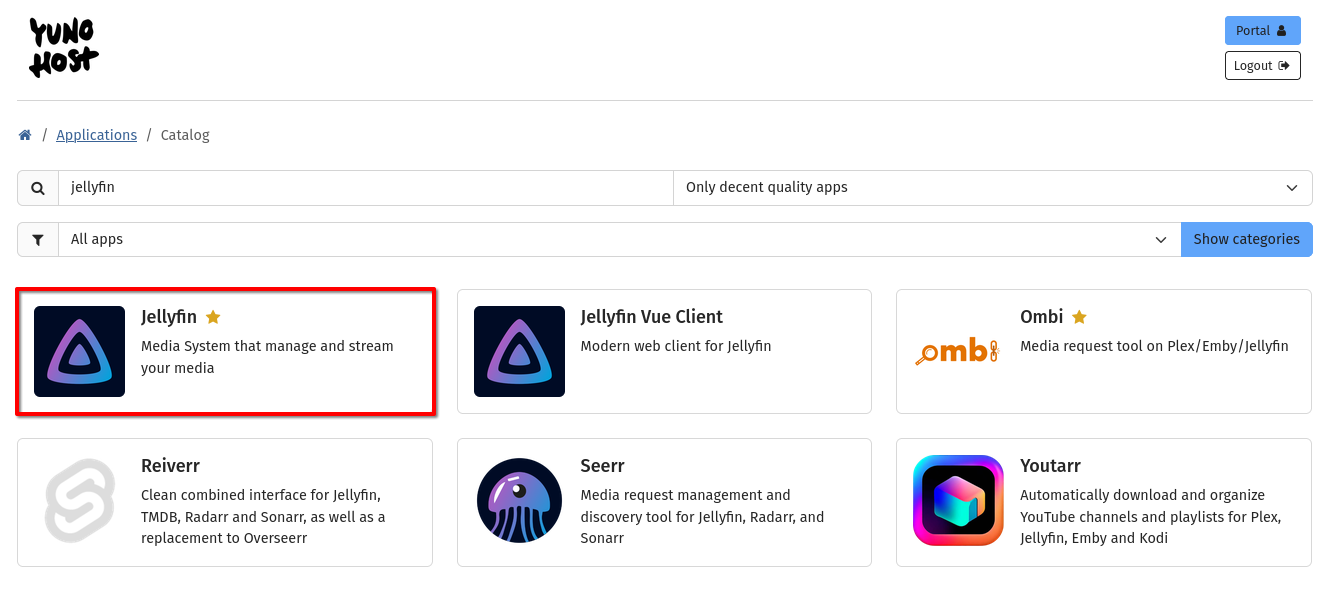
Now go to the search bar and type in jellyfin and you will then see the Nextcloud app appear in the results. Go ahead and click on Jellyfin
Now scroll down until you see the section for Install Settings. You can leave all of the settings on the default, here are the settings for reference. The URL path we will go with is /jellyfin, which means your Nextcloud instance will be live at https://johnsmith.cloud/jellyfin once it installs.
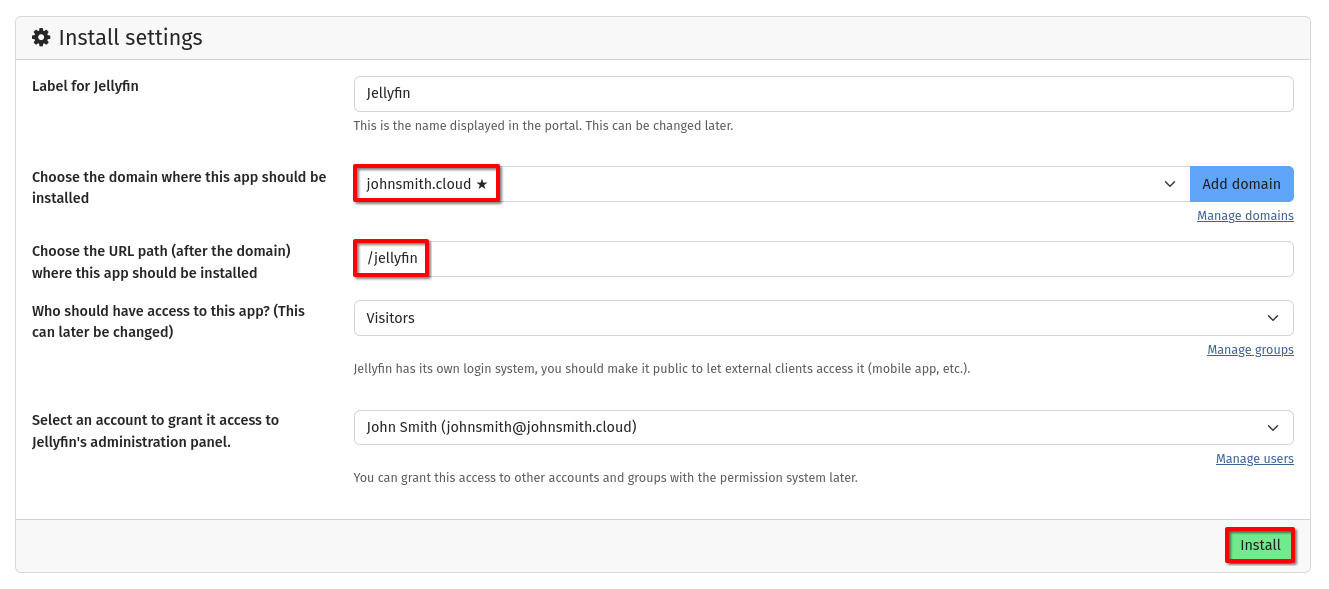
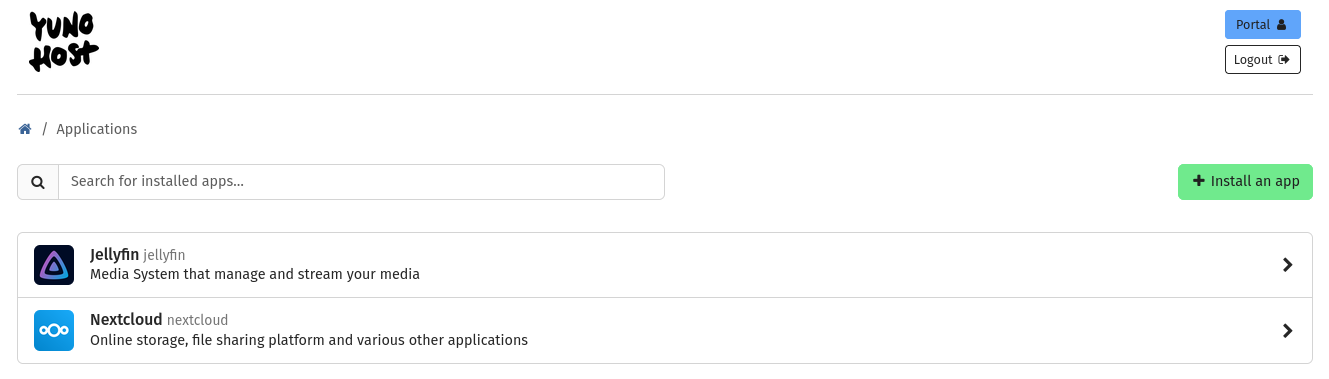
Once Jellyfin is done installing it will appear under your Applications in YunoHost along with Nextcloud.
Step 12: Login to Nextcloud & Create Media Folders
Now let's login to your Nextcloud account to create the proper media folders which we will connect to Jellyfin to read.
To access your Nextcloud instance, just got to the URL where we installed it - in this case it will be https://johnsmith.cloud/nextcloud.
Once you're logged into Nextcloud, from the Nextcloud dashboard, go ahead and click the apps icon in the top left-hand corner and then below that click on Files.
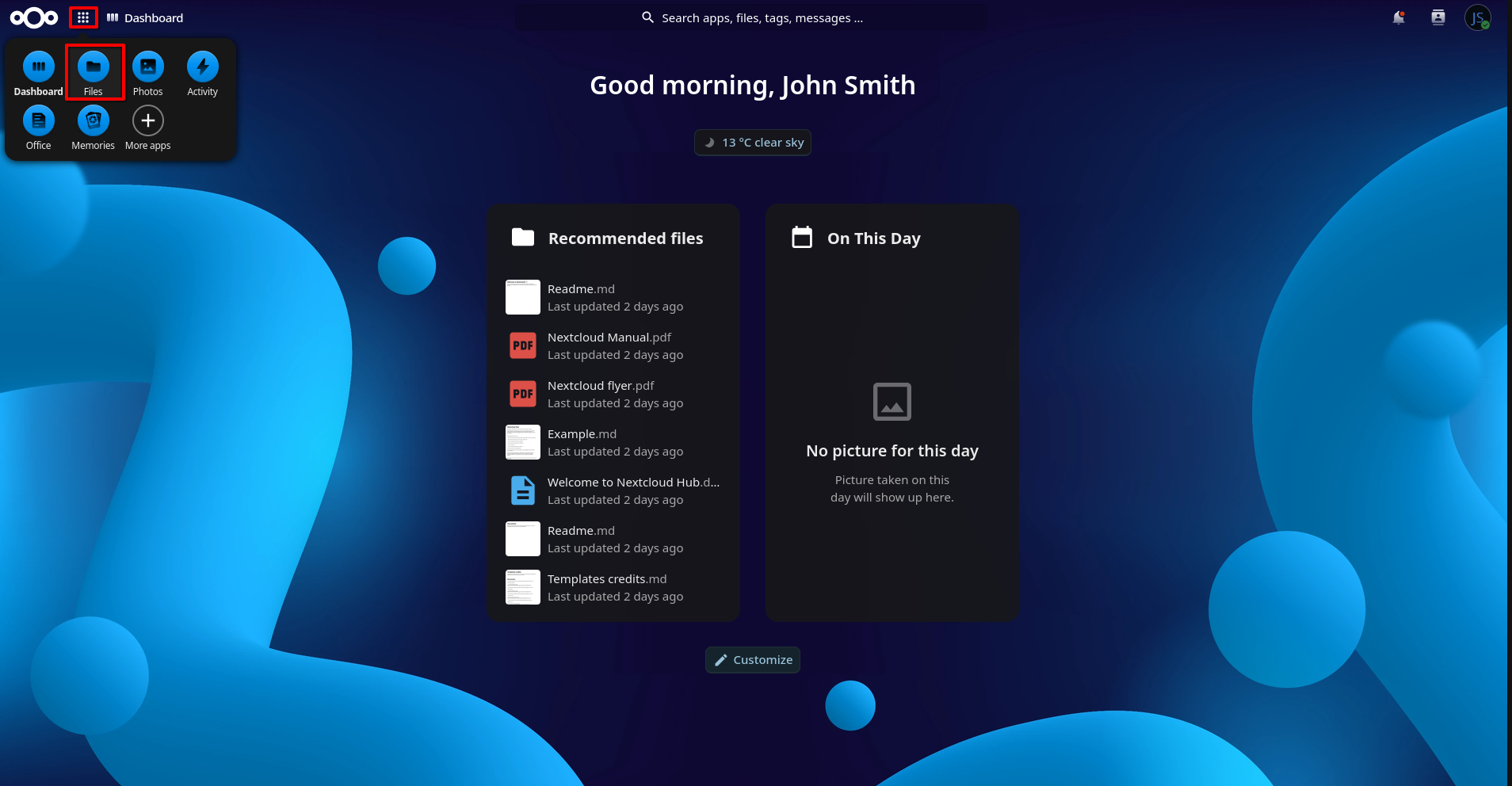
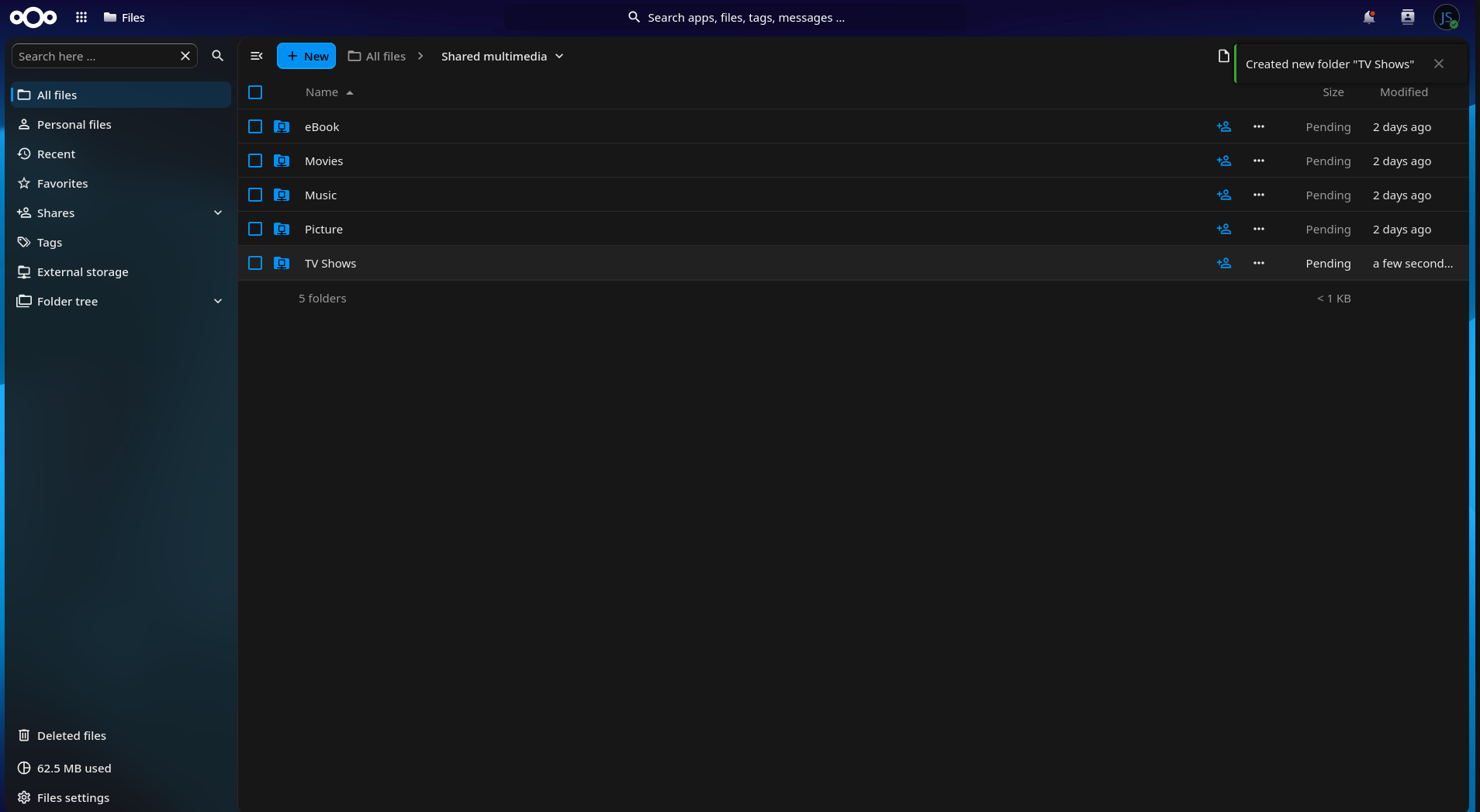
Once you're within Files, go ahead and click on Shared multimedia from the list to enter that folder. This is a shared YunoHost multimedia folder which can be read across apps so Nextcloud and Jellyfin can both access the folders and files within there. This is where we will store all of your Movies, TV Shows and Music files within designated folders all within the Shared multimedia folder so Jellyfin can access them.
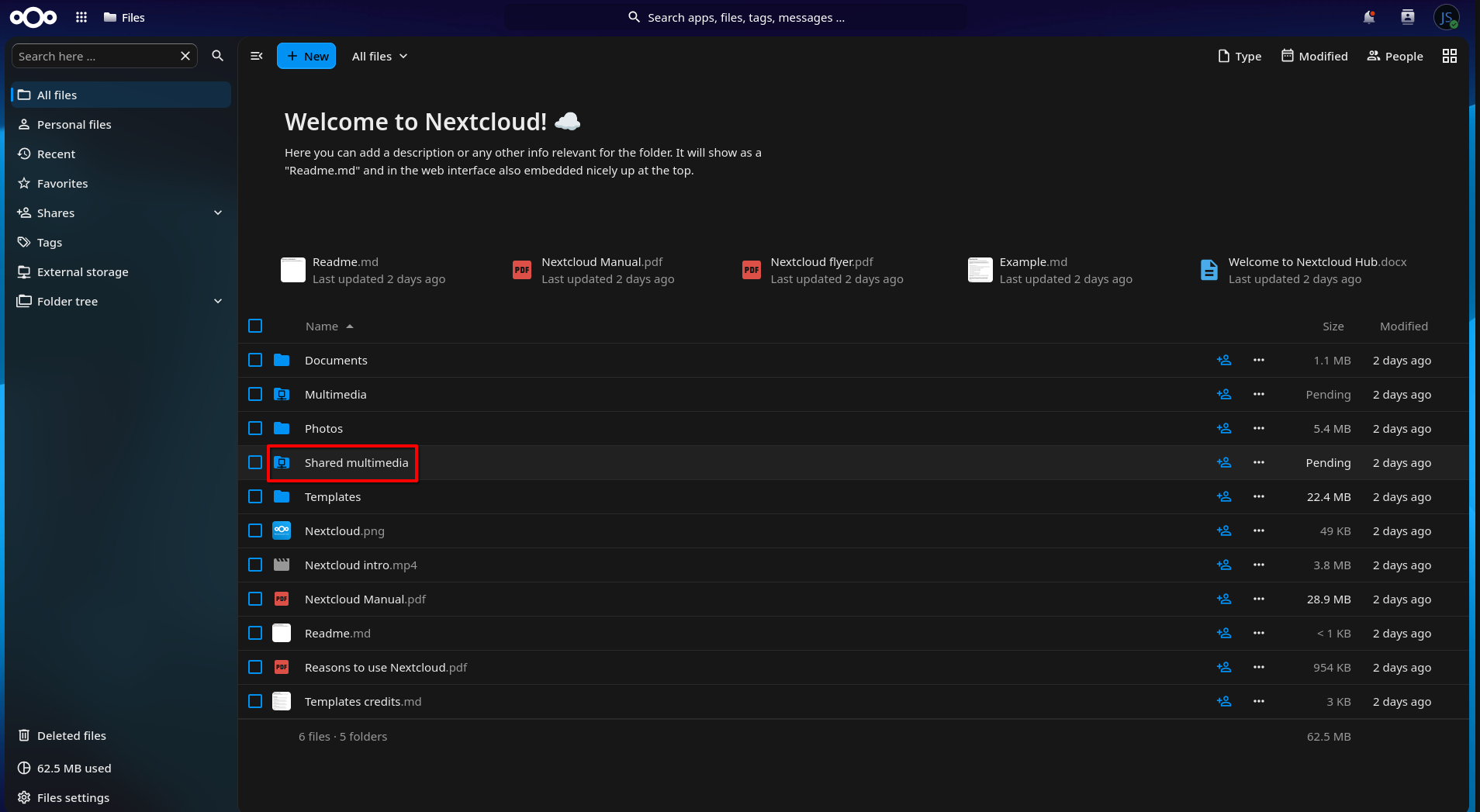
Now that we're within the Shared multimedia folder, go ahead and rename the Videos folder to Movies.
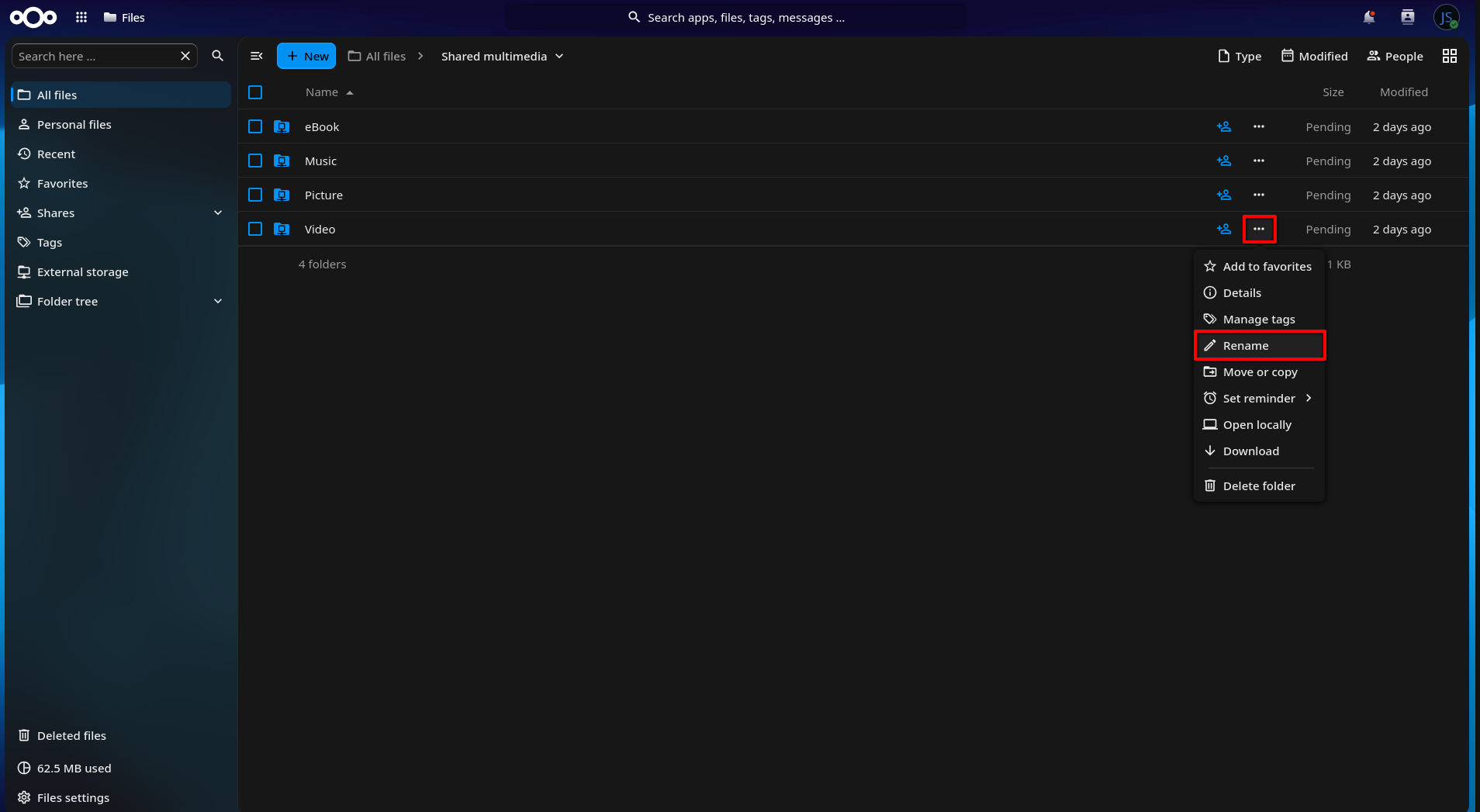
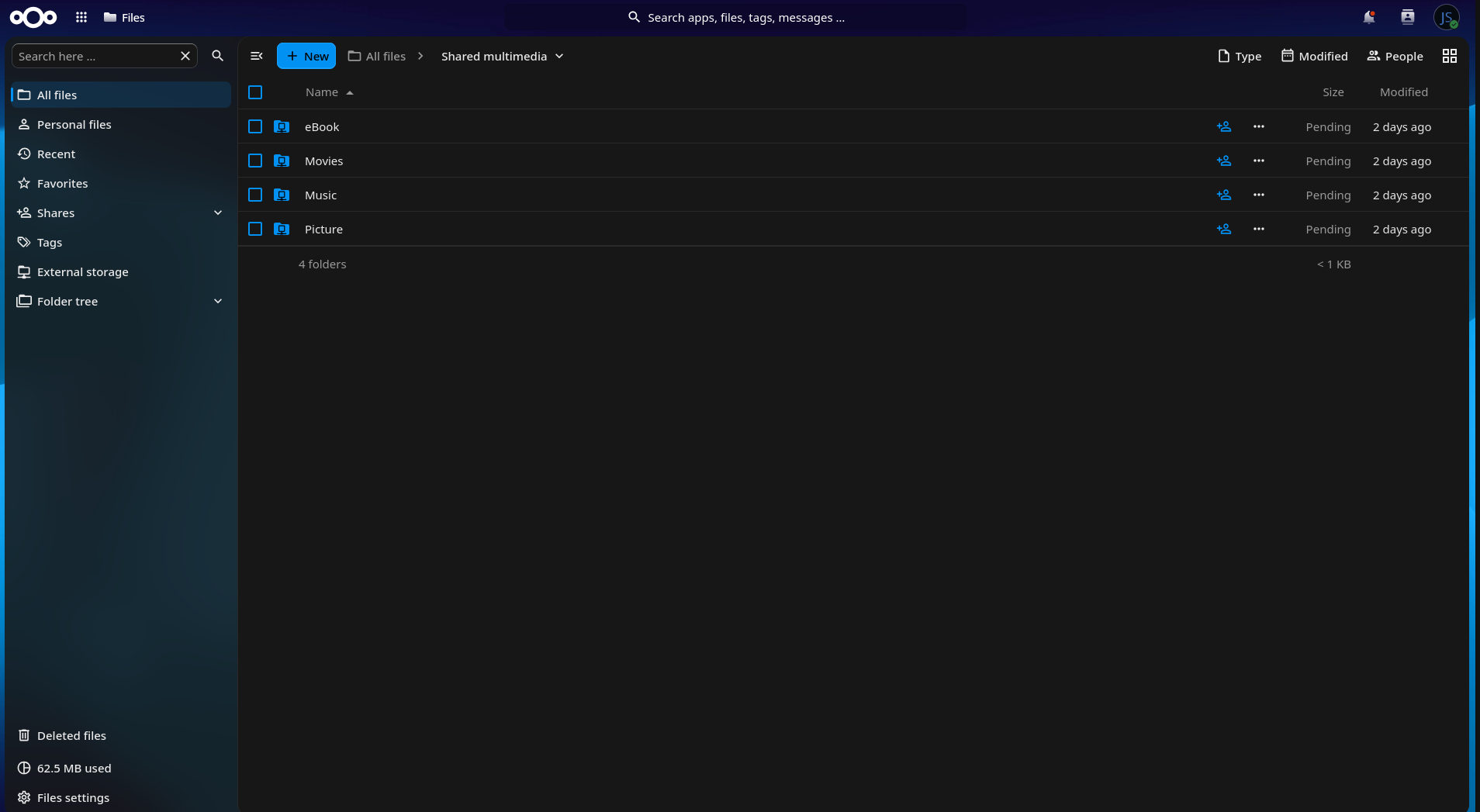
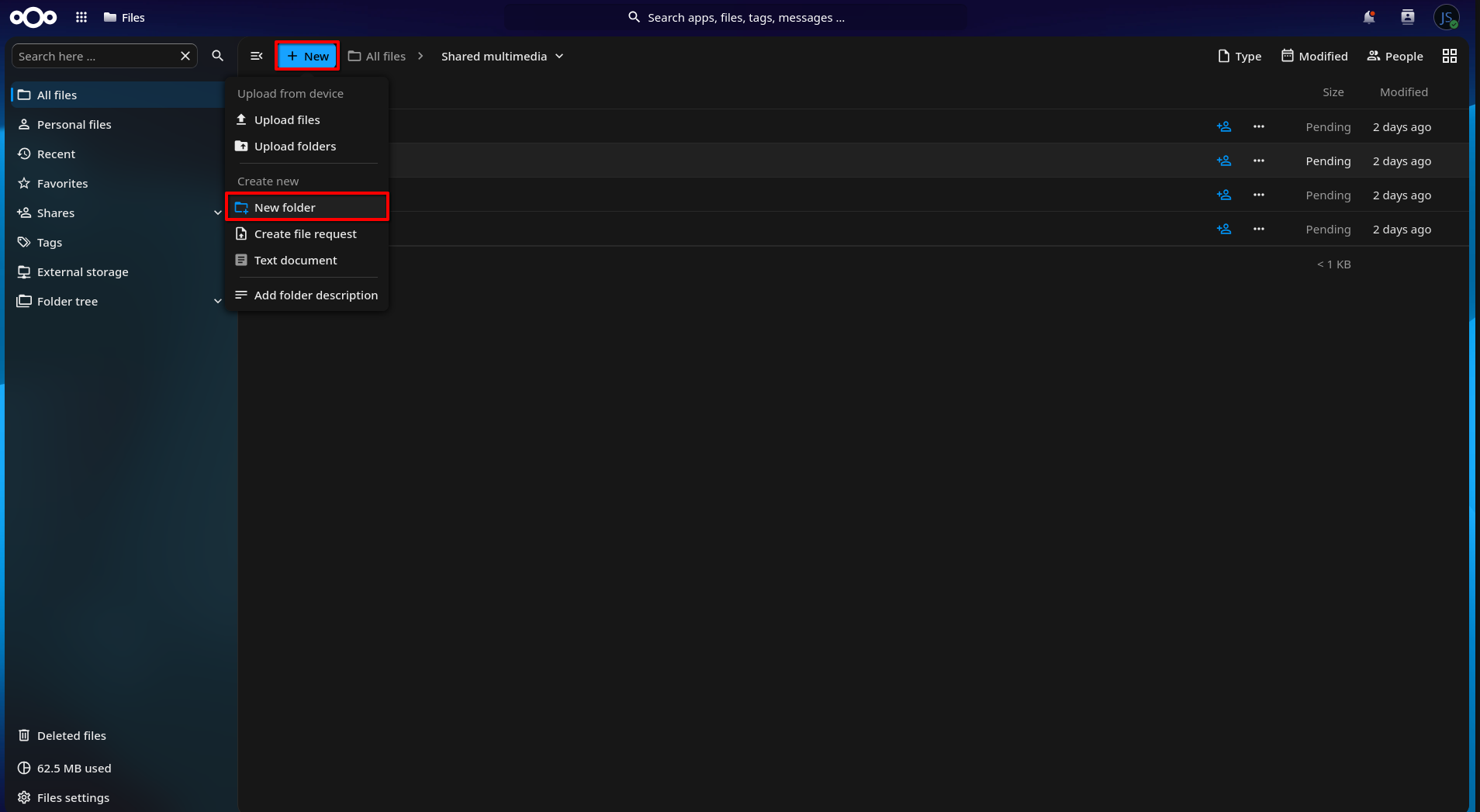
Now from the top menu, click on the + New button then click on New folder. Now just name that new folder TV Shows then click on Create.
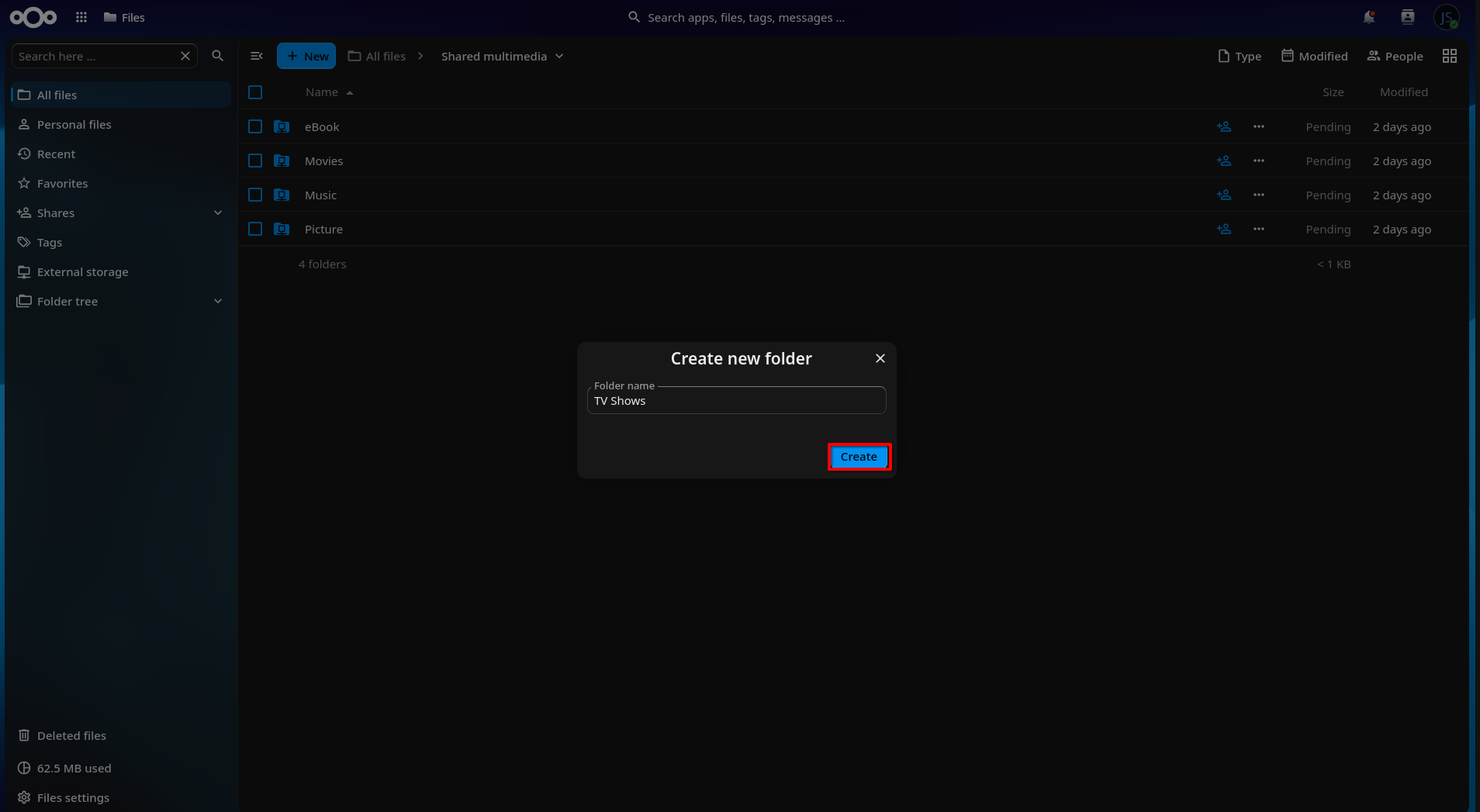
Perfect. Now within the Shared multimedia folder we should now have a seperate folder for Movies, TV Shows and Music. In Nextcloud, this is where you will load in all of your files for each media type, so the files will live within these designated folders.
Step 13: Login to Jellyfin & Connect Nextcloud Folders
Now, let's connect Jellyfin to these designated folders so that it can pull in all of your Movies, TV Shows and Music.
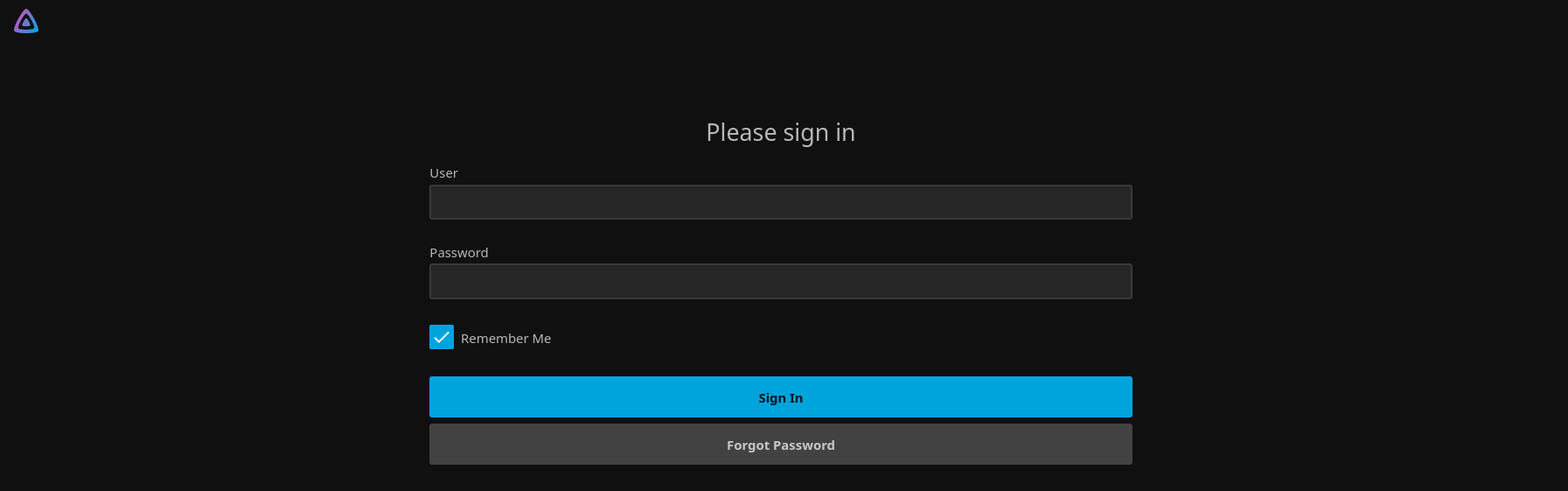
To access your Jellyfin instance, just got to the URL where we installed it - in this case it will be https://johnsmith.cloud/jellyfin. You will be met with the login screen of Jellyfin, so you can enter the same username and password you use for YunoHost admin login, then once you enter that click on Login.
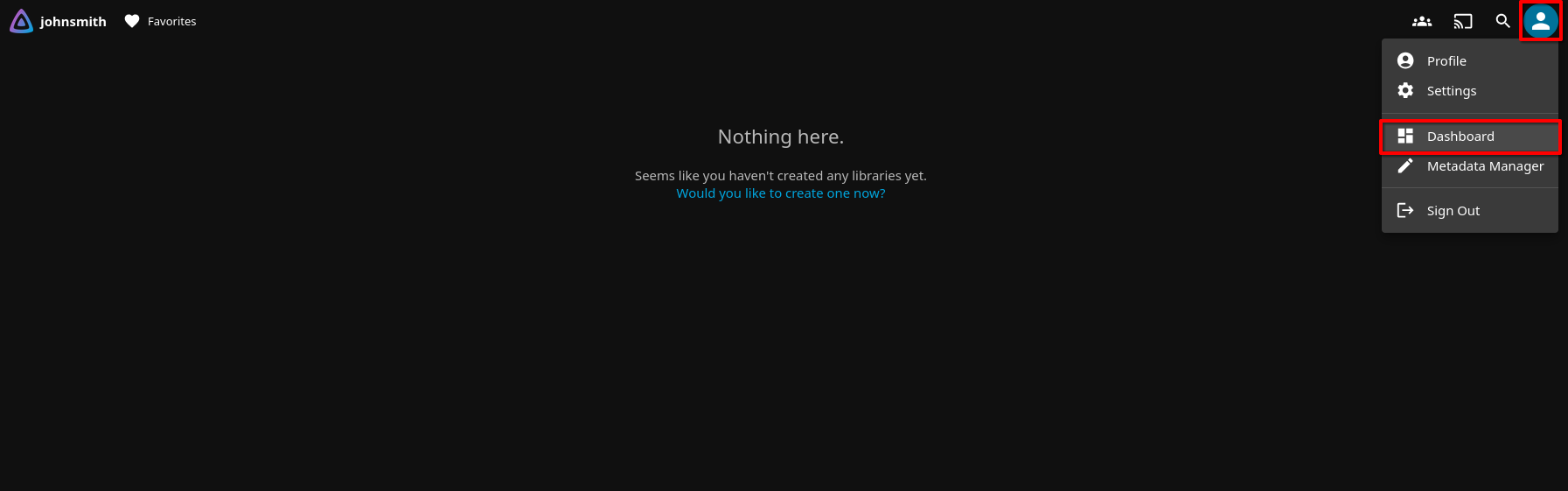
Once you are logged into Jellyfin, click on the user icon in the top right hand corner, then from the dropdown menu, click on Dashboard.
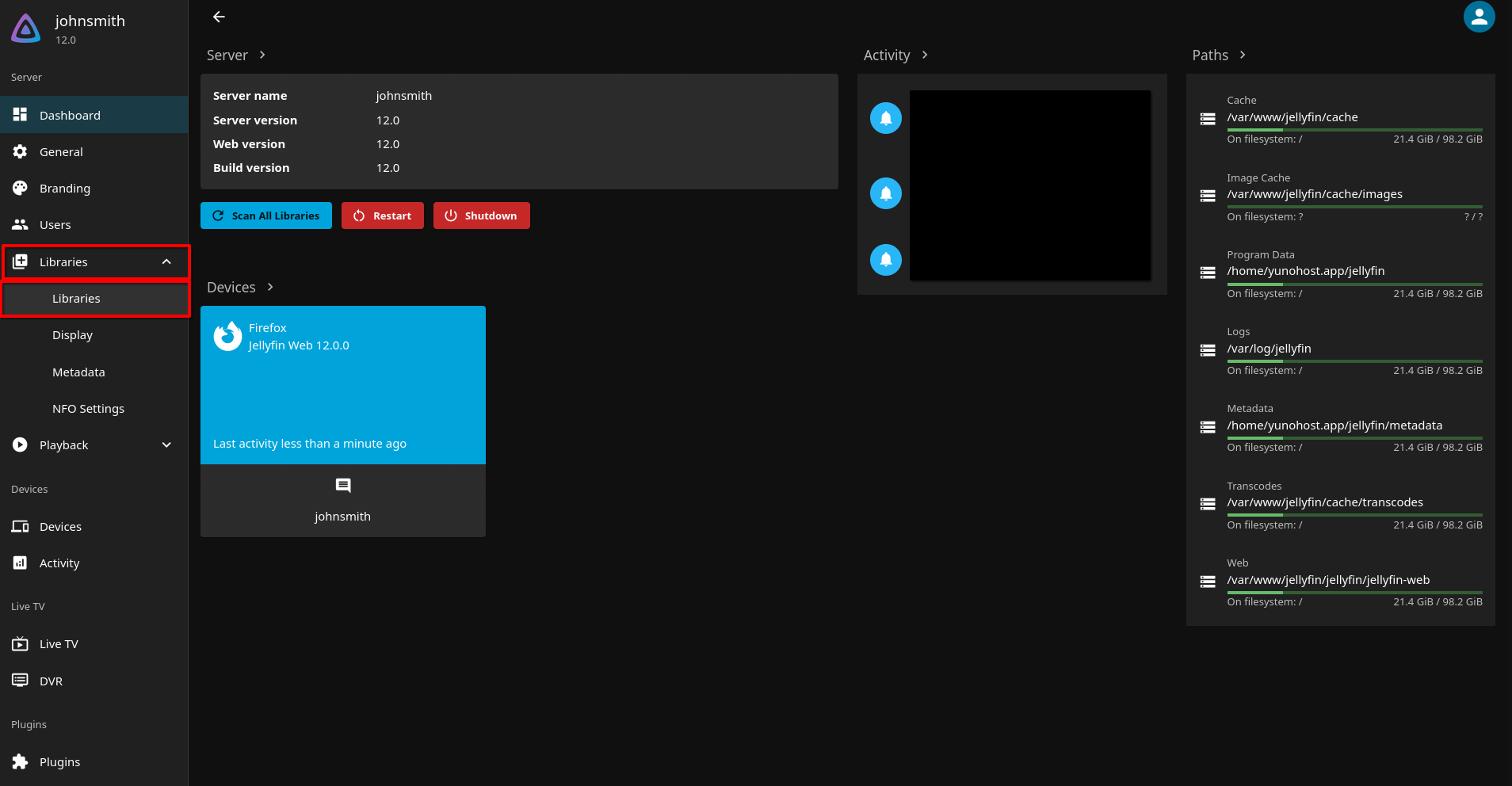
Once you are at the Dashboard, go ahead and click on Libraries on the left hand side, then below that menu click on Libraries again.
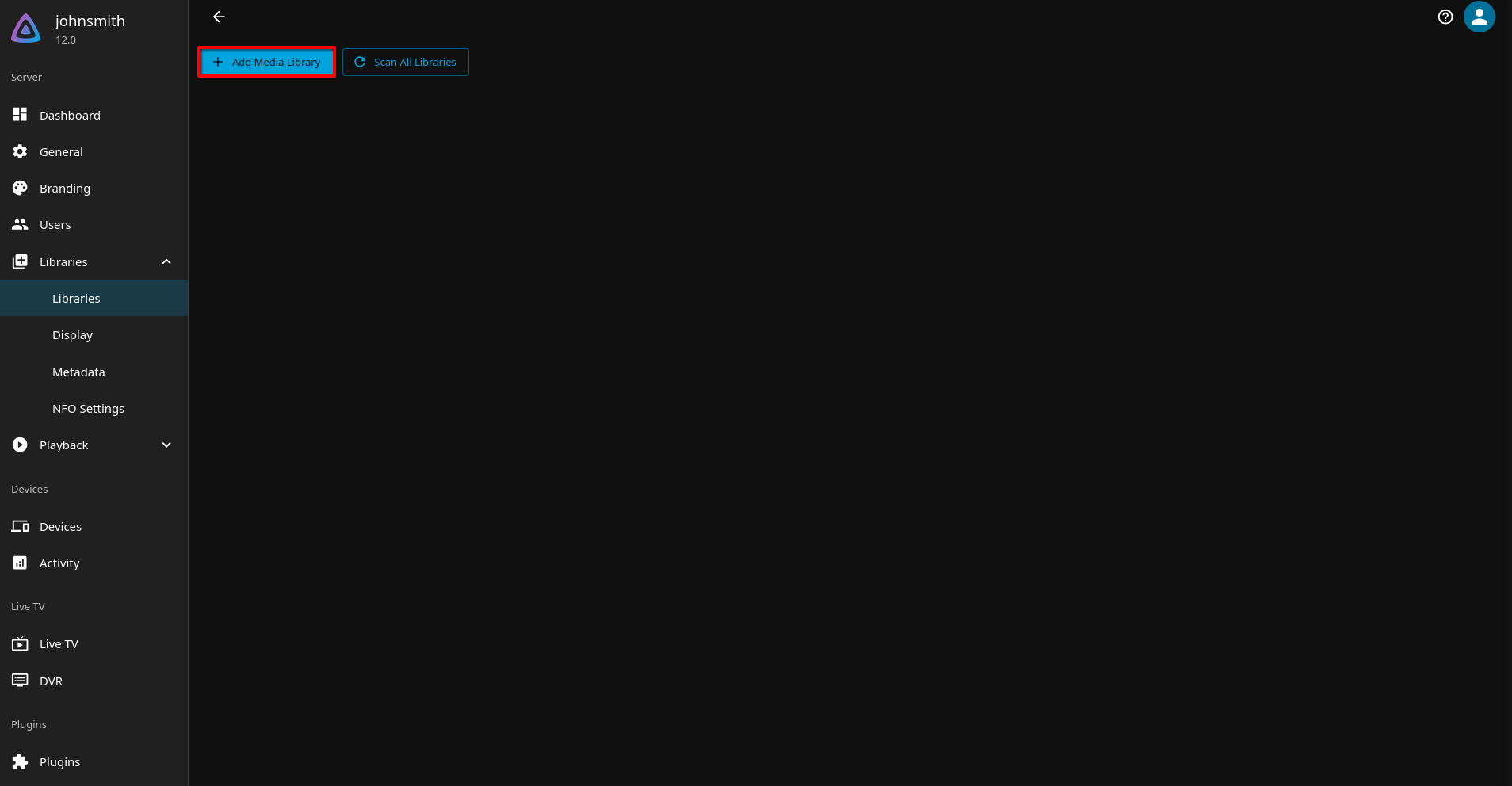
Once you're within the Libraries section of the Dashboard, go ahead and click on + Add Media Library.
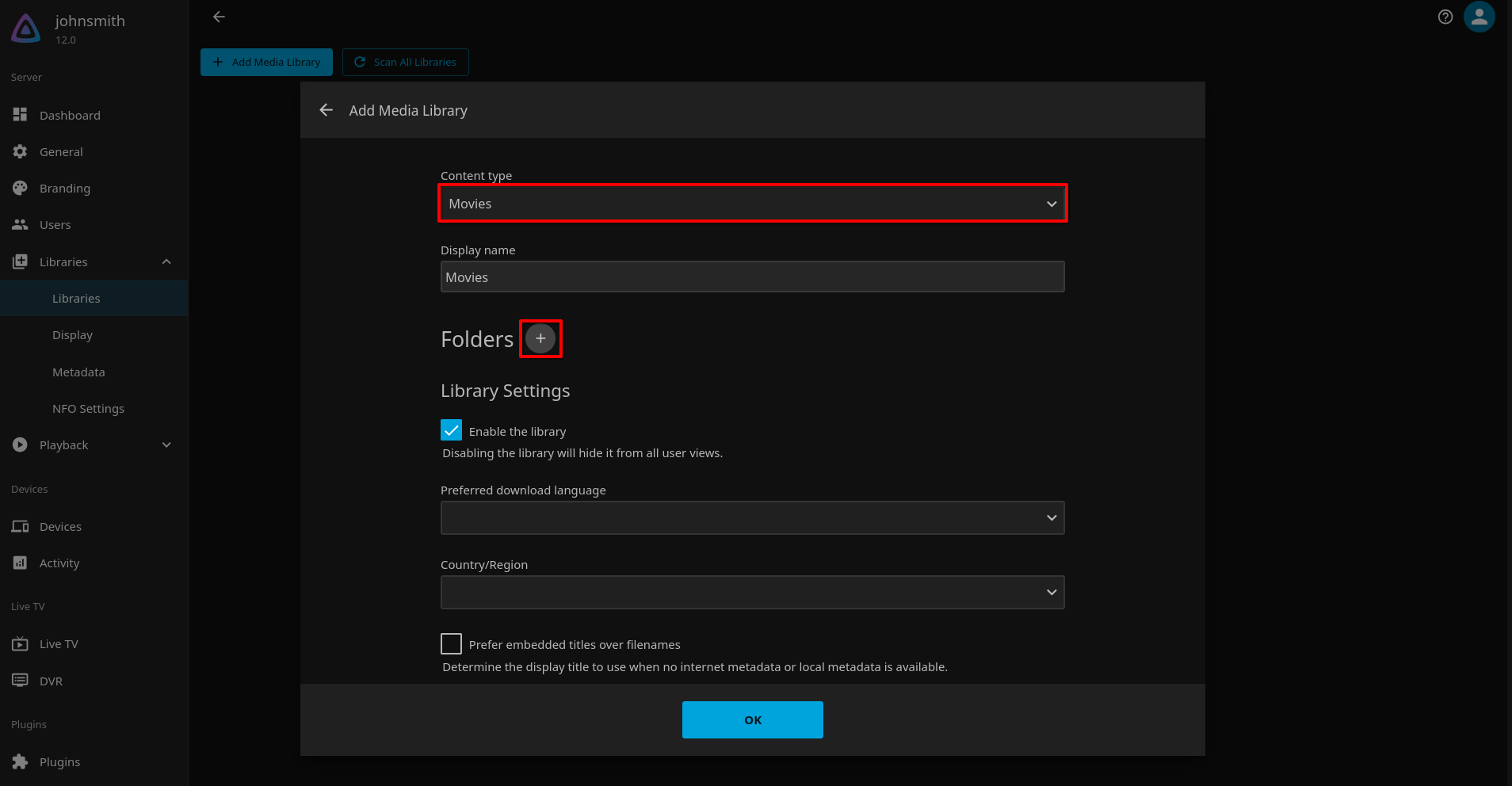
First we will setup the Movies library. Under Content Type go ahead and select Movies. After you do that, next to the Folders title, go ahead and click the + so we can connect the proper folder directory.
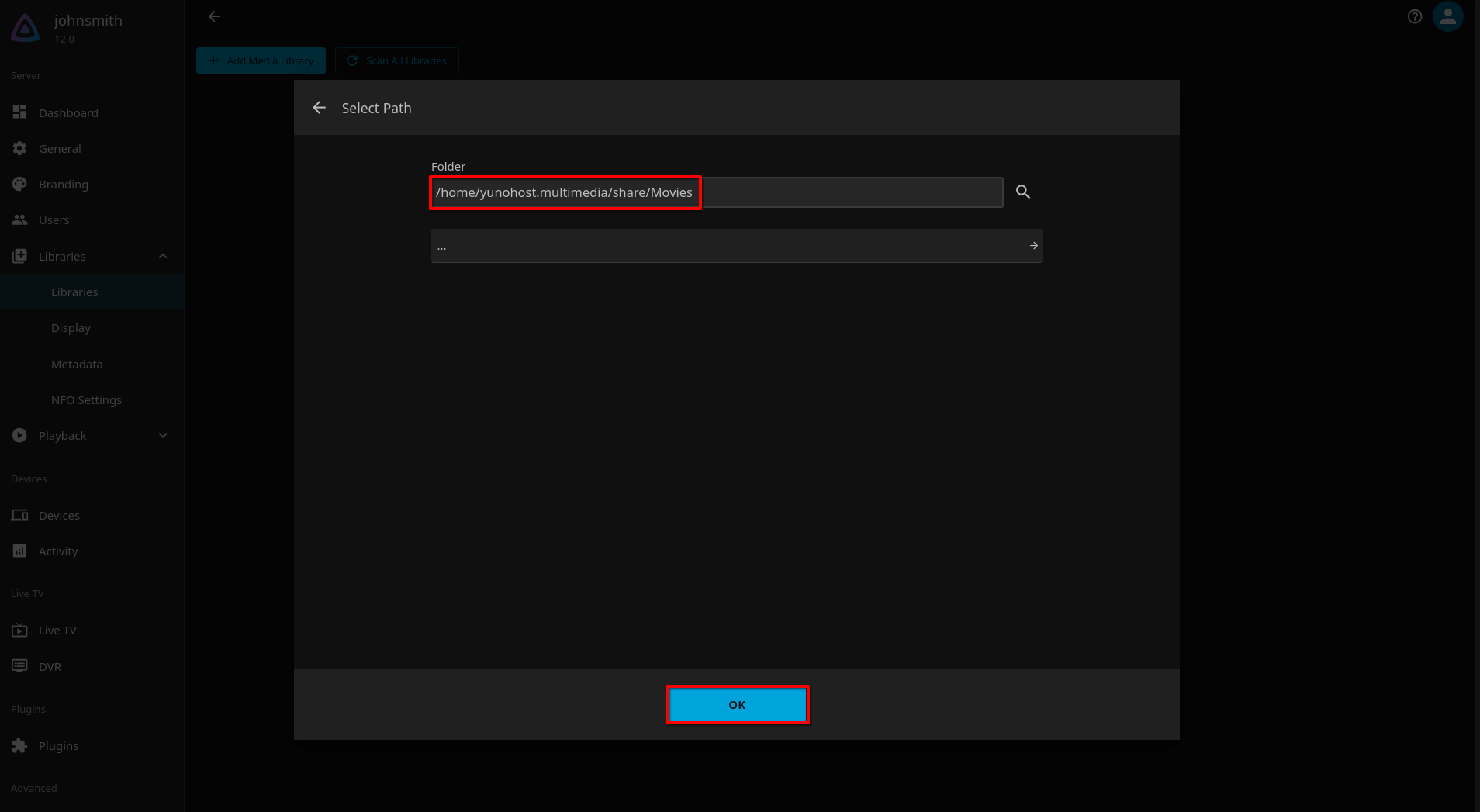
Now under Folder type this exactly /home/yunohost.multimedia/share/Movies then click OK.
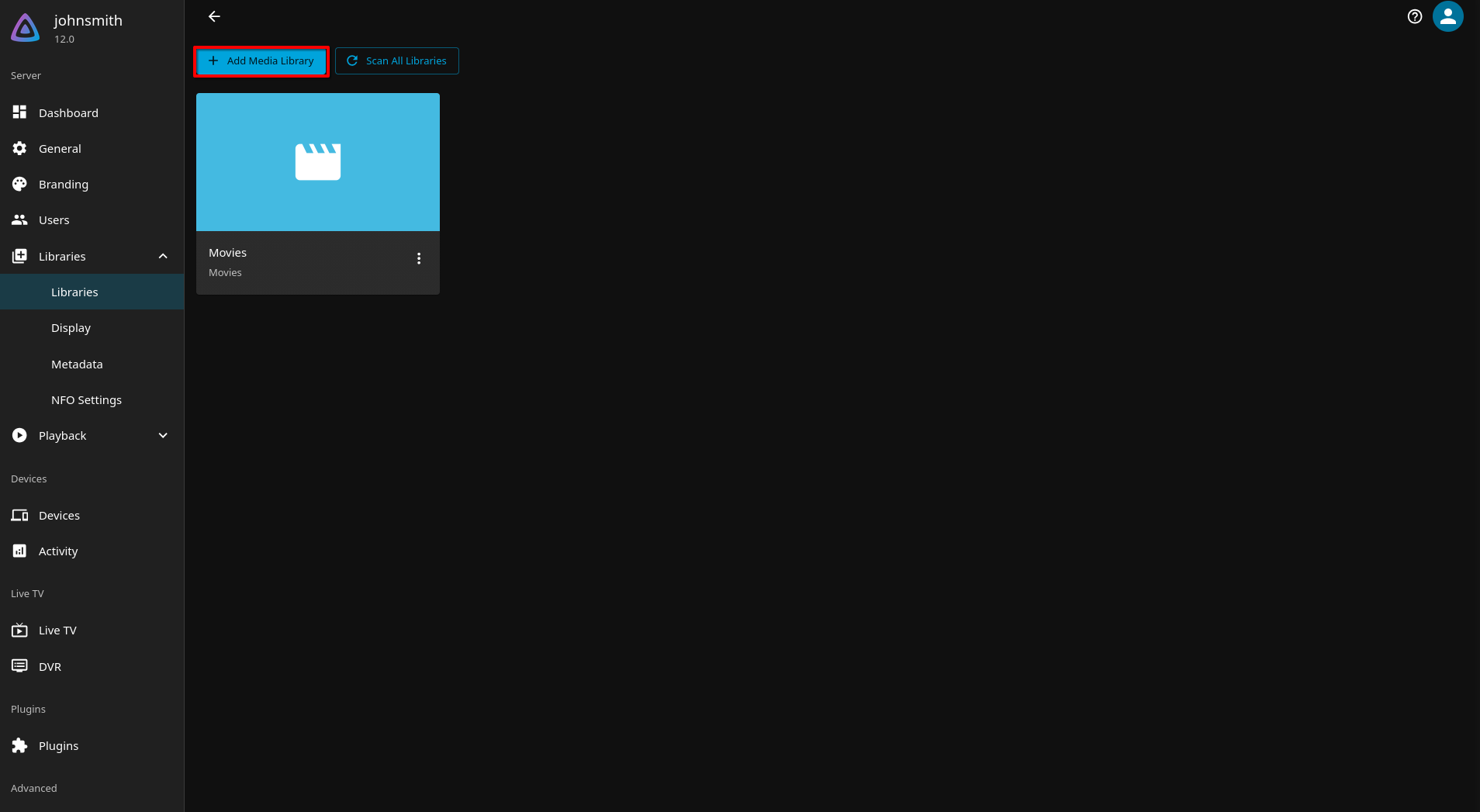
You can leave all of the default settings for the library and just click OK again to create the library.
Ok now let's create a library for TV Shows now. Once you're within the Libraries section of the Dashboard, go ahead and click on + Add Media Library again.
Now, let's setup the TV Shows library. Under Content Type go ahead and select Shows and you can change the display new to TV Shows. After you do that, next to the Folders title, go ahead and click the + so we can connect the proper folder directory.
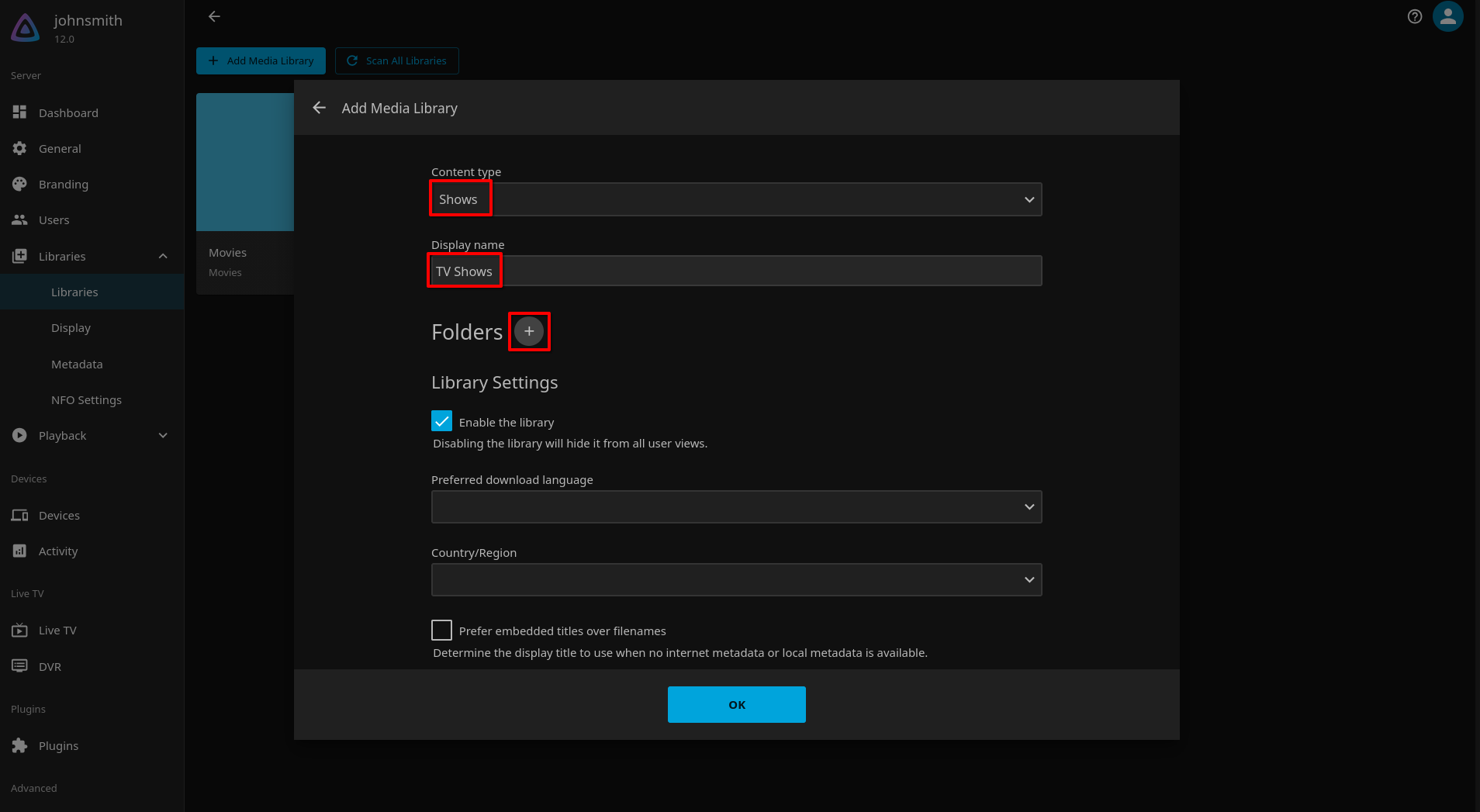
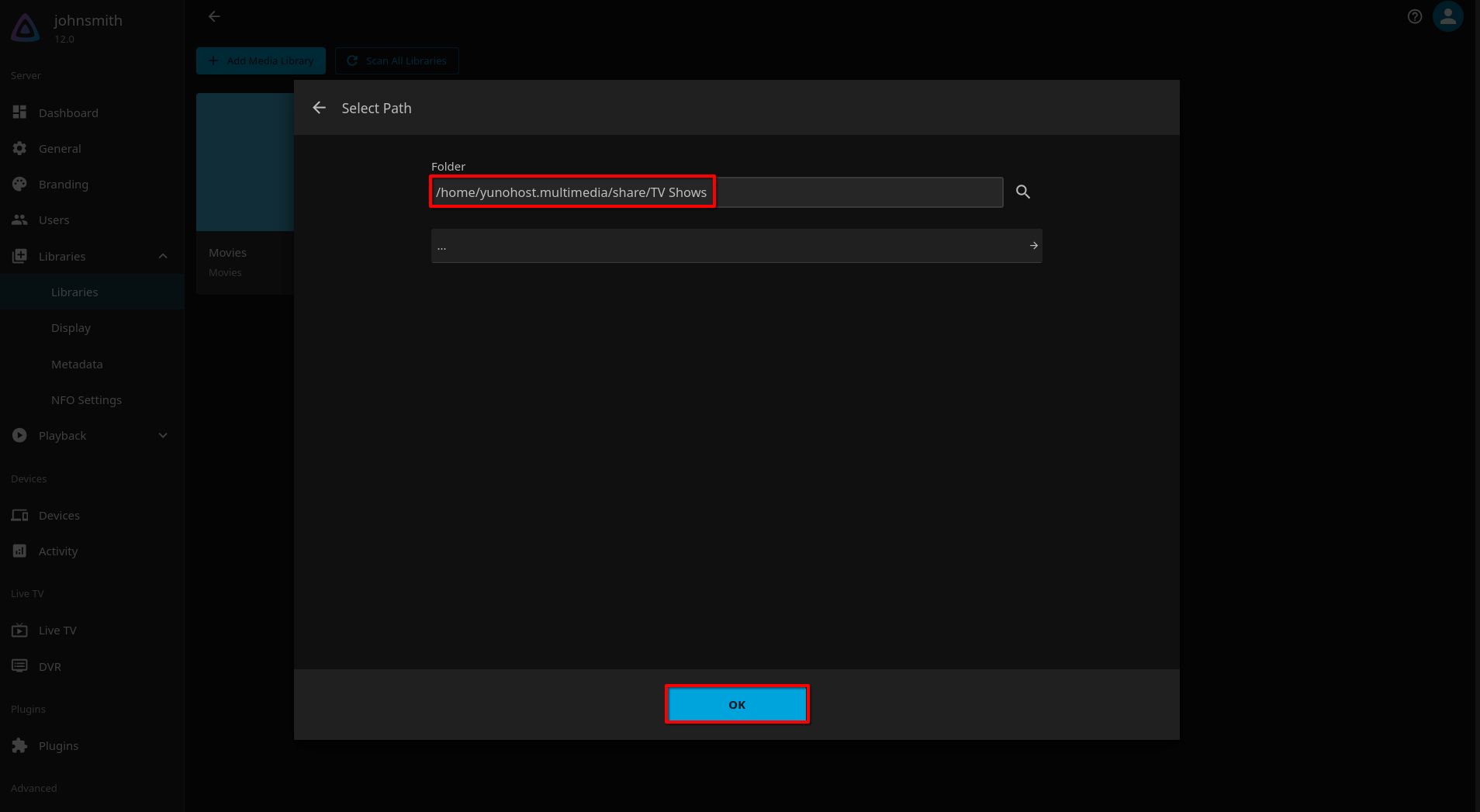
Now under Folder type this exactly /home/yunohost.multimedia/share/TV Shows then click OK.
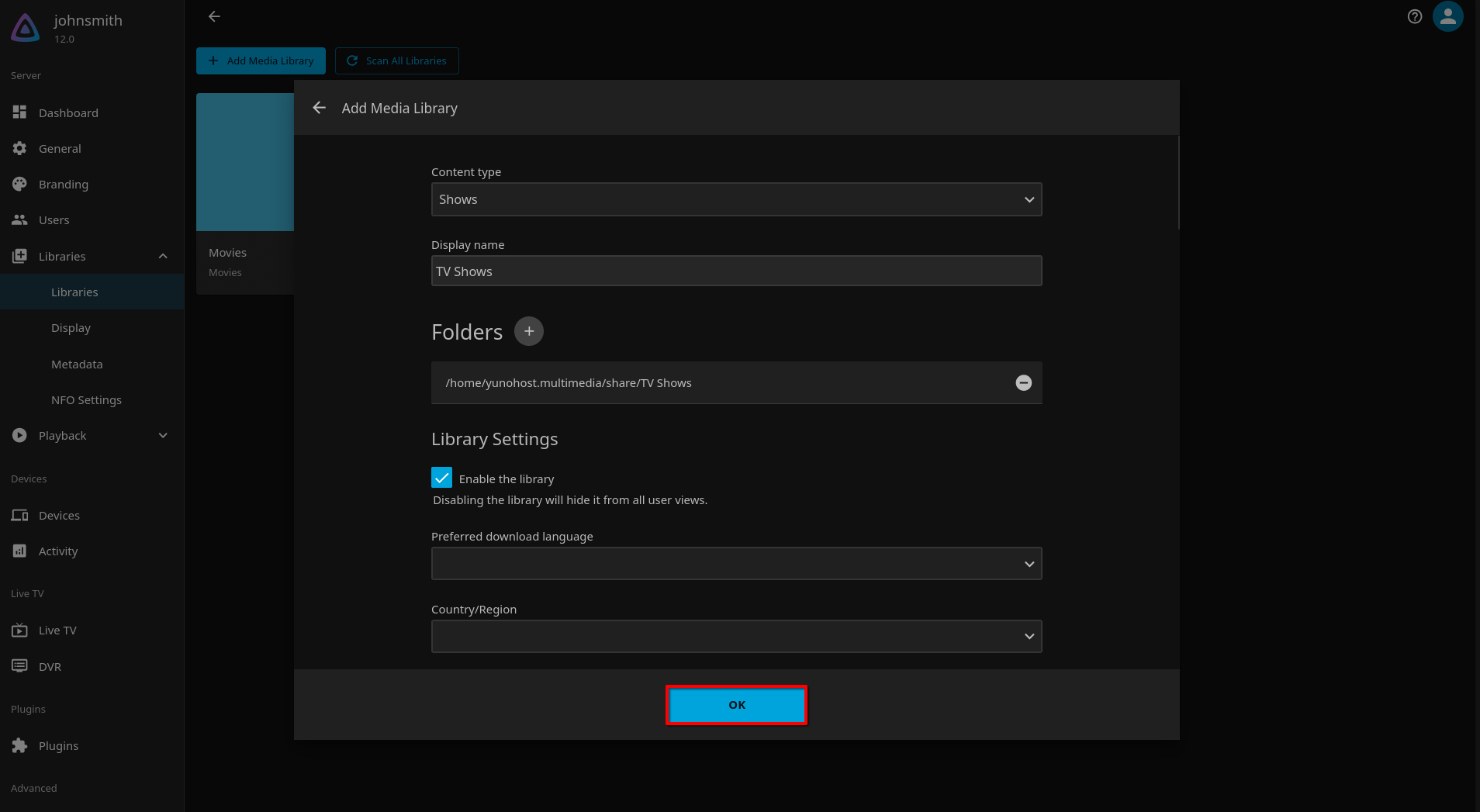
You can leave all of the default settings for the library and just click OK again to create the library.
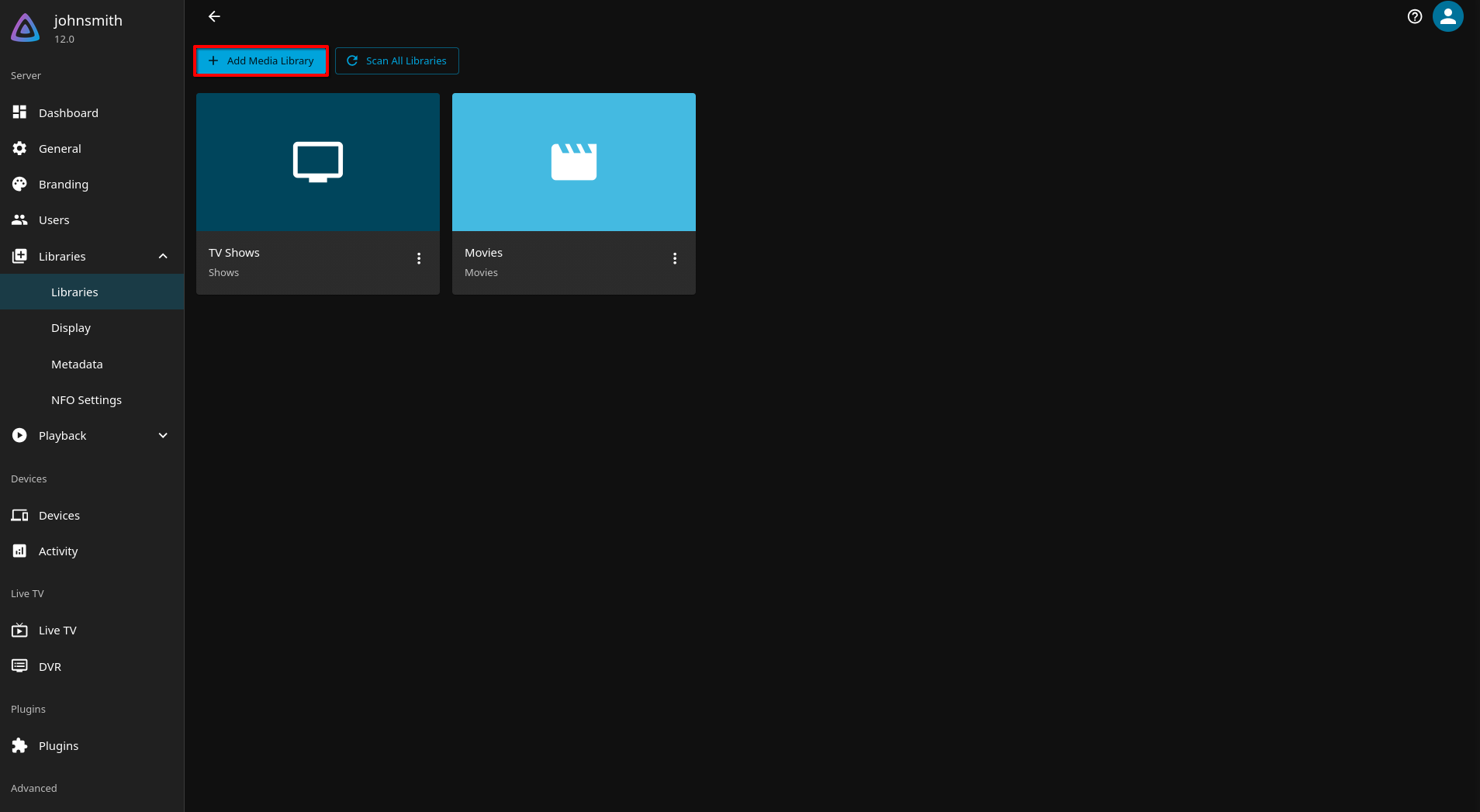
Ok now let's create a library for Music now. Once you're within the Libraries section of the Dashboard, go ahead and click on + Add Media Library again.
Now, let's setup the TV Shows library. Under Content Type go ahead and select Music. After you do that, next to the Folders title, go ahead and click the + so we can connect the proper folder directory.
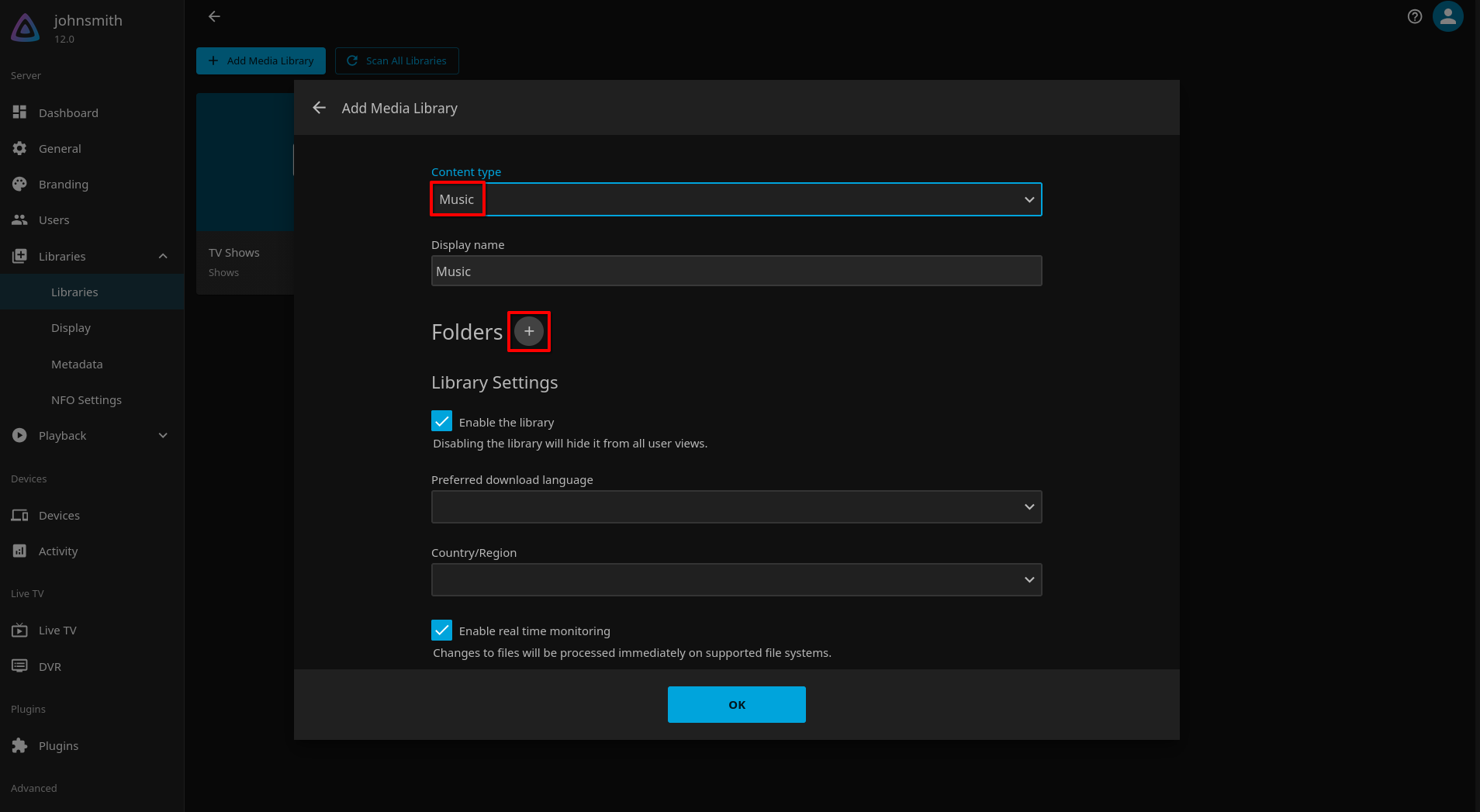
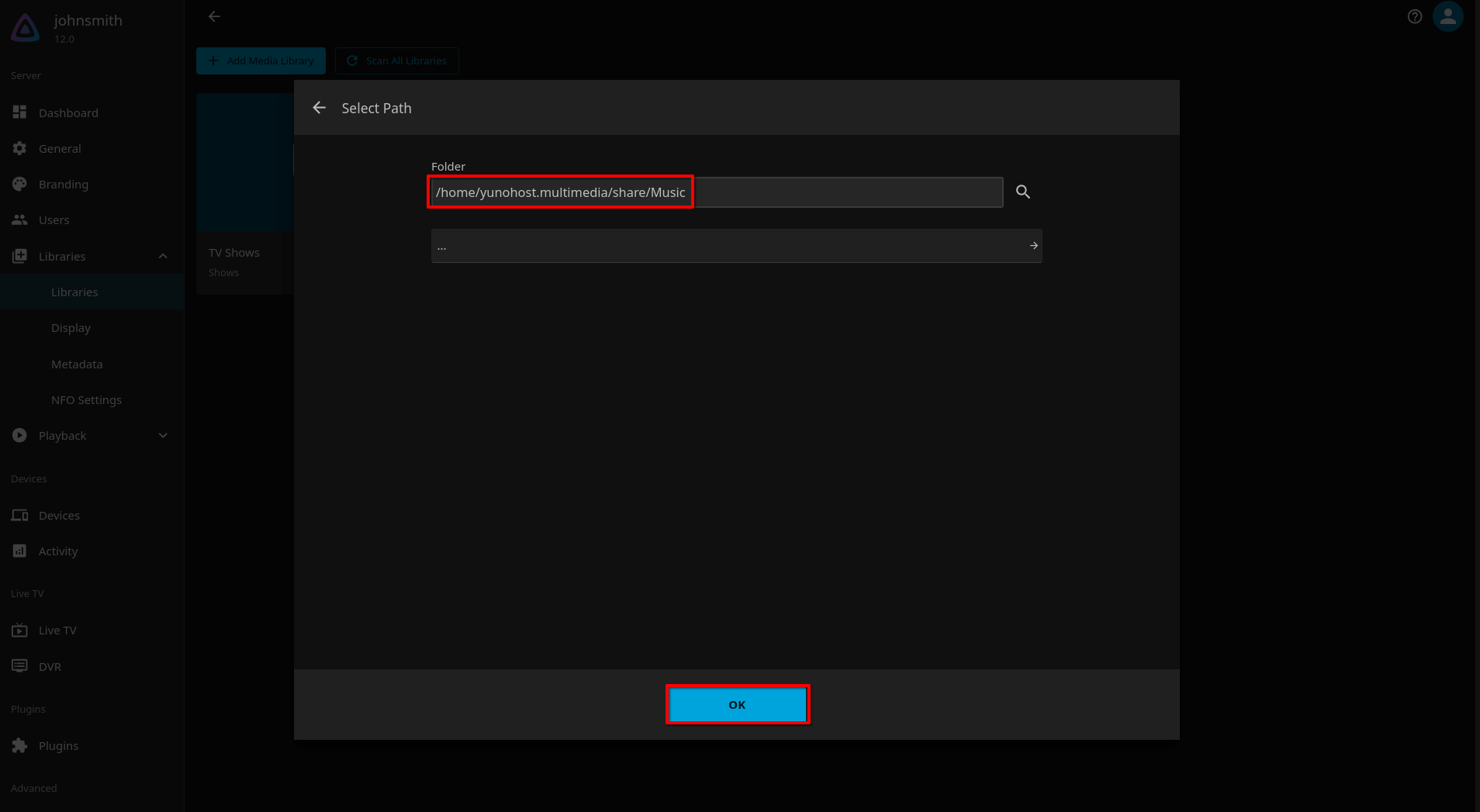
Now under Folder type this exactly /home/yunohost.multimedia/share/Music then click OK.
You can leave all of the default settings for the library and just click OK again to create the library.
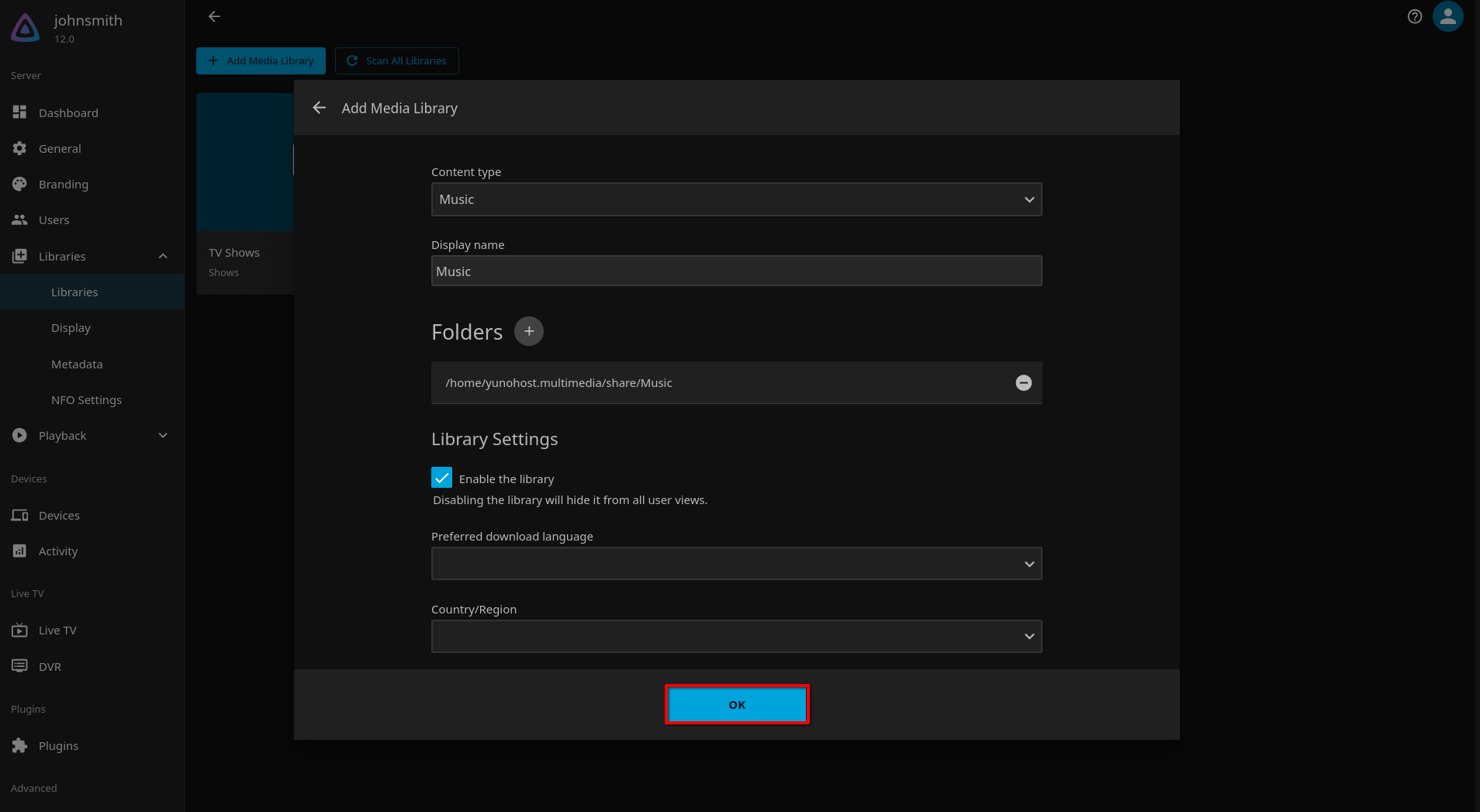
Perfect, now we have all of our libraries synced with the proper Nextcloud shared folder for all of our Movies, TV Shows and Music. Now, we just need to start adding media files (.MP4, .MP3 files etc) into those folders within Nextcloud.
Step 14: Upload Media Files into Nextcloud Folders
Now you just need to upload all of your media files into those folders in Nextcloud. You can do so from the web interface by just logging into Nextcloud and dragging and dropping files into the correct folders.
For example, on your laptop just log into https://johnsmith.cloud/nextcloud for example, then within Files -> Shared multimedia -> Movies, just drag and drop movie files into this folder.
For example, if you have The Dark Knight (2008).MP4 downloaded, create a folder with the movie name and add the .MP4 file into that folder, so the organization logic would be Files -> Shared multimedia -> Movies -> The Dark Knight (2008) -> 'The Dark Knight (2008).MP4'
This will keep your organization clean. Here is the naming and organization logic you should use in Jellyfin while organizing your personal media.
Naming Convention Logic
Movies
Files -> Shared multimedia -> Movies -> The Dark Knight (2008) -> 'The Dark Knight (2008).MP4'
TV Shows
Files -> Shared multimedia -> Movies -> The Wire -> Season 1 -> 'The Wire - S01E01 - The Target.mp4'
Music
Files -> Shared multimedia -> Movies -> The Notorious B.I.G. -> Ready to Die (19940 -> '01 - Intro.mp3'
Pro tip: If you want to load media into your VPS but not use all the space on your computer, you can use the Nextcloud Desktop client to sync folders to your desktop. Then, just create a new folder called 'Temporary Media' where you can simply just drag and drop movies, shows and music files and folders into. The Nextcloud Desktop client will automatically upload it to your VPS. Once it's uploaded into your VPS, just move the files or folders into the correct location on your VPS from Files -> Shared multimedia -> Temporary Media, over into the correct folder for example Files -> Shared multimedia -> Movies. This way you don't have to use the Nextcloud Desktop Client app to sync the actual folder as all of that media will sync to your hard drive on you computer and use up the space.
Once all of your media is loaded into the correct folders, the libraries in Jellyfin will automatically sync with them and pull in all over your Movies, TV Shows and Music.
Step 15: Backing Up Nextcloud & Jellyfin Files
When backing up data, you should use the 3-2-1 backup method which is a data protection strategy that recommends keeping three copies of your data on two different types of storage, with one of those copies being stored physically in an off-site location.
So in regards to backing up your data securely, I recommend doing two options.
The first, is turning on auto-backups for your VPS instance within Contabo, which will make a daily copy of your entire VPS instance and all files, movies, tv shows, music etc onto a seperate encrypted hard drive in a different data center. This builds one redundancy and Contabo is very helpful with recovering your data even if you somehow lose your logins to your Contabo account.
The second, is you should once or twice a year, make a manual backup of your Nextcloud files to an external hard drive that you physically own. I'd recommend buying one with enough space for your needs, and then downloading the Nextcloud Desktop client which will automatically sync all the files and folders you want to select from Nextcloud to copy to your hard drive.
You basically just need to download the Nextcloud Desktop app for MacOS, Windows or Linux, then plugin in the hard drive you want to make a copy to, and let it sync all of the data to the hard drive. Then make sure to save that drive in a safe place.
This will cover the proper 3-2-1 backup method to ensure your files and photos are always safe and secure with backups.
Summary
So that's it! We've officially setup Jellyfin and Nextcloud via YunoHost on your private VPS, connected it to your domain name for easy-access, connect Jellyfin to Nextcloud shared folders, loaded in all of your personal media files and learned how to backup all of your data safely and securely.
If you liked this guide, please make sure to share it with friends or family members to help them get setup with Jellyfin as well!
And make sure to subscribe to the YouTube Channel if you enjoyed! Cheers!